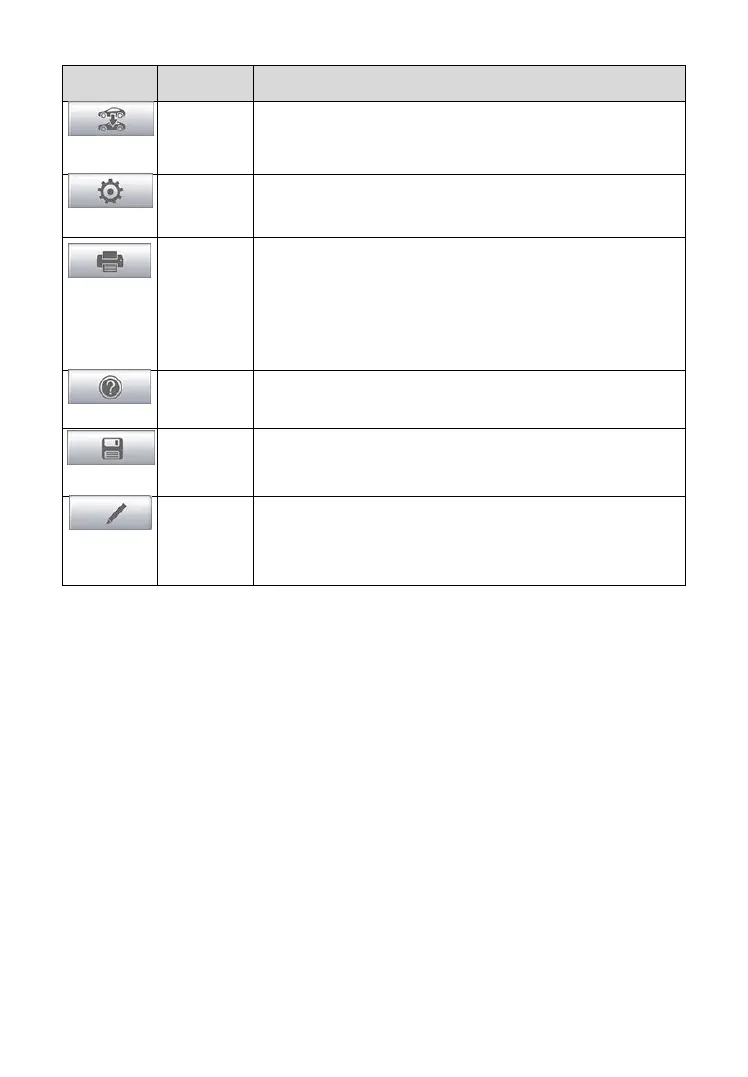
22
Exits the service session of the currently identified
test vehicle and returns to the vehicle menu screen.
Opens the settings screen. See Settings on page
70 for details.
Prints a copy of the displayed data. See Tap the
Home button on the top left corner to return to the
MaxiCheck Job Menu, or tap another setting to
adjust.
Printing Setting on page 71 for details.
Displays operations instructions or tips.
Saves the current page. See Data Manager on
page 65 for details.
Records the communication data and ECU
information of the test vehicle. See Data Logging on
page 85 for details.
To print data in Diagnostics
1. Tap the Diagnostics application button from the MaxiPRO Job
Menu. The Print button on the diagnostic toolbar is available
throughout the Diagnostics operations.
2. Tap Print. A drop-down menu displays. Tap Print This Page to
print a screen shot copy of the current screen.
3. A temporary file will be created and sent to the connected
computer for printing.
4. When the file is transferred successfully, a confirmation message
displays.
To submit Data Logging reports in Diagnostics
1. Tap the Diagnostics application button from the MaxiPRO Job
Menu. The Data Logging button on the diagnostic toolbar is
available throughout the Diagnostics operations.
2. Tap the Data Logging button. The button displays blue during the
active recording process.









 To Next Page