29
NOTE
Toolbar functions such as saving and printing of the test results can be
performed throughout diagnostic testing. Data logging and access to help
information are also available.
To perform a diagnostic function
1. Establish communication with the test vehicle.
2. Identify the test vehicle by selecting from the menu options.
3. Select the Diagnosis section.
4. Locate the required system for testing by Auto Scan or through
menu driven selections in Control Units.
5. Select the desired diagnostic function from the Function Menu.
ECU Information
This function retrieves and displays the specific information for the tested
control unit, including unit type, version numbers and other specifications.
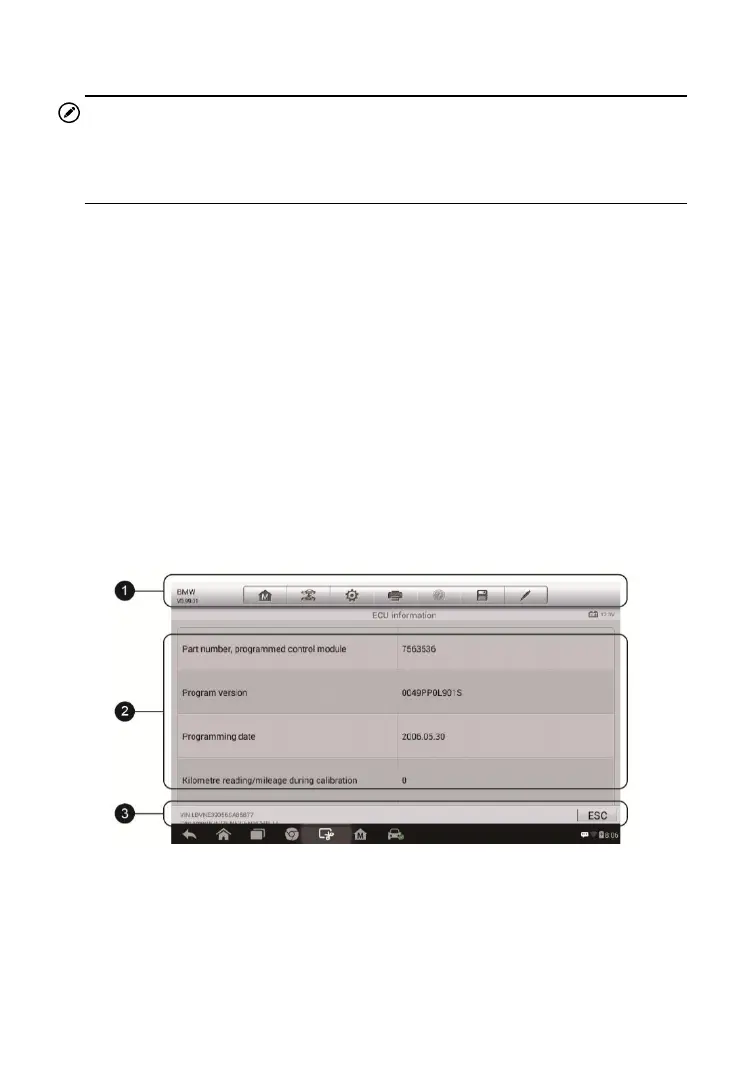
The sample ECU Information screen displays as below:
1. Diagnostics Toolbar Buttons – see Table 4- 2 Diagnostics Toolbar
Buttons on page 21 for detailed descriptions of the operations for each
button.
2. Main Section – the left column displays the item names; the right
column shows the specifications or descriptions.
Figure 4- 12 Sample ECU Information Screen










 To Next Page