16
TEMPO BUTTON
DESCRIPTION
This button is only used to turn the metronome on
and o. When turned on, the button light will flash.
You can go to SYSTEM-LCD/LED to turn o the light.
PAD CUE BUTTON
DESCRIPTION
Preview the tone button. Press and hold this button
and all sounds will be output from the headphone
jack only.
BT BUTTON DESCRIPTION
Bluetooth function button, press to turn on/o the
function. The default state is o, and the indicator
light is o; after turning on, the indicator light
flashes and enters the waiting state; when the
Bluetooth connection is successful, the indicator
light is always on. The Bluetooth function of this
device only supports receiving audio and MIDI
transmission.
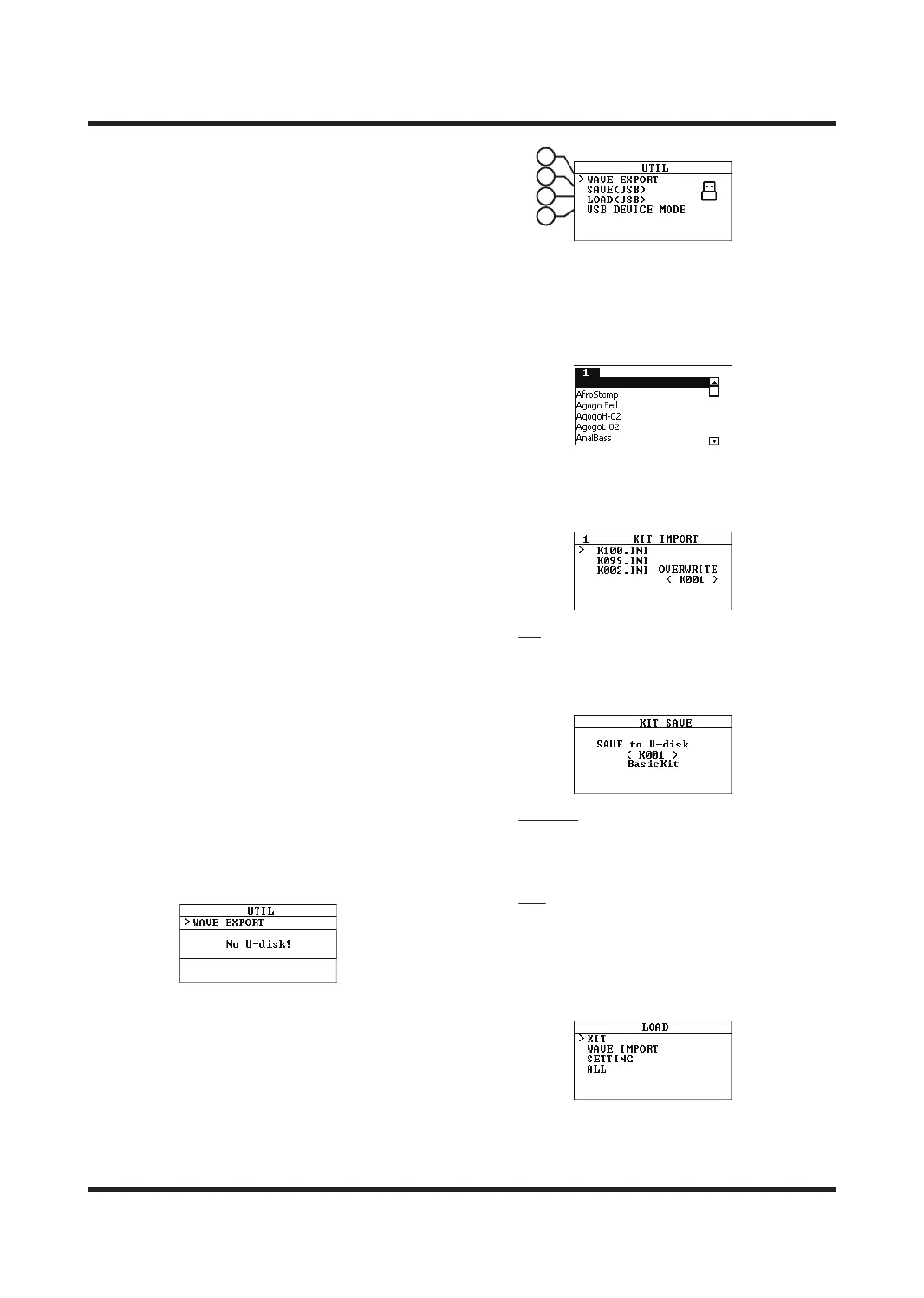
UTIL INTERFACE
DESCRIPTION
This menu is used to import or export sounds,
settings, kit configurations, etc.
Tips:
1. This product only supports USB flash drives in
FAT32 format.
2. If the USB flash drive is not connected correctly,
it will prompt "NO Udiak".
3. Only supports importing audio files with 16-bit
sampling rate, 48KHz, dual channels and
extension name .wav.
A. WAVE EXPORT
To export a single sound file, press the [OK]
button to jump to the sound list, select the
sound file to be exported, and press the [OK]
button again. The Wave file will be saved to the
USB flash drive.
B. SAVE<USB>
Press the [OK] button to enter the export option
page, generate a file according to the options
and save it to the USB flash drive.
KIT
Exports the contents of a single kit (including
the kit and kit configuration parameters);
Use the [-]/[+] buttons to select the kit to be
exported, and press the [OK] button to confirm.
SETTING
Exports the global settings of this device
(excluding kit configuration parameters and
patch files).
ALL
Exports all kit contents and global parameter
settings.
C. LOAD<USB>
Press the [OK] button to enter the import
options page.
A
B
C
D



 To Next Page