IP Office Integration - Page 53
DECT - Installation Manual Page 53
38HBKD0001SAH – Issue 14 (27th October 2003) DECT Configuration Software
5. Click on Test. If communication with the DECT has not been
established, check the connection between the PC and the DECT (see
pages 30 and 32 respectively).
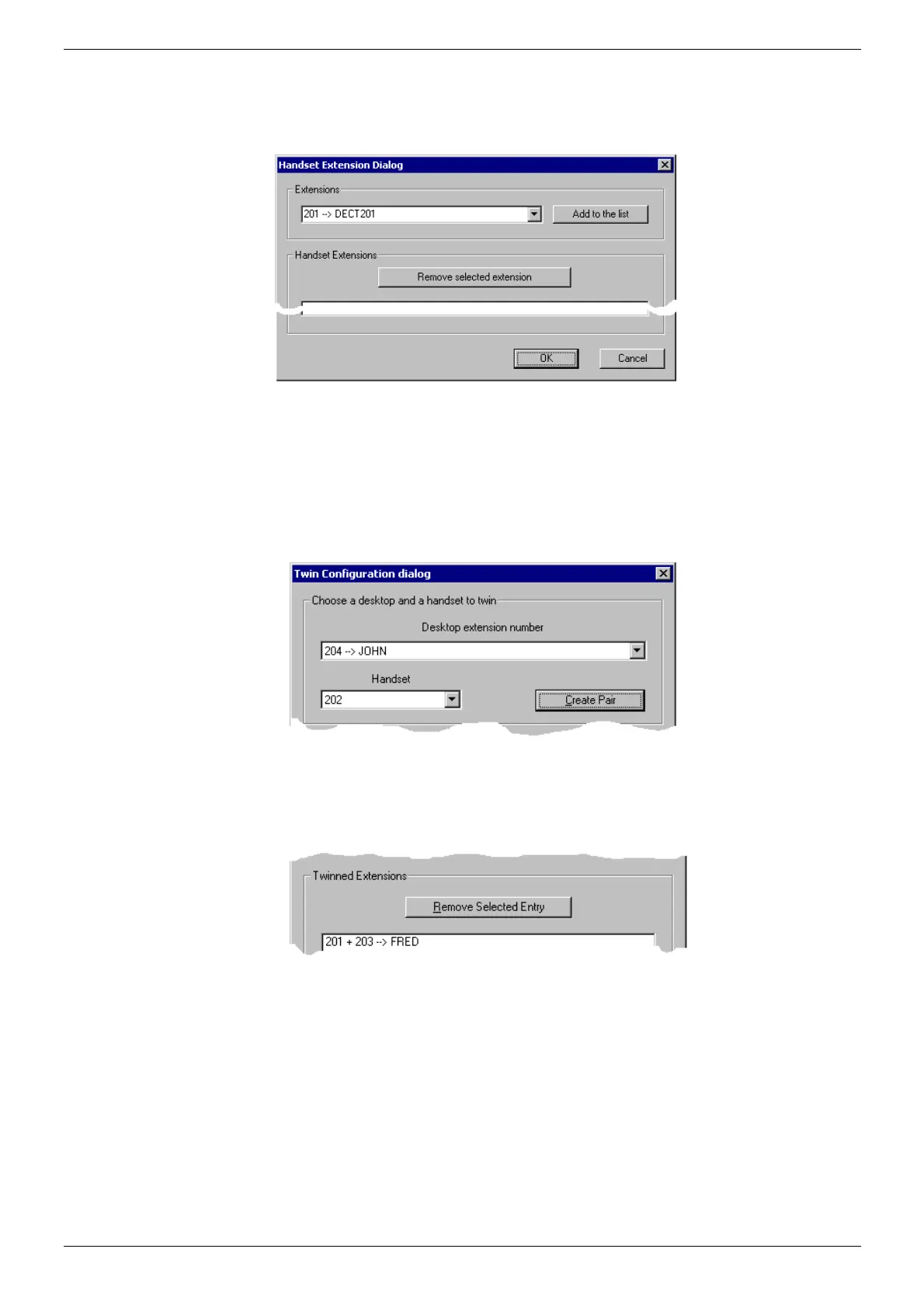
6. Click on Handset Extensions to gain access to:
From the pull down list, select the extensions allocated to DECT (see
page 52). Click on Add to the list for each entry selected. These will
appear in the box below. If you wish to delete an extension from this
list, then highlight entry and click Remove selected extension. Click
OK on
7. Ensure that the Enable Desktop/Handset Twinning box is ticked and
click on Connect and configure.
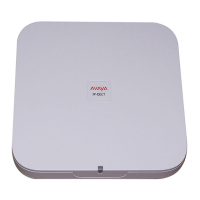
8. The Twin Configuration dialog menu is displayed.
From the Desktop extension number pull down options list select the
extension number of the master desktop phone. The number of the
DECT handset you entered previously in the Handset Extensions
menu box is displayed first.
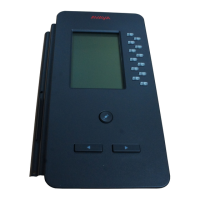
9. Click on Create Pair and the twinned extensions are displayed.
10. You have the option to Remove Selected Entry. Highlight the entry
and click on Remove Selected Entry.
11. Repeat the procedure for all the master desktop phones that you wish
to slave with DECT handsets (remember that the DECT handset
numbers will appear in sequential order starting from the numbers
entered previously in the Handset Extension menu). Click on OK
when finished.



 To Next Page