35146AJ
15
Monitor Setup
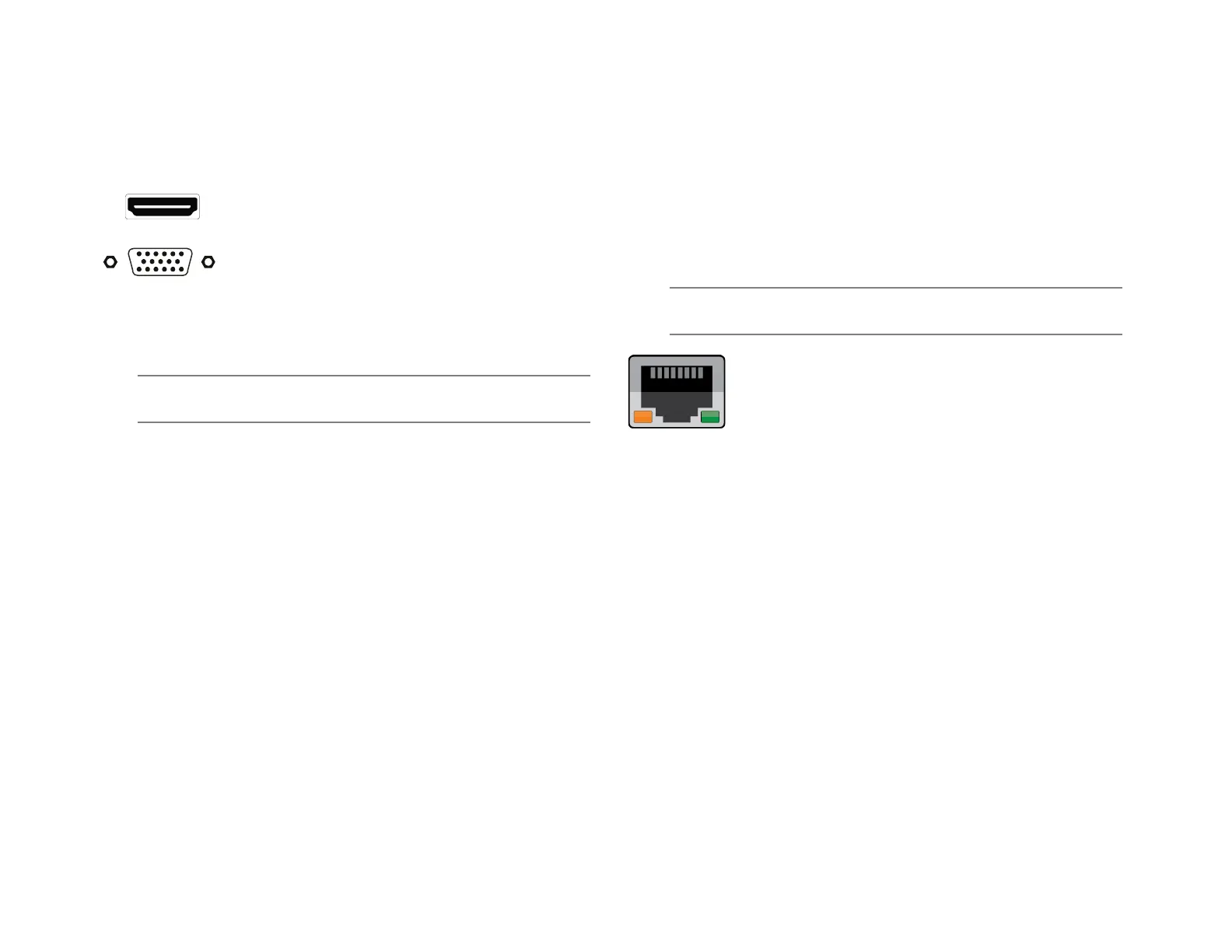
These connections are available to connect a monitor:
HDMI
®
Output To TV / Digital Display
VGA Output To TV / Analog Monitor
Attach the monitor(s) to the rear of the recorder using the cable supplied
by the monitor manufacturer. Refer to the monitor manual for detailed
information on how to setup and use it.
Note The monitor must be capable of a minimum screen resolution
of 1024x768 and support 32-bit color.
Connecting a Camera Using a PoE Port
The ProConnect recorder is equipped with an on-board Power over
Ethernet (PoE) switch for use with PoE IP cameras. PoE cameras are
connected to the recorder using the PoE switch and begin displaying
video immediately with no manual configuration required.
Connect one end of the CAT 5 Ethernet cable to the RJ-45 connector of
the camera and the other end of the cable to the network switch or
recorder.
Note If you are connecting the camera directly to a recorder, a
crossover cable is necessary for most configurations.
Check the status of the link indicator and activity indicator
LEDs. If the LEDs are unlit, check the LAN connection.
The Orange activity light flashes to indicate network activity.
The Green link light indicates a good network connection.


 To Next Page