35146AJ
41
PERFORMING A SEARCH
Perform a Timebar Search or a Preview Search to review recorded
video, including playback and export of images and video clips.
Note Timebar and Preview Searches are currently only available in
the ProConnect Web Interface.
• Date/Time Search – standard search feature available only
through the local recorder.
Three different searches are available in ProConnect software:
• Timebar Search – Advanced Date/Time search with visual
tools. Only available through the ProConnect Web Interface.
• Preview Search – Advanced thumbnail-based search. Only
available through the ProConnect Web Interface.
• Event Search – Advanced event-based search. Only available
through the ProConnect Web Interface.
How Do I Perform a Date / Time Search Via a
Recorder?
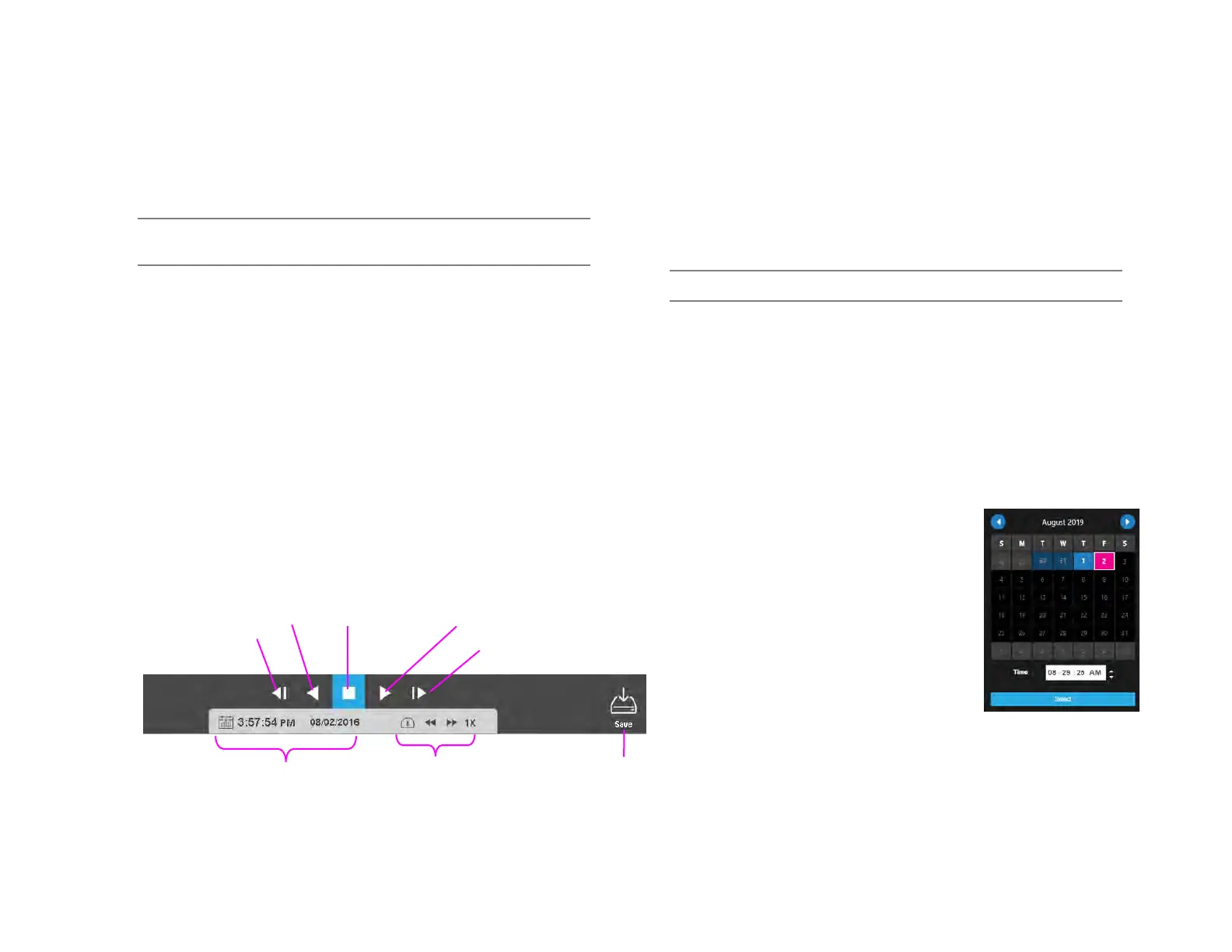
Date / Time Search Bar Playback Controls
Add Camera(s) to the Date / Time Search Viewing Pane
When the Search Screen is opened, the cameras that were in the
Viewing Pane in the Live Screen will appear, however, cameras can be
arranged separately in the Search Screen to facilitate the desired
search.
To add cameras to the Search Screen:
1. In the Search Screen, click a camera in the Camera List.
—OR—
2. Click and drag a camera from the camera list to the Viewing Pane.
Customize the Camera Tile Grid
Changing the Grid of the viewing pane allows for viewing multiple
cameras. All cameras will begin playback of recorded video at the time
designated on the horizontal Timebar Search Bar.
1. Click the Grid button.
2. Click on the desired grid.
3. Assign the available cameras to the desired camera tiles.
Perform a Date / Time Search
1. Customize the camera tile grid in the
Search Screen Viewing Pane if desired.
2. In the Search Screen, click the Date / Time
Picker.
3. Select a date from the calendar, and then
designate a time if desired.
4. Click Select.
5. Click Play.


 To Next Page