35146AJ
48
Export Video Clip to Cloud Video Archive
Exporting a video clip remotely saves the clip in your AvertX Connect
account. For more information regarding viewing exported video clips,
see the How Do I View Exported Video Clips in AvertX Connect?
section.
1. In the Search Screen, perform the desired Timeline Search.
2. Click Export.
3. Designate the Duration, Video Quality, Video Resolution and
Audio, and click Next.
Note Larger Duration and higher Video Quality will result in larger
video files.
4. Type the desired Title and Description.
5. Click Export.
How Do I Export Video from the Console with
No OSD?
Video can be exported without the On-Screen Display information.
1. In the Search screen, perform the desired Timeline search, and
then click the Save button.
2. Select the Video Clip export icon.
3. Specify the Duration and Video Quality.
4. Uncheck Display Date/Time on video.
5. Select Destination.
6. Click Export.
How Do I View Exported Video Clips in AvertX
Connect?
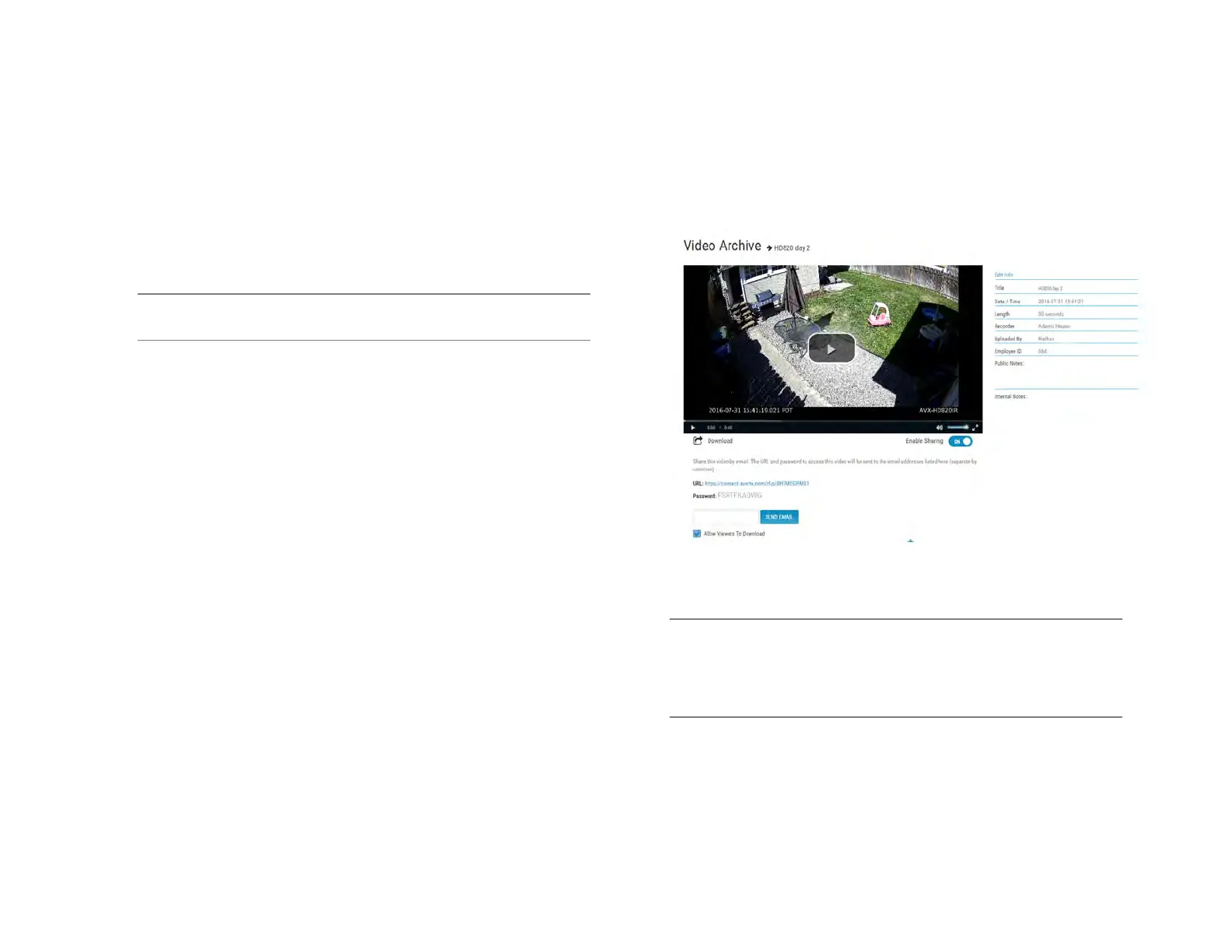
AvertX Connect allows you to view video clips exported during a search.
These clips are stored in the Video Archive and can be watched,
shared, and downloaded.
1. Navigate to connect.avertx.com and login.
2. Click Video Archive.
3. Select the desired video clip, and then click the Play icon.
Note If desired, Share the video clip. A URL will be provided with
an access password which can then be distributed to others.
Note If desired, download the video clip to your default download
location.


 To Next Page