35146AJ
18
INSTALLATION AND SETUP
Note ProConnect software setup can be performed through the
ProConnect recorder local interface or through the web
browser Web Interface.
Default Administrator Username / Password
When ProConnect is launched, you will be prompted to login. The
default Administrator username and password are as follows:
Username: admin
Password: 1234
Note Once registered to AvertX Connect, your AvertX Connect
credentials can be used to log in, in addition to the default
credentials listed above.
First Time Wizard
The First Time Wizard can be accessed from both the web interface and
locally, and will guide you through a basic setup of your ProConnect
recorder. If you wish to make system changes after the initial setup
process using the First Time Wizard, these options can be found in
System Settings, User Management, and Network Configuration.
The Setup Wizard will run the first time the recorder is powered on. If
you click the X, you will be given the option to dismiss it temporarily (it
will run next time the recorder powers on) or to dismiss it forever.
SETUP MENU
SYSTEM SETTINGS
Cameras
Camera Management
Use Camera Management to perform basic and advanced camera
functions.
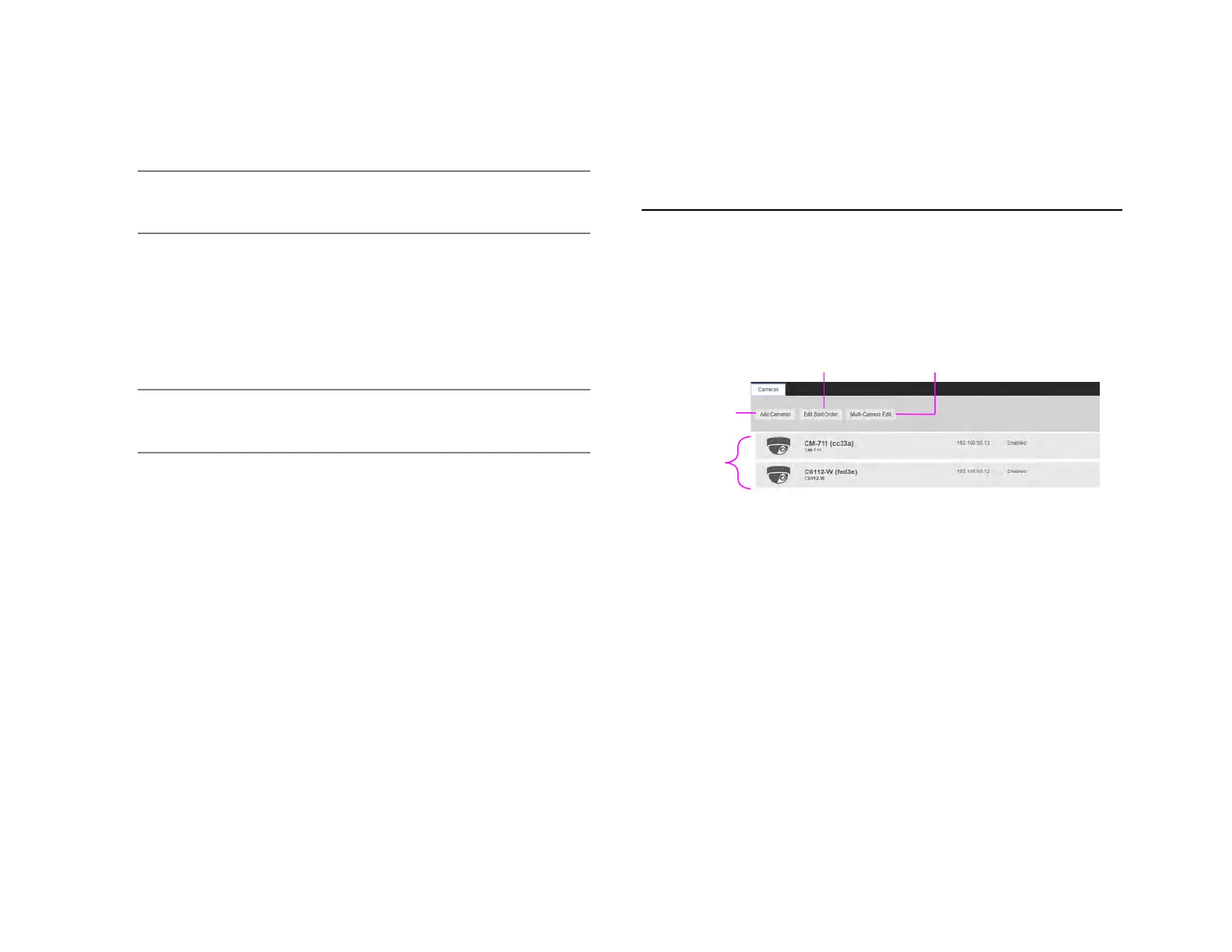
Camera List – List of cameras currently connected to the selected
recorder.
IP Address – The current IP address of the camera.
State – The current camera state.
• Enabled: The camera is enabled, active, and recording.
• Disabled: The camera is disabled, but previously recorded
video is still available.
Add Camera – Add a camera(s) to the Camera List.
Advanced – Launches Network Camera Manager (Console Only)
Edit Sort Order – The order the cameras will be displayed in local and
remote clients.
Multi-Camera Edit – Delete cameras, update images, change
recording types, and other options to multiple cameras at once.
Sort By – Order cameras by State, Name, Model, or IP Address.


 To Next Page