35146AJ
47
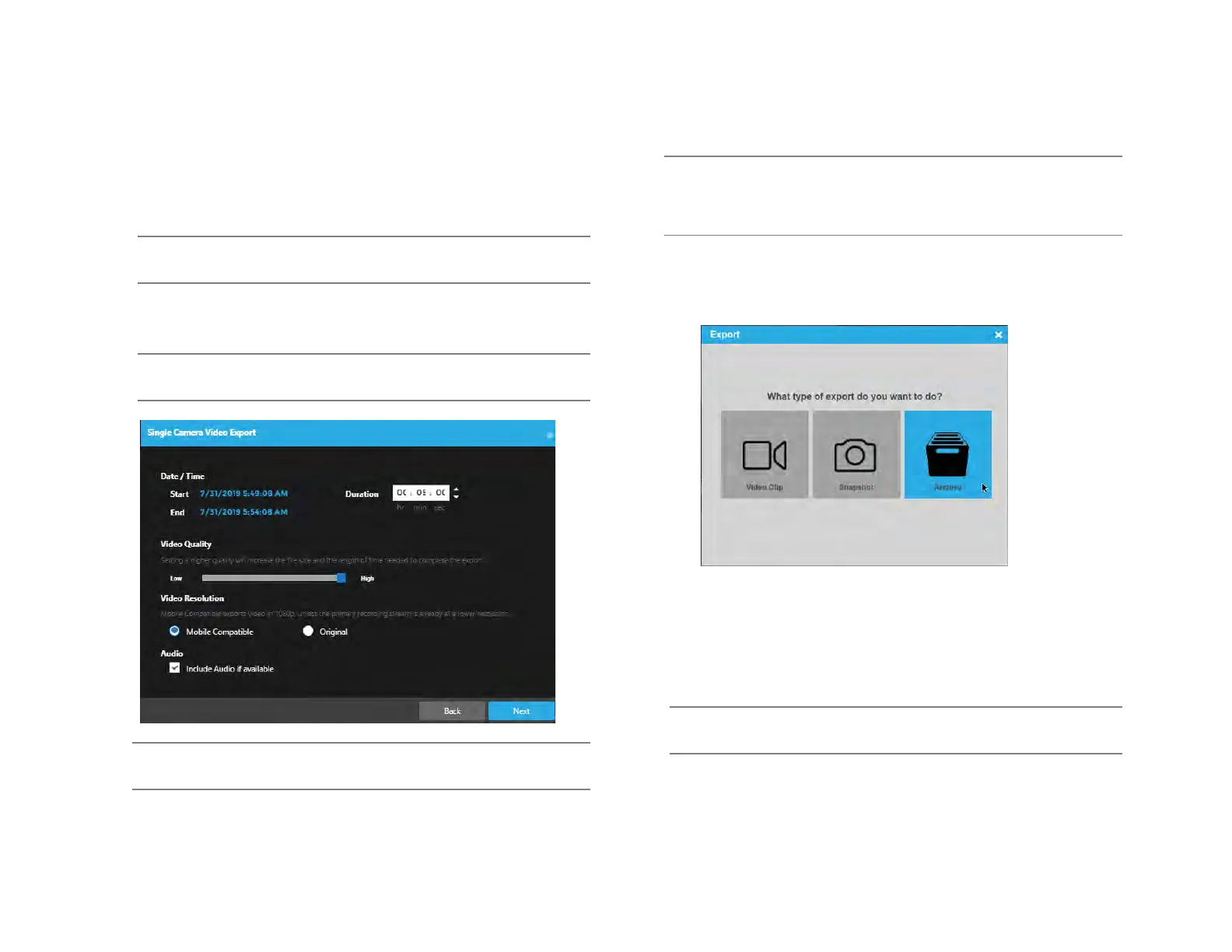
6. Choose between Mobile Compatible and Original for Video
Resolution.
• Mobile Compatible exports video in 1080p unless the
primary recording stream is already at a lower resolution.
7. Check Audio if available.
Note Larger Duration and higher Video Quality will result in larger
video files.
8. Click Next.
9. Enter Filename and Export.
Note Locally exported video clips are saved in the Downloads
folder by default as MP4 files.
Note Locally exported video clips are saved in the Downloads
folder by default as MP4 files.
Export Archives Locally (Local Console Only)
Note Local exports will require an attached USB storage device.
ProConnect will only recognize USB storage devices in NTFS,
ExFAT or FAT32 formats. Apple users are recommended to
use ExFAT format for best compatibility.
1. Make sure the USB device is plugged into a USB port of the
recorder. Blue USB 3.0 ports on the recorder are recommended for
faster archives.
2. In the Search Screen, select the cameras to archive.
3. Click the Export option and select Archive.
4. Channels added in search will be automatically selected, uncheck
any channels not needed and click Next.
5. Set the start and end time of the archive and click Next.
6. Click Select Destination and select the USB device.
7. Enter the name of the archive in the Filename field and click
Export.
Note Local Console archives provide a standalone Archive Viewer
on export to a USB device


 To Next Page