35146AJ
44
Customize the Camera Tile Layout
Changing the layout of the viewing pane allows for viewing multiple
cameras. All cameras will begin playback of recorded video at the time
designated on the horizontal Timeline Search Bar.
1. Click the Grid button.
2. Click on the desired grid.
3. Assign the available cameras to the desired camera tiles.
Perform a Timeline Search
1. Customize the camera tile grid in the Search Screen Viewing Pane
if desired.
2. Select a Date (and Time) from the Timeline Search Date Picker.
a. On the Preview Search Bar, click the Timeline Search
Date Picker.
b. Select the desired Date (and specific time), and then the
timeline will update automatically.
Use the Play/Pause, Stop, Play Forward/Backward, and Skip
Forward/Backward playback controls to control video playback
during your search.
How do I Perform an Event Search (Web
Interface Only)?
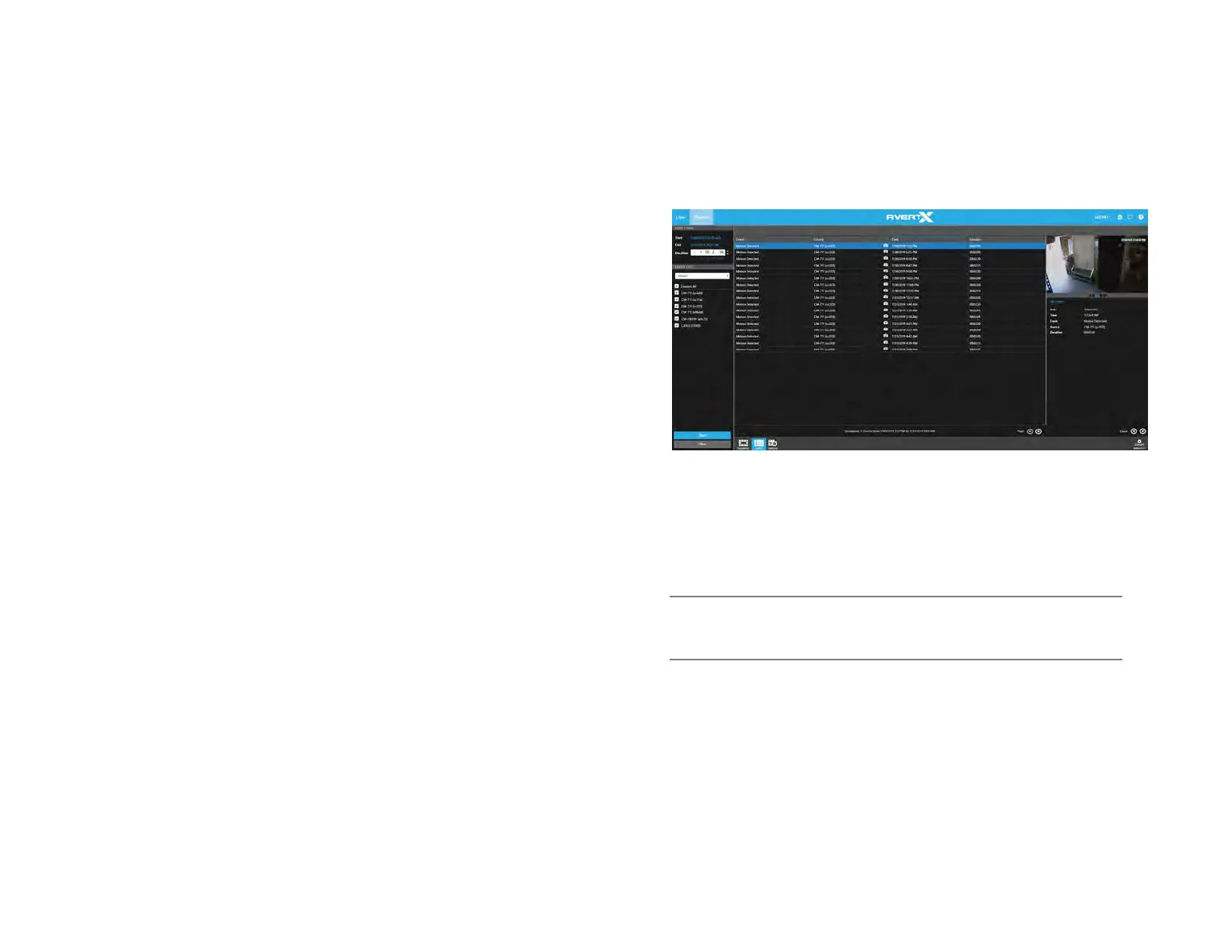
Event Search is ideal for reviewing sensor or relay events such as
motion in a filtered, easily consumable format.
Perform an Event Search
1. Under DATE / TIME select the Start, End and Duration.
2. Check cameras or sensors to search for events in the left tree view.
3. Click Apply.
4. Select an event in the event table to review.
5. Click the preview image and the play icon to review this video in
Timeline Search.
Note Hitting the back button on the browser in timeline search will
load the previous event search results when switching
between the two.


 To Next Page