Classification: Avery Dennison – Public 23
Basic Configuration
1. Turn ON the printer.
2. Connect the printer to the host PC using a serial or USB cable.
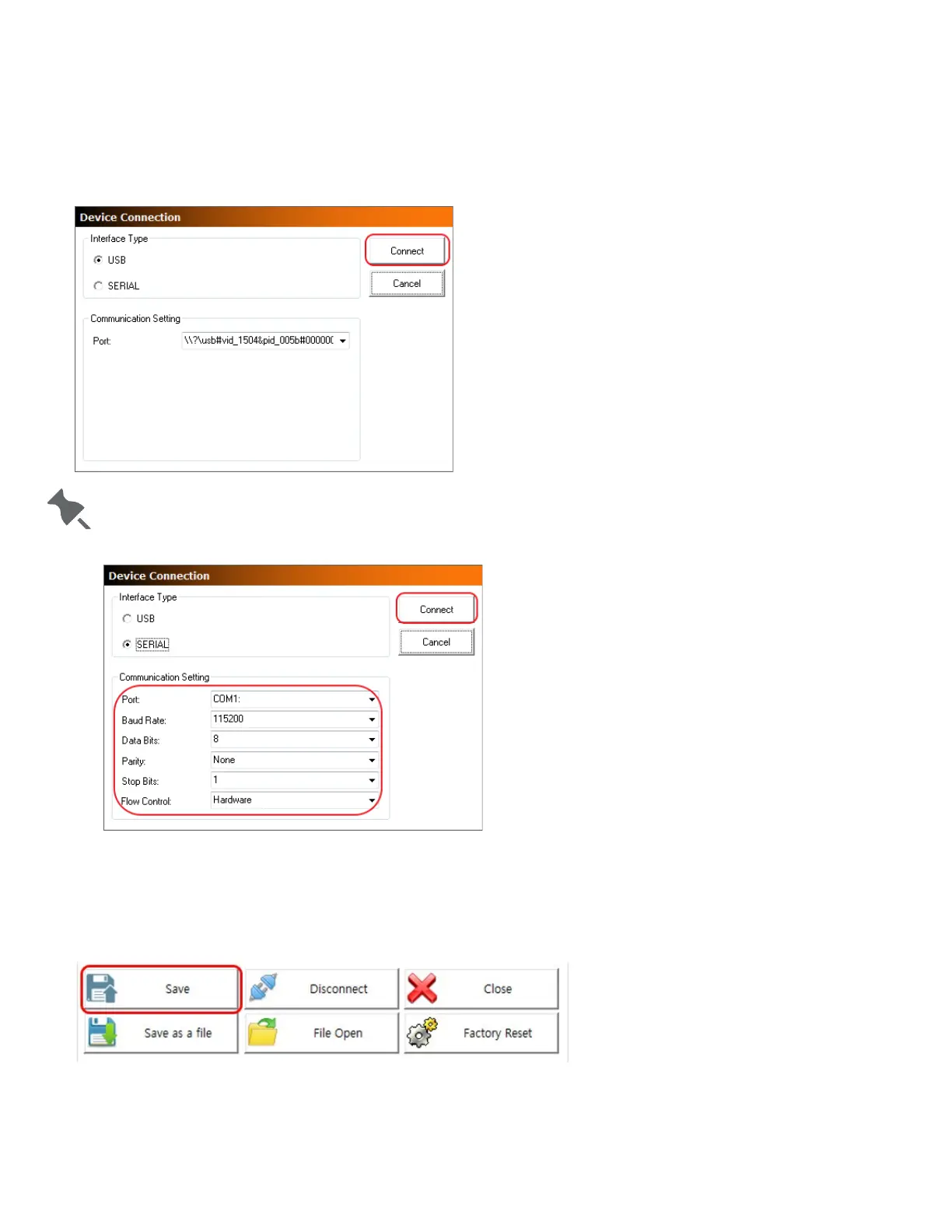
3. Click the Connect button in the WLAN (Advanced) tab.
4. Choose the Interface Type on the Device Connection window and click the Connect button.
When using a serial cable, check the serial communication settings on the printer
and change them to the
settings as shown in the image. It takes up to 15 seconds to receive WLAN settings on the printer.
Check the WLAN settings imported from the printer. Make any necessary changes according to your operating
environment.
1. Click Save to apply the WLAN settings. The message shows on the screen when the WLAN settings are
changed successfully.
2.
Reboot the printer.











 To Next Page