To Next Page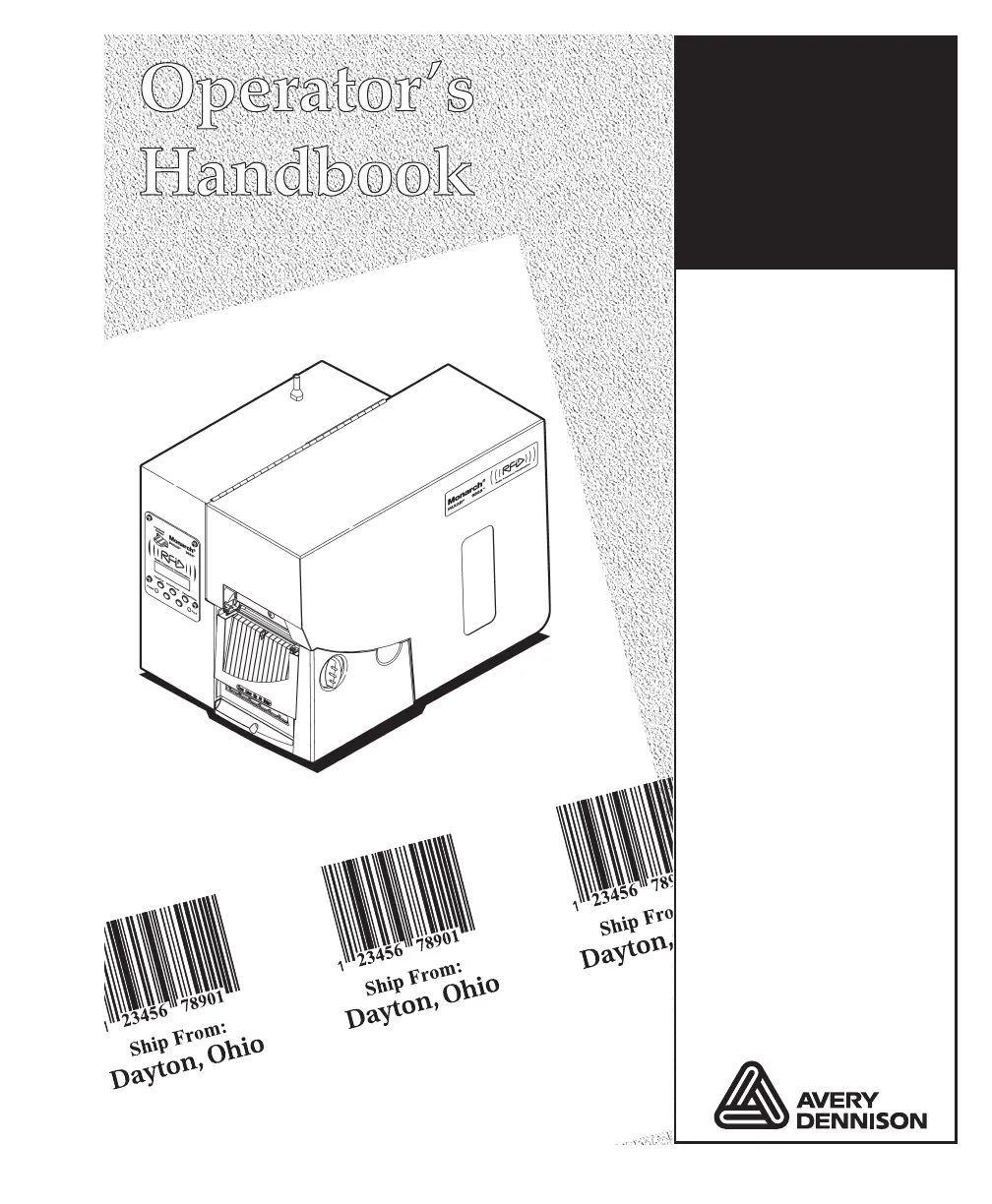
M
Monique DanielSep 18, 2025
What to do if Avery Dennison Monarch 9855 does not feed?
- TTimothy NobleSep 18, 2025
If your Avery Dennison Printer does not feed, ensure that the wide/narrow knobs are set correctly.



What to do if Avery Dennison Monarch 9855 does not feed?
If your Avery Dennison Printer does not feed, ensure that the wide/narrow knobs are set correctly.
What to do if Avery Dennison Barcode Reader has voids in printing?
If you notice voids in the printing of your Avery Dennison Barcode Reader, try cleaning the printhead, changing the supply type, and checking the ribbon.
What to do if Avery Dennison Barcode Reader prints partially printed data?
If your Avery Dennison Barcode Reader is only printing partial data, clean the printhead and send a corrected format packet.
How to fix Avery Dennison Barcode Reader error message during startup?
To address an error message appearing during the startup of your Avery Dennison Barcode Reader, turn off the printer, wait fifteen seconds, and then turn it back on. If the error message reappears, contact Technical Support.
What to do if after downloading a script, the script does not appear to be loaded on Avery Dennison Monarch 9855 Printer?
If, after downloading a script, the script does not appear to be loaded on your Avery Dennison Printer, try formatting the flash memory and then download the script again.
What to do if backing paper is wrapped around platen or peel roller of Avery Dennison Printer?
If the backing paper is wrapped around the platen or peel roller of your Avery Dennison Printer, carefully remove the backing paper. Make sure the backing paper tears at the saw-toothed tear edge when using backfeed and peel mode.
How to improve signal strength of Avery Dennison Monarch 9855 Printer?
If the signal strength is low, increase the number of retries. To improve the signal strength, try moving the Avery Dennison printer closer to the access point and away from other radio devices such as Bluetooth® wireless devices, microwave ovens, or 2.4-GHz cordless phones.
Why does my Avery Dennison Monarch 9855 Printer not print?
If your Avery Dennison Printer is not printing, you should check the supply and ribbon. Also, ensure you send a corrected format and batch packet.
What to do if I get an “Error sending the discovery request” message on my computer/Web browser using Avery Dennison Monarch 9855?
If you receive an 'Error sending the discovery request' message, it indicates that the print server isn't communicating on the network. Verify the network and print server settings, including the IP address.
What to do if MonarchNet2 Avery Dennison Monarch 9855 Printer does not appear to be working?
If MonarchNet2 isn't working, try turning the Avery Dennison printer off and then back on. Print a configuration label by pressing the test button on the back of the print server to confirm the IP address. Then, enter the correct IP address in your web browser.
Covers printer emulation, manuals, utilities, power, and communication cable connections.
Step-by-step guide for loading label and tag rolls into the printer.
Procedures for installing linerless supply and adjusting related components like the shelf.
Step-by-step instructions for loading a ribbon roll into the printer.
How to configure the printer for different supply types like aperture, die cut, or continuous.
Instructions for setting the ribbon option, including high energy ribbon usage.
Adjusting the vertical print position on the supply for accurate placement.
Configuring the horizontal feed position of the supply for optimal printing.
Adjusting the horizontal print margin for label layout.
Configuring the printer's response to scanning errors.
Adjusting print darkness for optimal readability and printhead longevity.
Configuring baud rate, word length, stop bits, parity, flow control, and reset.
Configuring port and mode settings for parallel communication.
Managing data storage using flash memory instead of volatile RAM.
Procedures for formatting, checking, and packing flash memory.
How the printer operates in on-demand mode, printing one label at a time.
Steps for pausing, resuming, and restarting print batches.
Methods for canceling individual or all print batches.
Instructions for resolving label jams and clearing the fault light.
Guidance on cleaning the printhead, sensors, and platen roller.
Step-by-step instructions for safely replacing the printer's printhead.
Procedures for printing test labels and checking supply reflectivity.
Setting up password protection for menus and data deletion.
A guide to identifying and resolving common printer problems and error messages.
 General
| Power Requirements | 100-240 VAC, 50-60 Hz |
|---|---|
| Print Technology | Thermal Transfer |
| Print Resolution | 203 dpi |
| Connectivity | USB, Serial, Parallel, Ethernet |
| Media Types | Labels, Tags |
| Memory | 4 MB Flash, 8 MB DRAM |
| Supported Barcode Types | Code 39, Code 128, UPC-A, UPC-E, EAN-8, EAN-13, PDF417, Data Matrix, QR Code |
| Media Width | 1.0 to 4.25 inches |
| Media Thickness | 0.0025" to 0.010" (0.0635 mm to 0.254 mm) |
| Operating Temperature | 41 to 104°F (5 to 40°C) |
| Storage Temperature | -40 to 140°F |
| Print Speed | Up to 6 ips (152 mm/s) |