EasyManua.ls Logo

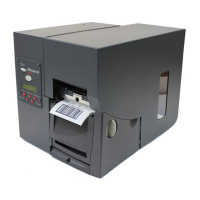
Avery Dennison Monarch 9855 - User Manual

Avery Dennison Monarch 9855
132 pages
Print Icon
To Next Page IconTo Next Page
Loading...
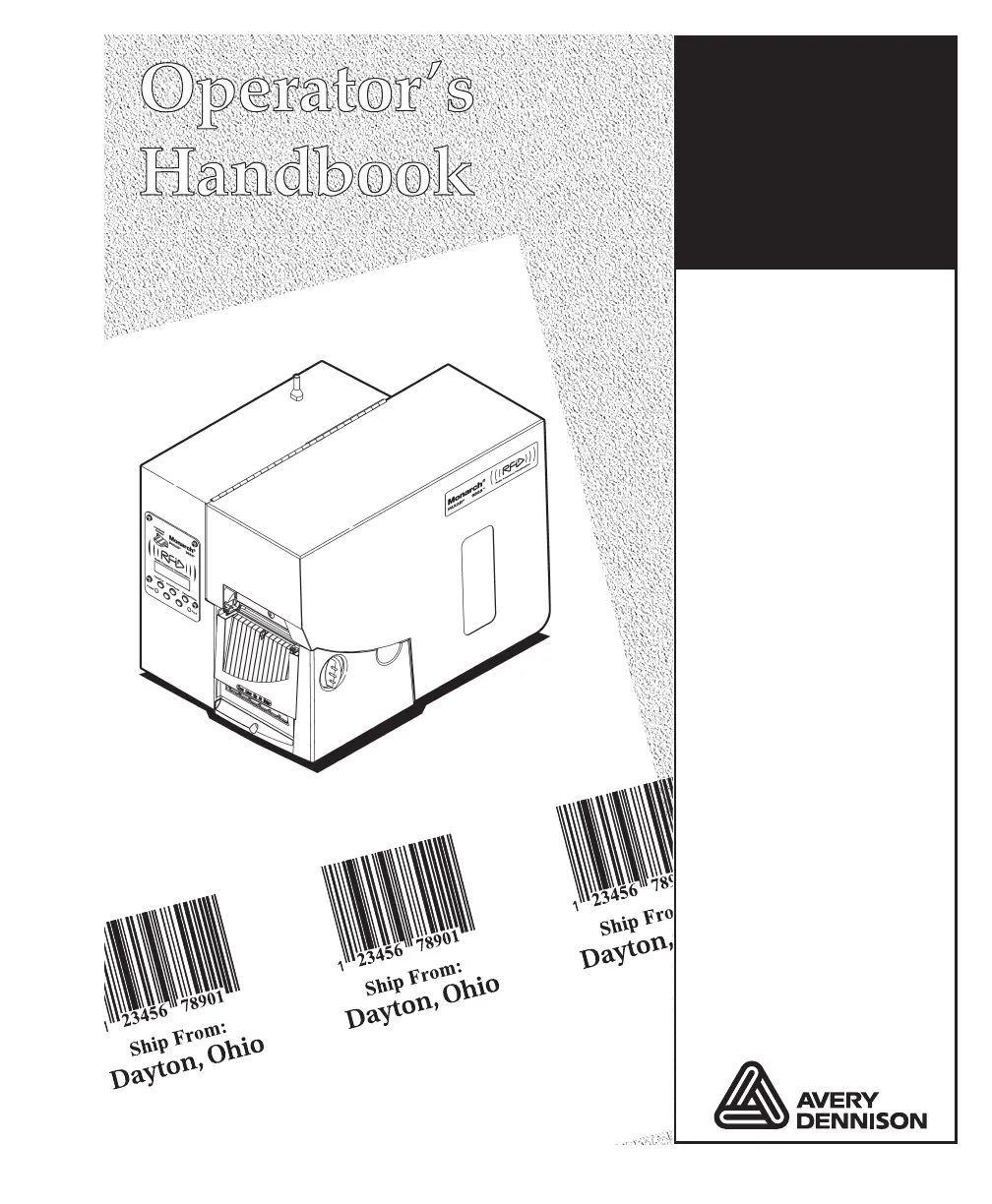
Monarch
®
9855
®
Printer
TC9855OHRev.AG2/09 ©2003AveryDennisonCorp.Allrightsreserved.

Table of Contents

Other manuals for Avery Dennison Monarch 9855

Questions and Answers

  • J
    Joseph NelsonAug 31, 2025
    What to do if after downloading a script, the script does not appear to be loaded on Avery Dennison Barcode Reader?
    • J
      jacquelineleAug 31, 2025
      If, after downloading a script to your Avery Dennison Barcode Reader, the script does not appear to be loaded, try formatting the flash memory and then downloading the script again.
  • M
    Mr. Robert KellerAug 30, 2025
    What to do if Avery Dennison Barcode Reader errors when downloading a script?
    • J
      Jennifer SimpsonAug 30, 2025
      If your Avery Dennison Barcode Reader encounters an error when downloading a script, check the available flash memory. You may need to format the flash memory or clear NVRAM.
  • M
    Matthew RobersonAug 29, 2025
    What to do if Avery Dennison Barcode Reader prints blank labels or 750 series errors?
    • S
      Scott ReyesAug 29, 2025
      If your Avery Dennison Barcode Reader is printing blank labels or showing 750 series errors, clean the supply sensors.
  • A
    Austin FitzgeraldAug 28, 2025
    What to do if Avery Dennison Barcode Reader backing paper is wrapped around platen or peel roller?
    • T
      Tony JohnsonAug 28, 2025
      If the backing paper is wrapped around the platen or peel roller of your Avery Dennison Barcode Reader, carefully remove the backing paper. When using backfeed and peel mode, make sure the backing paper tears at the saw-toothed tear edge.
  • E
    egrahamAug 27, 2025
    What to do if Avery Dennison Barcode Reader does not feed?
    • K
      Kyle TaylorAug 27, 2025
      If your Avery Dennison Barcode Reader is not feeding, ensure the wide/narrow knobs are set correctly.
  • B
    Brandi LoweAug 27, 2025
    How to fix Avery Dennison Barcode Reader error message during startup?
    • D
      Danielle MillerAug 27, 2025
      To address an error message appearing during the startup of your Avery Dennison Barcode Reader, turn off the printer, wait fifteen seconds, and then turn it back on. If the error message reappears, contact Technical Support.
  • A
    Ann RodgersAug 25, 2025
    What to do if Avery Dennison Barcode Reader prints partially printed data?
    • T
      Tracy JacksonAug 26, 2025
      If your Avery Dennison Barcode Reader is only printing partial data, clean the printhead and send a corrected format packet.
  • H
    Heather LopezAug 25, 2025
    What to do if Avery Dennison Barcode Reader has voids in printing?
    • T
      Timothy DuranAug 25, 2025
      If you notice voids in the printing of your Avery Dennison Barcode Reader, try cleaning the printhead, changing the supply type, and checking the ribbon.

Summary

Getting Started with Monarch Printer

Printer Connectivity and Setup

Covers printer emulation, manuals, utilities, power, and communication cable connections.

Loading Supplies

Loading Labels or Tags

Step-by-step guide for loading label and tag rolls into the printer.

Linerless Supply Installation and Adjustments

Procedures for installing linerless supply and adjusting related components like the shelf.

Loading Ribbon

Loading Ribbon

Step-by-step instructions for loading a ribbon roll into the printer.

Setting Supply Options

Setting the Supply Type

How to configure the printer for different supply types like aperture, die cut, or continuous.

Setting the Ribbon

Instructions for setting the ribbon option, including high energy ribbon usage.

Setting the Print Position

Adjusting the vertical print position on the supply for accurate placement.

Setting the Supply Position

Configuring the horizontal feed position of the supply for optimal printing.

Setting the Margin Position

Adjusting the horizontal print margin for label layout.

Setting the Error Action

Configuring the printer's response to scanning errors.

Setting the Print Contrast

Adjusting print darkness for optimal readability and printhead longevity.

Setting Communications

Setting Serial Communication Parameters

Configuring baud rate, word length, stop bits, parity, flow control, and reset.

Parallel Communications Setup

Configuring port and mode settings for parallel communication.

Setting Defaults

Using Flash Storage

Managing data storage using flash memory instead of volatile RAM.

Flash Memory Management

Procedures for formatting, checking, and packing flash memory.

Printing

On-Demand Mode Printing

How the printer operates in on-demand mode, printing one label at a time.

Pausing and Restarting Batches

Steps for pausing, resuming, and restarting print batches.

Canceling Batches

Methods for canceling individual or all print batches.

Care & Maintenance

Clearing Label Jams

Instructions for resolving label jams and clearing the fault light.

Printer Cleaning Procedures

Guidance on cleaning the printhead, sensors, and platen roller.

Replacing the Printhead

Step-by-step instructions for safely replacing the printer's printhead.

Diagnostics & Troubleshooting

Test Label Printing and Supply Quality Check

Procedures for printing test labels and checking supply reflectivity.

Password Protection Configuration

Setting up password protection for menus and data deletion.

Troubleshooting Common Issues and Errors

A guide to identifying and resolving common printer problems and error messages.

Avery Dennison Monarch 9855 Specifications

General IconGeneral
Power Requirements100-240 VAC, 50-60 Hz
Print TechnologyThermal Transfer
Print Resolution203 dpi
ConnectivityUSB, Serial, Parallel, Ethernet
Media TypesLabels, Tags
Memory4 MB Flash, 8 MB DRAM
Supported Barcode TypesCode 39, Code 128, UPC-A, UPC-E, EAN-8, EAN-13, PDF417, Data Matrix, QR Code
Media Width1.0 to 4.25 inches
Media Thickness0.0025" to 0.010" (0.0635 mm to 0.254 mm)
Operating Temperature41 to 104°F (5 to 40°C)
Storage Temperature-40 to 140°F
Print SpeedUp to 6 ips (152 mm/s)

Related product manuals