Classification: Avery Dennison – Public 16
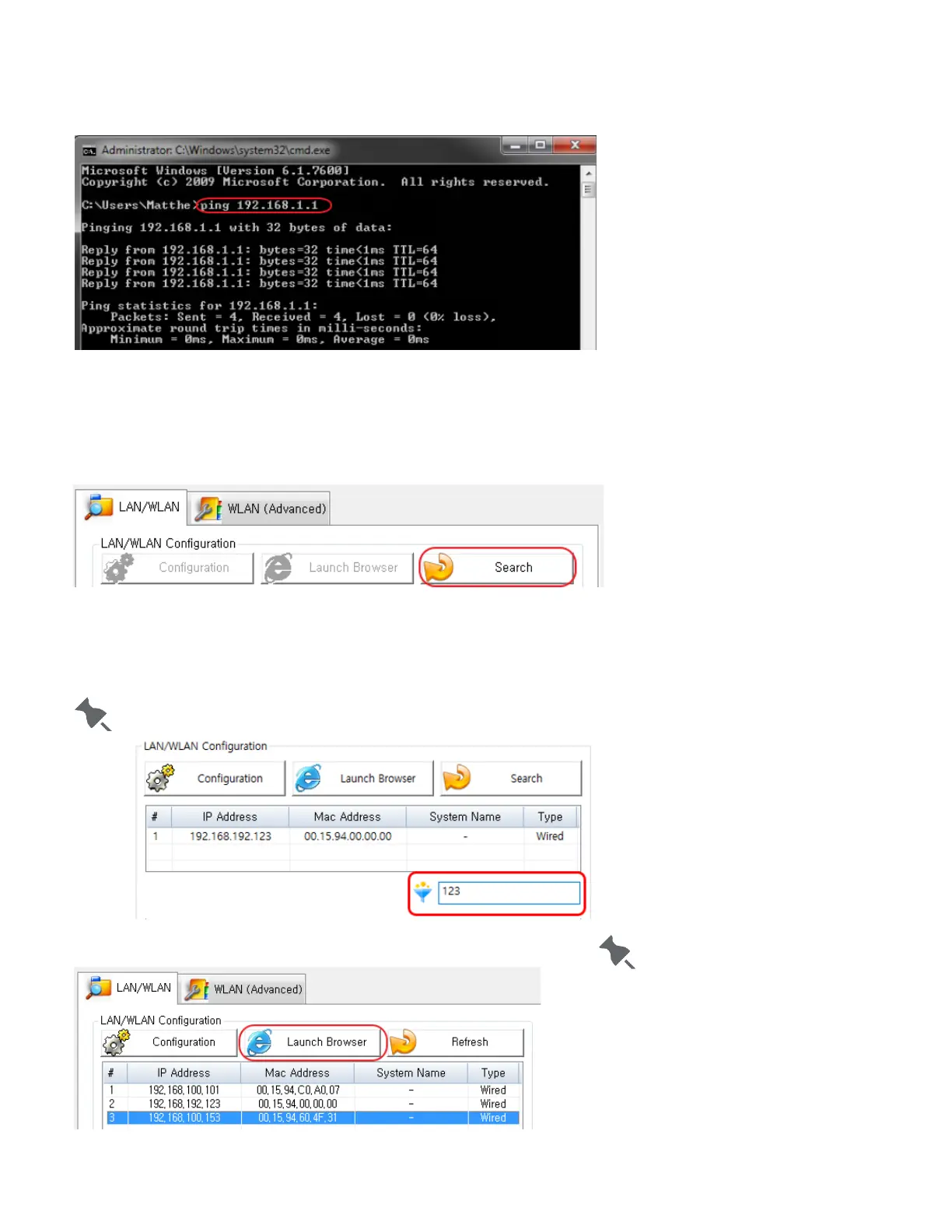
8. Use a ping test to check the connection with the printer. Open a Windows command prompt and type the
ping test command:
ping <printer's IP address>
LAN/WLAN Settings Using the Launch Browser Button
1. Check to make sure the printer is switched on.
2. Click the Search button to search for printers on the network.
3. If the Security Alert message pops up, click either "Unblock" or "Allow access".
4. From the search results, click the MAC address (Media Access Control Address) or IP address (Internet
Protocol Address) of the printer you want to configure.
You can enter text in the filter text box so that your search results in only devices containnig that text.
5. Click the Launch Brower button.
If the printer failed to get an IP
address from DHCP Server, or
and invalid IP address was
assigned by the user, you
cannot access the web page
for network configuration
from the printer.











 To Next Page