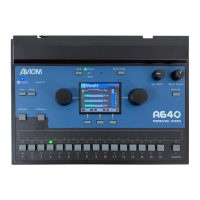
Need help?
Do you have a question about the Aviom A360-MEE and is the answer not in the manual?
Details the A360's compatibility with Pro16 and Pro16e systems for personal mixing.
Defines the term 'Personal Mixer' for various Aviom models in a system context.
Explains the generic use of Cat-5 for unshielded twisted pair cables in A-Net systems.
Refers to various Aviom distributors used for splitting A-Net digital signals.
Specifies the font style used for button instructions in the manual.
Lists Pro16 devices that can connect to the A360's A-Net In port.
Explains how Pro64 ASI interfaces translate channels to Pro16 data for the A360.
Details acceptable Cat-5e, Cat-6, and Cat-6e UTP cables for Aviom products.
Introduces the Mix Channels section of the A360 front panel interface.
Explains the Dual Profile Channel's two independent settings for channel-level parameters.
Details how to assign a standard mix channel to the Dual Profile Channel.
Describes using the Dual Profile Channel as a 17th mix channel in Custom mode.
Details the A360's built-in microphone for ambient sound.
Explains how to adjust the level of the One-Touch Ambience feature.
Describes assigning network audio sources to the Ambience channel.
Explains how to add and adjust reverb for individual channels.
Details the per-channel bass and treble tone adjustments.
Describes how to set the channel level using the Channel Volume knob.
Explains stereo placement for mono channels using Pan control.
Details stereo channel setup and behavior with Pro16/Pro16e input devices.
Describes stereo channel mapping when using a Pro16 input device.
Explains stereo channel mapping with Pro16e input devices.
Explains how to position stereo channels in the mix using Pan control.
Explains how to control groups' overall level, mute, and solo.
Details how to edit individual channels within a defined group.
Rules for stereo links and groups in Pro16 mode.
Explains how to uniformly adjust all channel volumes by 3dB.
Controls the output level for stereo and mono mix outputs.
Provides a mono mix for subwoofers, bass shakers, or powered speakers.
Adjusts low frequencies for tone compensation.
Adjusts high frequencies for tone compensation.
EQ curve to increase low-end punch and high-end brilliance.
Indicates Pro16 (green) or Pro16e (red) A-Net signal status.
Explains saving up to 20 Mix Presets to recall locations.
Used to store a Mix Preset to a channel or Instant Mix Recall location.
Allows recall of saved mix presets with a single button press.
Steps to save a mix to one of the four Instant Mix Recall locations.
Instructions for recalling saved Instant Mix Presets.
Resets all channel level settings to their default values.
Lists settings saved in a Mix Preset and those not saved.
Details the functions of the A360's rear panel connectors and switches.
Provides 1/4-inch and 1/8-inch TRS jacks for stereo mix output.
Offers an XLR male jack for mono mix output.
Explains the four-position mode switch for Pro16/Pro16e A-Net operation.
Sets the A360 for systems with 16 or fewer channels using a single Pro16 device.
Configures the A360 for Pro16e systems with more than 16 input channels.
Connects to headphones, earbuds, wireless transmitters, and speakers.
Details connecting headphones or wired earbuds to the Stereo Mix Out.
Connects the Stereo Mix Out to a wireless transmitter for in-ear monitoring.
Connects powered stereo speakers using a Y-cable.
Connects the A360 to mono devices like powered speakers or wedges.
Connects subwoofers to the Mono Mix Out while using Stereo Mix Out.
Connects tactile devices like bass shakers to the Mono Mix Out.
Explains sending stereo mixes back via Cat-5 to a D800 Distributor.
 General
| Brand | Aviom |
|---|---|
| Model | A360-MEE |
| Category | Music Mixer |
| Language | English |

 To Next Page