- 28 -
• Functions: Click on the icon
to view and manage the functions (Home Commands).
Use the arrows at the side to scroll between the various functions.
This menu gives the: Name of function / Function status
Green icon: function enabled / Grey icon: function NOT enabled
• Events: Click on the icon
to view the latest events saved on the control panel.
Use the arrows to scroll between the various pages of the events log.
• Settings: Click on the icon
to view and manage some of Ice's settings:
• Key sound: it is possible to enable/disable the sound of the virtual keys when pressed
• Thermometer: it is possible to correct the indications of the thermal probe up to a maximum
of - 9°
• Number of Events: it is possible to set the maximum number of events to be shown on Ice
(max 200 ev.)
• Duration of Backlighting: it is possible to set the standby time of the display (max 3 min.)
• Display in Standby always OFF: it is possible to enable/disable powering off of the display for
as long as it remains in standby
Use the arrows at the side to scroll between the various settings.
Touch “>” to edit the settings
• Diagnostics: Click on the icon to display system data, including:
• Credit on Sim Card
• System faults
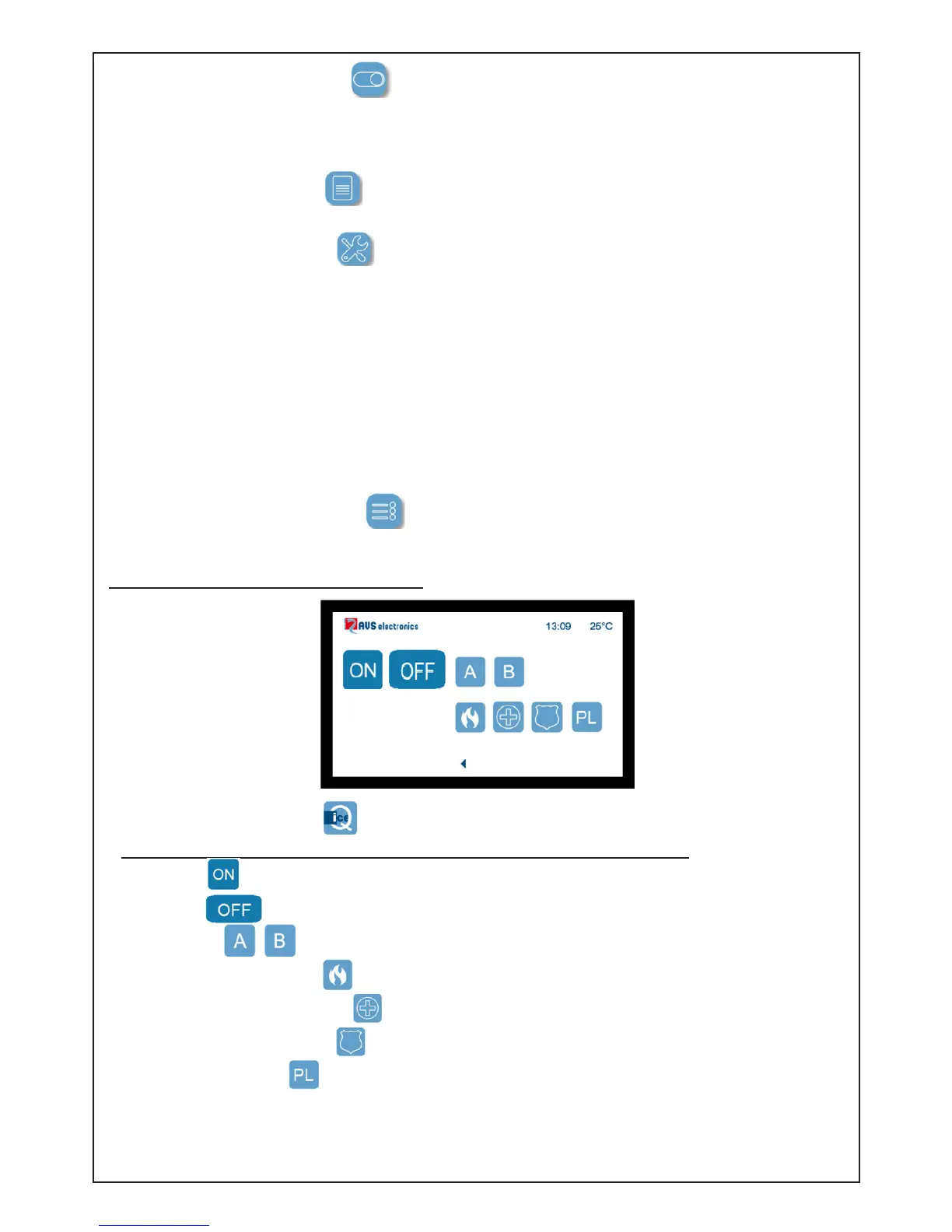
Ice QUICK mode (if enabled in setup):
• Events: Click on the icon
to perform some quick commands:
All the quick functions are activated by touching the command icon twice.
• Turn on
• Turn off
, this command requires additional conrmation of the user code.
• The icons perform the functions associated by the installer.
• The Fire Dispatch icon
(this can be disabled in the Installer Setup)
• The Medical Dispatch icon
(this can be disabled in the Installer Setup)
• The Panic Dispatch icon
(this can be disabled in the Installer Setup)
• The Cleaning icon
activates a 30-second hold to permit cleaning of the screen
NOTE: This screen may not display the dispatch icons if these are disabled in the installer
setup.
Back


 To Next Page