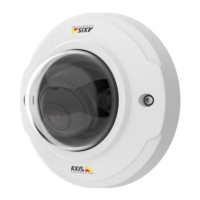
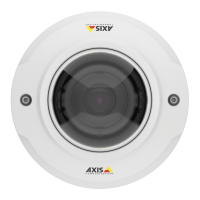
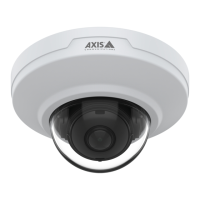
AXIS M3045-V Network Camera
Video
• Highest Zipstream strength. High bandwidth reduction. Visible quality degradation in not prioritized areas in many scenes
Lowest Zipstream strength is the default setting for the product. This conguration is very safe to use in all applications while still
reducing the bit rate.
For cloud-connected cameras or cameras using edge storage that need to limit the bit rate for increased storage time it is
recommended to select the Highest Zipstream strength. This setting is very good to combine with motion detection triggering and
variable bit rate (VBR) where the bit rate is allowed to adapt to changes in complexity in the scene.
Axis’ Zipstream Technology for H.264 conforms to the H.264 standard and is compatible with third-party clients and VMS solutions
that decode H.264 video.
The bit rate controller built into the product can be combined with Zipstream to enforce a maximum bit rate (MBR) limit. Axis
Communications recommends using VBR or MBR with a rather high bit rate limit to enable the full potential of Axis’ Zipstream
Technology.
MJPEG
Sometimes the image size is large due to low light or complex scenery. Adjusting the maximum frame size helps to control the
bandwidth and storage used by the Motion JPEG video stream in these situations. Setting the frame size to the Default setting
provides consistently good image quality at the expense of increased bandwidth and storage usage in low light. Limiting the frame
size optimizes bandwidth and storage usage, but may give poor image quality. To prevent increased bandwidth and storage usage,
the maximum frame size should be set to an optimal value.
Stream Proles
A stream prole is a set of predened stream settings including resolution, compression, frame rate and overlay settings. Stream
proles can be used:
• When setting up recording using action rules. See Events on page 39.
• When setting up continuous recording. See Continuous Recording on page 44.
• In the Live View page – select the stream prole from the Stream prole drop-down list.
For quick setup, use one of the predened stream proles. Each predened prole has a descriptive name, indicating its purpose. If
required, the predened stream proles can be modied and new customized stream proles can be created.
To create a new prole or modify an existing prole, go to Setup > Video > Stream Proles.
To select a default stream prole for the Live View page, go to Setup > Live View Cong.
ONVIF Media Proles
An ONVIF media prole consists of a set of congurations that can be used to change media stream settings. ONVIF media proles
can be set through the ONVIF Media Prole Settings page and be used by a client to congure media stream properties.
The ONVIF Media Proles page lists all such pre-congured proles. These proles cannot be removed. Pre-congured media
proles have been included in the product for quick setup. It is also possible to congure new ONVIF media proles as per required
specications. To add a new ONVIF media prole, click Add and enter the required information. You can also modify or remove a
prole from this page.
Camera Settings
The Video > Camera Settings page provides access to advanced image settings for the Axis product.
Image Appearance
To change Image Appearance go to the menus under Setup > Video > Camera Settings.
19


 To Next Page