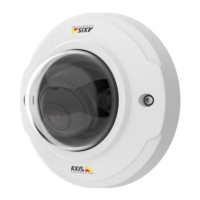
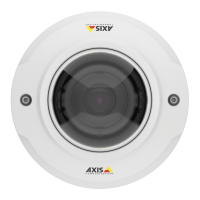
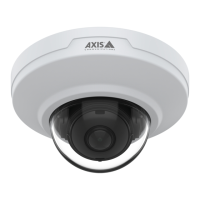
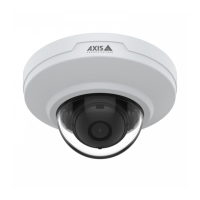
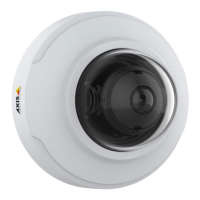
AXIS M3045-V Network Camera
Video
Increasing the Color level increases the color saturation. The value 100 gives maximum color saturation and the value 0 gives
minimum color saturation.
The image Brightness can be adjusted in the range 0–100, where a higher value produces a brighter image.
Increasing the Sharpness can increase bandwidth usage. A sharper image might increase image noise especially in low light
conditions. A lower setting reduces image noise, but the whole image will appear less sharp.
The Contrast changes the relative difference between light and dark. It can be adjusted using the slidebar.
White Balance
To change this setting go to Setup > Video > Camera Settings
White balance is used to make colors in the image appear the same regardless of the color temperature of the light source. The Axis
product can be set to automatically identify the light source and compensate for its color. Alternatively, select the type of light
source from the drop-down list. For a description of each available setting, see the online help
.
Exposure Settings
Exposure is the amount of light the camera’s sensor captures for a scene. Too much light results in a washed out image and too
little light results in a dark image.
Congure the exposure settings to suit the image quality requirements in relation to lighting, frame rate and bandwidth
considerations.
Exposure value - Click in the bar to ne-tune the exposure.
Exposure control - Select a suitable option to control exposure.
For most scenes the Automatic option will provide the best results. The shutter speed is automatically set to produce optimum
image quality.
If the image ickers that can be caused by uorescent lamps or other light sources. To reduce icker in the image, select the Flicker
option that matches the power line frequency.
The Hold current option locks the current exposure settings.
View Area
A view area is a cropped part of the full view. Each view area is treated as a video source in Live View and has its own video
stream and PTZ settings.
When setting up a view area it is recommended that the video stream resolution is the same size as or smaller than the view area
size. Setting the video stream resolution larger than the view area size implies digitally scaled up video after sensor capture,
requiring more bandwidth without adding image information.
To enable, go to Video > Camera Settings and select Enable View Areas.
To add a new view area:
1. Go to Video > View Area.
2. Click Add.
3. The new view area appears under Selected view area. Enter a descriptive name in the Name eld.
4. Select an Aspect ratio and a Video stream resolution.
5. A new view area covers the whole image. Use the mouse to move and resize the view area.
6. Select Enable PTZ to enable digital PTZ for the view area.
7. Click Save to save the settings.
20


 To Next Page