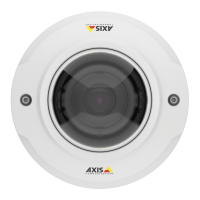
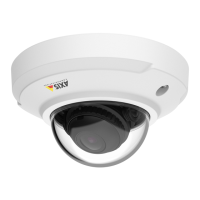
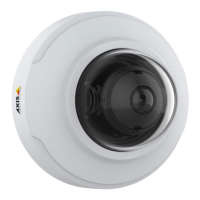
AXIS M3045-V Network Camera
Video
To modify a view area, select the view area in the list and modify the settings as required. Click Save.
To remove a view area, select the view area and click Remove.
Note
The PTZ functionality is useful during installation of the Axis product. Use a view area to crop out a specic part of the
full view.
About overlays
Note
• Image and text overlay will not be displayed on video stream over HDMI.
Overlays are superimposed over the video stream. They are used to provide extra information during recordings, such as a timestamp,
or during product installation and conguration.
About overlay text
An overlay text can display the current date and time, or a text string. When using a text string, so-called modiers can be used to
display information such as the current bit rate or the current frame rate.
It is also possible to display text when an action rule is triggered, see How to include overlay text in an action rule on page 21.
How to include overlay text
1. Go to Video > Video Stream and select the Image tab.
2. To include date and time, select Include date and Include time.
3. To include a text string, select Include text and enter the text in the eld. Modiers can be used, see File Naming &
Date/Time Formats in the online help
.
4. Select size, color, and placement of the text string.
5. Click Save.
To modify the date and time format, go to System Options > Date & Time. See Date & Time on page 48.
How to include overlay text in an action rule
Note
To display overlay text in multiple view areas, overlay text must be enabled in each view area.
1. Go to Video > Video Stream and select the Image tab.
2. Under Overlay Settings, select Include text.
3. Enter the modier #D. When the rule is triggered, #D is replaced by the text specied in the action rule.
Additional text in this eld will be displayed also when the action rule is not active.
4. Go to Events > Action Rules and create your action rule.
5. From the Actions list, select Overlay Text.
6. Enter the text to display in the Text eld.
7. Specify the Duration. The text can be displayed while the rule is active or for a xed number of seconds.
21



 To Next Page