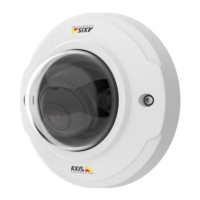
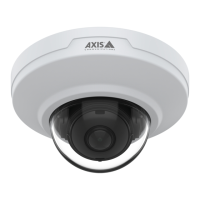
AXIS M3045-V Network Camera
Events
- Preset Reached – Trigger the rule when the camera stops at a preset position. This can be for example be used
with the Send Images action to upload images from the preset position.
• Storage
- Disruption – Trigger the rule if storage problems are detected, for example if the storage device is unavailable,
removed, full, locked or if other read or write problems occur. This can for example be used to send maintenance
notications.
- Recording – Triggers the rule when the Axis product records to the storage device. The recording status trigger
can be used to notify the operator, for example by ashing LED lights, if the product has started or stopped to
record to the storage device. Note that, this trigger can be used only for edge storage recording status.
• System
- System Ready – Trigger the rule when the product has been started and all services are running. This can for
example be used to send a notication when the product restarts.
• Time
- Recurrence – Trigger the rule periodically. See Set Up Recurrences on page 42. This can for example be used to
upload an image every 5 minutes.
- Use Schedule – Trigger the rule according to the selected schedule. See Create Schedules on page 42.
Actions
Available actions include:
• Overlay Text – Display an overlay text. See How to include overlay text in an action rule on page 21.
• PTZ Control
- Preset Position – Go to a preset position.
- Guard Tour – Start a guard tour. See Guard Tour on page 26.
• Record Video – Record video to a selected storage.
• Send Images – Send images to a recipient.
• Send Notication – Send a notication message to a recipient.
• Send SNMP Trap – Send an SNMP trap message to the operator. Make sure that SNMP is enabled and congured
under System Options > Network > SNMP.
• Send Video Clip – Send a video clip to a recipient.
• Status LED – Flash the LED indicator. This can for example be used to validate triggers such as motion detection during
product installation and conguration.
• WDR Mode – The WDR Mode can be turned on or off when the action rule is triggered.
Add Recipients
The product can send media les and messages to notify users about events. Before the product can send media les or notication
messages, you must dene one ore more recipients. For information about available options, see Recipient Types on page 41.
To add a recipient:
1. Go to Events > Recipients and click Add.
2. Enter a descriptive name.
40


 To Next Page