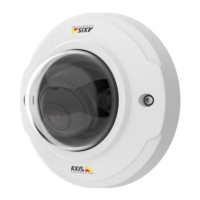
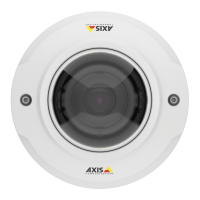
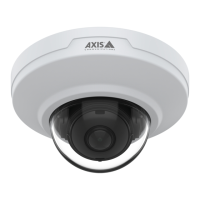
AXIS M3045-V Network Camera
Recordings
To play a recording, follow these steps:
1. Go to Recordings > List.
2. To reduce the number of recordings displayed, select the desired options under Filter and click the Filter button to
apply the lters. See also Find Recordings on page 43.
3. Select the recording and click Play. The recording will be played in a new browser window.
Export Video Clip
Recordings on the SD card or network share can be exported as video clips. It is possible to export a complete recording or a
part of a recording.
Note
The exported recording is a Matroska video le (.mkv). To play the recording in Windows Media Player, AXIS Matroska File
Splitter must be installed. AXIS Matroska File Splitter can be downloaded from www.axis.com/techsup/software
To export a video clip, follow these steps:
1. Go to Recordings > List.
2. To reduce the number of recordings displayed, select the desired options under Filter and click the Filter button to
apply the lters. See also Find Recordings on page 43.
3. Select the recording and click Export. The Export Recording dialog opens.
4. By default, the complete recording is selected. To export a part of the recording, modify the start and stop times.
5. Optionally, enter a le name for the recording.
6. Click Export.
Note
Recordings can also be exported from the playback window.
Continuous Recording
The Axis product can be congured to continuously save video to a storage device. For information about storage devices, see Storage
on page 54. To prevent the disk from becoming full, it is recommended to congure the disk to automatically remove old recordings.
If a new stream prole is selected while a recording is ongoing, the recording will be stopped and saved in the recording list and a
new recording with the new stream prole will start. All previous continuous recordings will remain in the recording list until they
are removed manually or through automatic removal of old recordings.
To start a continuous recording, follow these steps:
1. Go to Recordings > Continuous.
2. Select Enabled.
3. Select the type of storage device from the Storage list.
4. Select a Stream prole to use for continuous recordings.
5. Click Save to save and start the recording.
44


 To Next Page