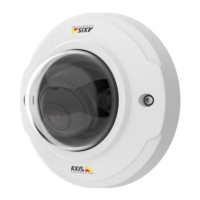
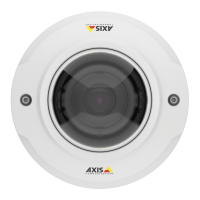
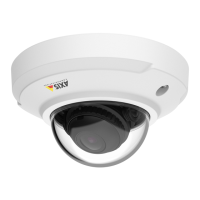
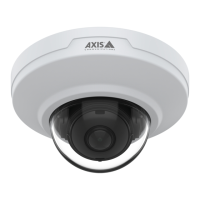
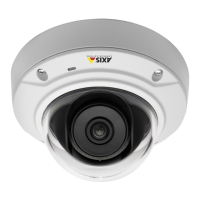
AXIS M3045-V Network Camera
Video
About overlay images
An overlay image is a static image superimposed over the video stream. The image, for example a company logo, is rst uploaded to
the Axis product and then used to provide extra information or to mask a part of the image.
Image specications:
• The uploaded image should be a Windows 24-bit BMP image with maximum 250 colors.
• The image width and height, in pixels, must be exactly divisible by four.
• The image cannot be larger than the maximum image resolution.
• If combining text and image overlays, take into consideration that the text overlay occupies 16 or 32 pixels in height
(depending on the resolution) and has the same width as the video image.
Since it is static, the position and size of an overlay image will remain the same regardless of resolution and pan, tilt or zoom
movements.
To always cover a selected part of the monitored area, use a privacy mask. See Privacy Mask on page 22.
How to upload an overlay image
1. Go to Video > Overlay Image.
2. Click Browse and browse to the le.
3. Click Upload.
4. The Transparency Settings page is now displayed:
- To make a color in the overlay image transparent, select Use transparency and enter the RGB hexadecimal value
for the color. Example: To make white transparent, enter FFFFFF.
For more examples of hexadecimal values, see the online help
.
- To scale the image automatically, select Scale with resolution. The image will be scaled down to t the
resolution used by the Axis product.
5. Click Save.
How to include an overlay image
1. Go to Video > Overlay Image.
2. Select the image to use from the Use overlay image list and click Save.
3. Go to Video > Video Stream and select the Image tab.
4. Under Overlay Settings, select Include overlay image at the coordinates.
5. To control the image’s position, enter the X (horizontal) and Y (vertical) coordinates. The X=0 and Y=0 position is
the top left corner. If a part of the image is positioned outside the video image, the overlay image will be moved so
that the whole image is visible.
6. Click Save.
Privacy Mask
A privacy mask is a user-dened area that prevent users from viewing parts of the monitored area. Privacy masks appear as blocks
of solid color and are applied on the video stream. Privacy masks cannot be bypassed using the VAPIX® application programming
interface (API).
22


 To Next Page