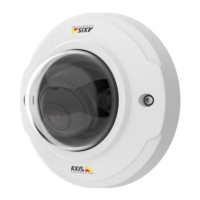
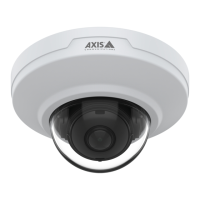
AXIS M3045-V Network Camera
AXIS Video Motion Detection
1. Select the Short-lived objects option.
2. Enter the number of seconds in the eld. The number of seconds is the minimum time that must pass before the object is
detected. Start with a small number.
3. Enter the number of seconds in the eld. The number of seconds is the minimum time that must pass before tracking
starts. Start with a small number.
4. Click Save to apply the lter.
5. Use visual conrmation to verify the settings.
6. If the result is not satisfactory, increase the lter size in small steps.
Small Object Ignore Filter
The small object lter is used to avoid detecting objects that are too small. For example, if only moving cars should be detected, the
small object lter can be used to avoid detecting people and animals.
The small object lter is used to avoid tracking objects that are too small. For example, if only moving cars should be tracked, the
small object lter can be used to avoid tracking people and animals.
If using the small object lter, take into consideration that an object far from the camera appears smaller than an object close to the
camera. If the lter is set to ignore objects the size of a person, people that are close to be camera can still be detected because
they are larger than the lter size.
If using the small object lter, take into consideration that an object far from the camera appears smaller than an object close to the
camera. If the lter is set to ignore objects the size of a person, people that are close to be camera can still be tracked because
they are larger than the lter size.
To enable the lter:
1. Select the Small objects option.
2. Click on the
icon to show the lter size in the image.
3. Use the mouse to adjust the lter size. Start with a small size. Moving objects that t inside the rectangle will be ignored.
The lter displayed in the image can be moved to make it easier to compare the lter size with the size of objects
in the image. Note that the lter will be applied to all objects in the image, also to objects that are not located at
the position of the displayed lter.
4. Click Save to apply the lter.
5. Use visual conrmation to verify the settings.
6. If the result is not satisfactory, increase the lter size in small steps.
The lter size can also be set by entering the width and height in the elds. The width and height are the maximum width and
maximum height of the objects to ignore and are measured in percent of the image width and height. Values between 5 and 100
can be used.
Using the Application in an Action Rule
The following example shows how to congure the Axis product to record video when AXIS Video Motion Detection 3 detects motion.
Using action rules, Axis network cameras can be congured to, for example, record video or send a notication when
AXIS Digital Autotracking starts tracking a moving object.
The following example shows how to congure the Axis product to record video to an SD card or network share when
AXIS Digital Autotracking starts tracking. For detailed information about the different settings, see the Axis product’s online
help or User Manual.
37


 To Next Page