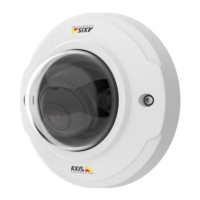
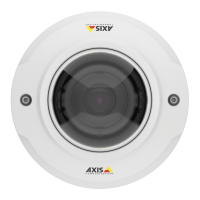
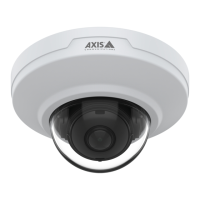
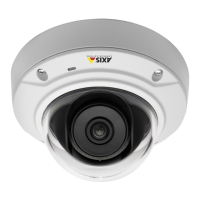
AXIS M3045-V Network Camera
AXIS Video Motion Detection
ponds or large trees, use exclude areas instead of the lter. The lter will be applied to all moving objects in scene and, if set to
a value too large, important objects might not be detected.
The swaying object lter is used to avoid tracking objects that only move a short distance, for example moving trees, ags and their
shadows. Use the lter if such objects cause a lot of unwanted tracked objects. If the swaying objects in the scene are large, for
example large ponds or large trees, use exclude areas instead of the lter. The lter will be applied to all moving objects in scene and,
if set to a value too large, important objects might not be tracked.
When the swaying object lter is enabled and the application nds a moving object, the object will not be reported as detected (red
polygon in visual conrmation) until it has travelled a distance larger than the set lter size. The alarm sent by the application will be
sent when the object is detected. If the alarm is used to start a recording, congure the pre-trigger time so that the recording also
includes the time the object moved in the scene before being detected.
When the swaying object lter is enabled and the application nds a moving object, tracking will not start (red polygon in visual
conrmation) until the object has travelled a distance larger than the set lter size. If the alarm sent by the application is used
to start a recording, congure the pre-trigger time so that the recording also includes the time the object moved in the scene
before tracking started.
To enable the lter:
1. Select the Swaying objects option.
2. Click on the
icon to show the lter size in the image.
3. Use the mouse to adjust the lter size. Start with a small size. Objects moving a distance shorter than the distance from
the center of the cross to one of the arrowheads will be ignored. The lter can be moved to the location of a swaying
object to make it easier to adjust the size. Note that the lter will be applied to all objects in the image, not only to the
ones at the location where the lter is placed.
4. Click Save to apply the lter.
5. Use visual conrmation to verify the settings.
6. If the result is not satisfactory, increase the lter size in small steps.
The lter size can also be set by entering a value between 10 and 50 in the eld. The value corresponds to the distance from the
center of the cross to one of the arrowheads. The value 100 implies that an object must travel from its initial point to one third of the
image width or height before being detected. The value 50 implies half that distance, that is, the object must travel a distance of
one sixth of the image width or height before being detected.
The lter size can also be set by entering a value between 10 and 50 in the eld. The value corresponds to the distance from the
center of the cross to one of the arrowheads. The value 50 implies that an object must travel from its initial point to one sixth of the
image width or height before being tracked. The value 25 implies half that distance, that is, the object must travel a distance of one
twelfth of the image width or height before being tracked.
Short-Lived Object Ignore Filter
The short-lived object lter is used to avoid detecting objects that only appear for a short period of time, such as light beams from a
passing car and quickly moving shadows. Use the lter if such objects cause a lot of false detections.
The short-lived object lter is used to avoid tracking objects that only appear for a short period of time, such as light beams from a
passing car and quickly moving shadows. Use the lter if such objects cause a lot of unwanted tracked objects.
When the short-lived object lter is enabled and the application nds a moving object, the object will not be reported as detected
(red polygon in visual conrmation) until the set time as passed. The alarm sent by the application will be sent when the object is
detected. If the alarm is used to start a recording, congure the pre-trigger time so that the recording also includes the time the
object moved in the scene before being detected.
When the short-lived object lter is enabled and the application nds a moving object, tracking will not start (red polygon in visual
conrmation) until the set time as passed. If the alarm sent by the application is used to start a recording, congure the pre-trigger
time so that the recording also includes the time the object moved in the scene before tracking started.
To enable the lter:
36


 To Next Page