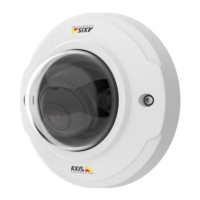
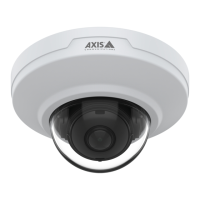
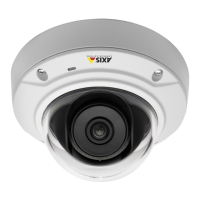
AXIS M3045-V Network Camera
AXIS Video Motion Detection
To highlight the exclude areas, click on the icon.
Visual Conrmation
Visual conrmation is used to validate that the settings are correct, that is, that all objects that should be detected are detected.
Visual conrmation is used to validate that the settings are correct, that is, that all objects that should be tracked are tracked.
Note
To use visual conrmation, Internet Explorer and AXIS Media Control (AMC) must be used.
When visual conrmation is enabled, all moving objects found by the application will be encircled and followed by polygons. A red
polygon indicates that the object is found and is detected as a moving object. A green polygon indicates that the object is found but
is ignored because it is not in the include area or because of one of the ignore lters.
When visual conrmation is enabled, all moving objects found by the application will be encircled and followed by polygons. A red
polygon indicates that the object is found and that tracking has started. A green polygon indicates that the object is found but is
ignored because it is not in the include area or because of one of the ignore lters.
The yellow rectangle shows how the view area follows moving objects and how the view area zoom level is adapted to include all
moving objects.
To enable visual conrmation:
1. Select the Enable visual conrmation option.
2. Click Save.
Note
• Visual conrmation is disabled after 15 minutes.
• After modifying a setting, click Save to apply the change. The video stream will be restarted and it may take a few seconds
before the change is applied.
• Enabling visual conrmation may introduce video latency.
Ignore Filters
If AXIS Video Motion Detection 3 detects too many unwanted objects, start by modifying the include and exclude areas. If still too
many objects are detected, use one or more of the ignore lters.
If AXIS Digital Autotracking tracks too many unwanted objects, start by modifying the include and exclude areas. If still too
many objects are tracked, use one or more of the ignore lters.
Supported ignore lters:
• Swaying objects — Used to ignore objects that only move a short distance
• Short-lived objects — Used to ignore objects that only appear in the image for a short period of time
• Small objects — Used to ignore small objects
Ignore lters are applied to all moving objects found by the application and should be congured with care to ensure that no
important objects are ignored.
Only use ignore lters if needed and use as few lters as possible. Enable and congure one lter at a time and use visual conrmation
to verify the settings before enabling another lter. When conguring a lter, start with a small lter size, click Save and use visual
conrmation to verify the settings. If required, increase the lter size in small steps until the number of unwanted objects is reduced.
Swaying Object Ignore Filter
The swaying object lter is used to avoid detecting objects that only move a short distance, for example moving trees, ags and their
shadows. Use the lter if such objects cause a lot of false detections. If the swaying objects in the scene are large, for example large
35


 To Next Page