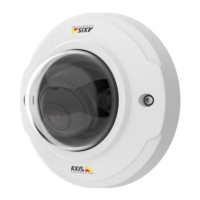
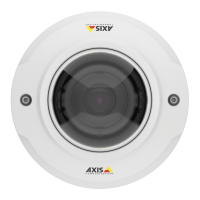
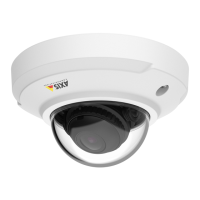
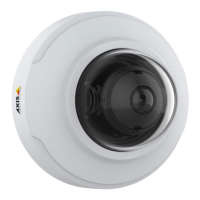
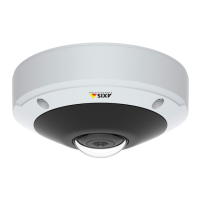
AXIS M3045-V Network Camera
AXIS Video Motion Detection
7. If too many unwanted objects are tracked, enable and congure one or more of the ignore lters. See Ignore Filters
on page 35.
After modifying a setting, click Save to apply the changes. The video stream will be restarted and it may take a few seconds
before the change is applied.
Include Area
The include area is the area in which moving objects will be detected. Objects moving outside the include area will be ignored.
The object will be detected also if only a part of the object is inside the include area.
The include area is the area in which moving objects will be tracked. Objects moving outside the include area will be ignored. The
object will be tracked also if only a part of the object is inside the include area.
Note
To modify the include area, Internet Explorer and AXIS Media Control (AMC) must be used.
The default include area is a square that covers the whole image. Click on the
icon to highlight the area.
Use the mouse to reshape and resize the area so that it only covers the part of the image in which moving objects should be detected.
The default square can be changed to a polygon with up to 20 points (corners).
• To add a new point, click on the include area border. Drag the point to the desired position.
• To remove a point, right-click on the point.
• To move a point, drag the point to the new position.
• To move the entire include area, place the mouse pointer inside the area. When the pointer becomes a cross, drag the
area to the new position.
• To select the include area, click on the border.
To reset the include area to its default size, click Reset.
Exclude Area
An exclude area is an area in which moving objects will be ignored. Use exclude areas if there are areas inside the include area
that trigger a lot of unwanted detected objects. Up to 10 exclude areas can be used.
An exclude area is an area in which moving objects will be ignored. Use exclude areas if there are areas inside the include area
that trigger a lot of unwanted tracked objects. Up to 10 exclude areas can be used.
Note
To add and modify exclude areas, Internet Explorer and AXIS Media Control (AMC) must be used.
To add an exclude area, click Add. The default exclude area is a rectangle placed in the center of the image. Use the mouse
to move, reshape and resize the area so that it covers the desired part of the image. The default square can be changed to a
polygon with up to 20 points (corners).
• To move the exclude area, place the mouse pointer inside the area. When the pointer becomes a cross, drag the area
to the new position.
• To add a new point, click on the exclude area border. Drag the point to the desired position.
• To remove a point, right-click on the point.
• To move a point, drag the point to the new position.
• To select an exclude area, click on the border.
To remove an exclude area, select the area and then click Remove.
34


 To Next Page