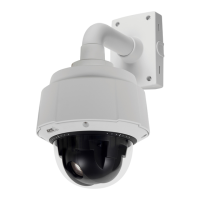
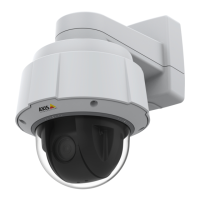
AXIS Q6034 PTZ Dome Network Camera
Applications
Applications
Third party applications can be uploaded to and installed on the Axis product. For information about available applications,
downloads, trials a nd licenses, go to www.axis.com/applications
To upload an applica tion, go to Applications > O verview, click Browse to locate the file and t he n click Upload Package. Click on the
uploaded application’s nam e to open the menu options Settings, License and About.Forconfiguration instructions, please r efer to
the documentation provided with the application.
Most applications need a license to run. To install the license, select the License menu option. If the product is connected
to the Internet, Automatic Installation appears in the web page. If the prod u ct is not connected to the Internet, go to
www.axis.com/applications to acquire a License key. You will need a license code and the product’s serial number (fo und on the label
and under System Options > Support > System Overview) to receive a license key.
Installed Applications lists instal led applications w ith information about the version and the vendor , the status of the application
(running or not running), and information about the license.
Use the Start and Stop buttons to start and stop the application.
To generate a log file for the a ppli cation, select the application a nd click Log.
Note
It is recommended to run one application at a time. Avoid running applications when motion detection is active.
34



 To Next Page