AXIS Q6034 PTZ Dome Network Camera
Events
To add additional criteria, select the Additional conditions option and add additional triggers. To prevent an action from being
triggered repeatedly, a Wait at least time can be set. Enter the time in hours, minutes and seconds, during which the trigger
should be ignored before the action rule can b e activated aga in.
The recording Duration of some actions can be set to include time immediately before and after the event. Select Pre-trigger time
and/or Post-trigger time and enter the number of seconds. When While the rule is active is enabled and the action is triggered
again during the post-trigger time, the recording time will be extended with another post-trigger time period.
For more information, see the online help
.
Recipients
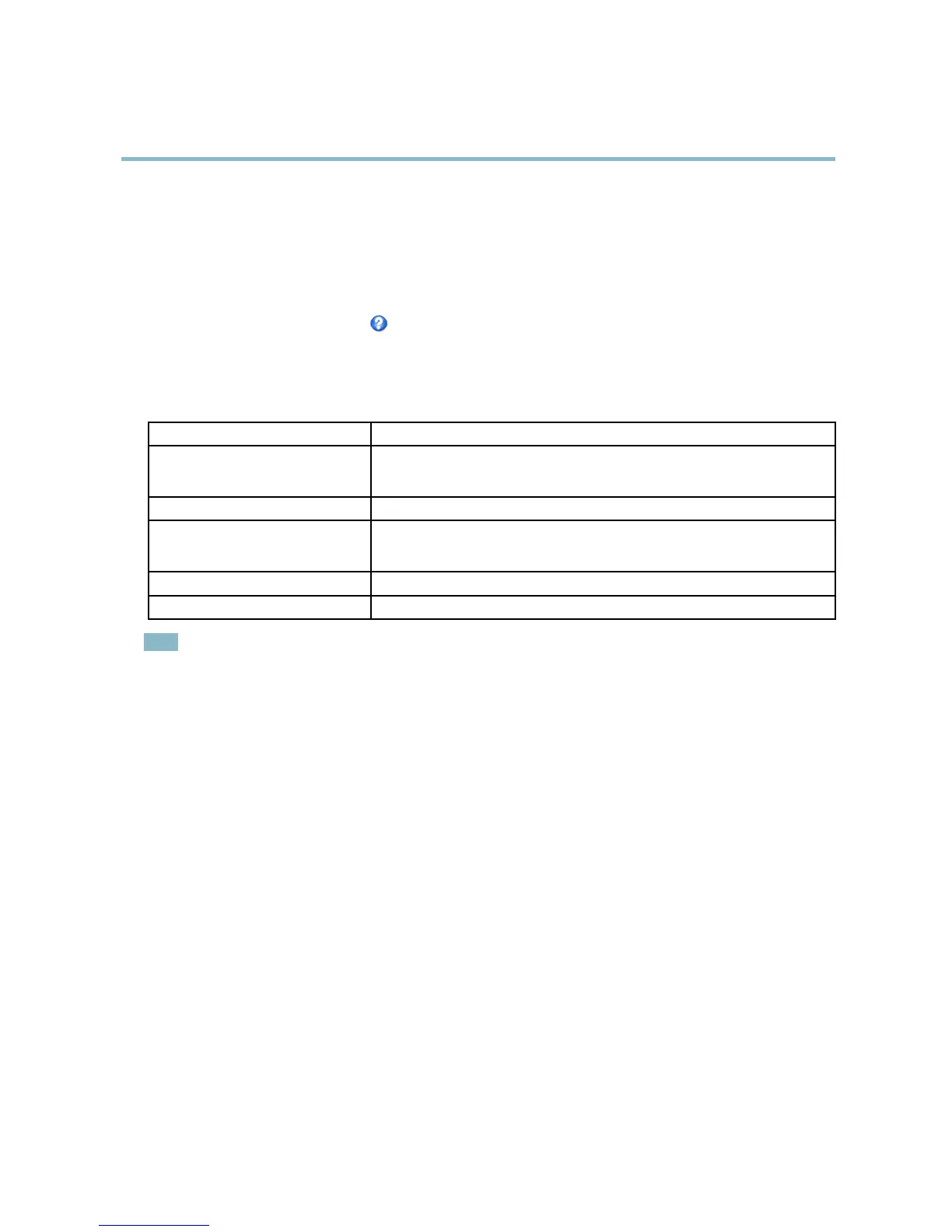
Recipients receive media files and notification messages. The following recipients are available:
Recipient Use with action
Email
Send Images
Send Notification
FTP
Send Images
HTTP
Send Images
Send Notification
Network Share Send Images
TCP Send Notification
Note
A network share can also be used as a storage device for recorded video. Go to System Options > Storage to configure
a network share before setting up a continuous recordingoranactionruletorecordvideo. See
Storage, on page 47
for more information about storage d evices.
To add a recipient:
1. Go to Events > Recipients and cli
ck Add.
2. Enter a descriptive name.
3. Select a r ecipient T
ype.
4. Enter the info
rmation needed for the recipient type.
5. Click
Test to test the connection to the recipient.
6
.
C
lick OK.
Schedules
Schedules can be used as action rule triggers or as additional conditions, for example to record video if motion is detecte d outside
office hours. Use one of the predefined schedules or create a new schedule as described below.
To create a new schedule:
1. Go to Events > Schedules and click Add.
2. Enter a descriptive name and the information needed for a daily, weekly, monthly or yea rly schedule.
3. Click OK.
37



 To Next Page