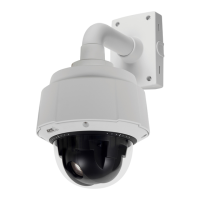
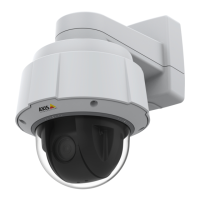
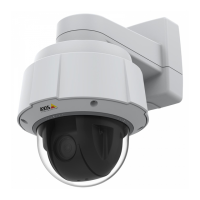
AXIS Q6034 PTZ Dome Network Camera
System Options
Server Report - Provides information about the product status in a pop -up window. The Access Log is automatically included
in the Server Report.
Parameter List - Shows the product's parameters and their current settings. This may prove useful when troubleshooting or
when contacting Axis Support.
Connection List - Lists all clients that are currently ac cessing media streams.
Crash Report - Generate s an archive wi th debugging information. The report takes several minutes to generate.
The log levels for the System Log and the Access Log are set under System Options > Support > Logs & Reports > Configuration.
The Access Log can be configured to list all connections to the product (select C ritica l, Warnings & Info). If required, a dif ferent log
level can be used when sending email s.
Advanced
Scripting
Scripting allows e xperienced users to customize and use their own scripts.
NOTICE
Improper use may cause unexpected behavior and loss of contact with the Axis product.
Axis strongly recommends that you do not use this function unless y ou understand the consequences. Axis Support does not provide
assistance for problems with customized scripts.
To open the Script Ed itor, go to System Options > Advanced > Scripting. It is recommended to create a backup file before
customizing the scripts. If a script causes problems, reset the product to its factory
default settings, see
page 50
.
For more information, see www.axis.com/developer
File Upload
Files, for example web pages and images, can be uploaded to the Axis product and used as custom settings. To upload a file, go
to System Options > Advanced > File Upload.
Uploaded files are accessed through http://<ip address>/local/<user>/<file name> where <user> is the
selected user group (viewer, operator or
administrator) for the uploaded file.
Plain Confi g
Plain Config is for advanced users with experience of Axis product configuration. Most parameters can be set a nd modified from this
page. Help is a vailable fro m the standard help pages.
To open Plain Config, go to System Options > Advanced > Plain Config.
Reset to Factory Default Settings
This will rese t all parameters, including the IP address, to the factory default settings:
1. Press and hold the Control button a nd the Power button for about 15 seconds until the Status indicator flashes amber (see
Hardware Overview, on page 6
).
2. Release the Control button but continue to hold down the Power button for about 1 minute until the Status indicator
turns green.
3. Release the Power button and re-assemble the product.
50



 To Next Page