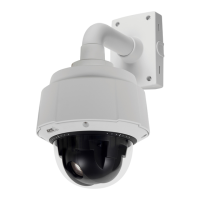
AXIS Q6034 PTZ Dome Network Camera
Troubleshooting
Why do I not get maximum
frames per second?
See
Performance Considerations, on page 61
.
The maximum frames per second is dependent on the utility frequency (60/50 Hz) of the Axis
product. S ee
Technical Specifications, on page 57
.
Image degeneration
Decrease the GOV length. Go to Video & Audio > Video Stream and select the H.264 tab
to modify the GOV leng th.
Status indicator LED is flashing red and the product is inaccessible
A firmware upgrade has
been interrupted or the
firmware has otherwise been
damaged
See
Emergency Recovery Procedure, on page 52
.
No images displayed on web page
Problems with AXIS Media
Control (
Internet Explorer
only
)
To enable the updating of video images in Internet Explorer, set the browser to allow ActiveX
controls. Also, make sure that AXIS Media Control is installed on your computer.
Installation o f additional
ActiveX component
restricted or prohibited
Configure the Axis product to use a Java applet for updating video images in Internet Explorer. Go
to Setup > Live View Config and select Java applet under Default viewer.
Video and image problems, general
Image too dark or too light
Check the video stream and camera settings under Setup > Video & Audio > Video Stream and
Setup > Video & Audio > Camera Settings.
Missing images in uploads This can occur when trying to use a larger image buffer than is actually ava ilable. Try lowering
the frame rate or the upload period.
Slow image update Configuring pre-buffers, motion detection, high-resolution images or high frame rates will affect
the performance of the Axis product.
Poor perfo rmance Poor performance may be caused by heavy network traffic, multiple users a ccessing the product,
low performance clients, use of featuressuchasmotiondetection,eventh
andling or uploaded
applications.
Poor quality snapshot images
Screen incorrectly
configured on your computer
Configure your screen to show at least 65000 colors, that is, at least 16 bits. Using only 16 or 256
colors will produce dithering artifacts i n the image.
Overlay image is not displayed
Incorrect size or location of
overlay image
The overlay image may have been positione d incorrectly or may be too large. Se e
Overlay Image
Settings
in the o nline help for more information.
Privacy mask is not displayed
Incorrect size or location of
privacy mask
The privacy mask may have been positioned incorrectly or may be too large.
Browser freezes
Firefox can someti
mes
freeze on a slow computer
Lower the image res
olution
55



 To Next Page