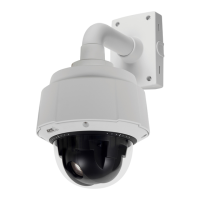
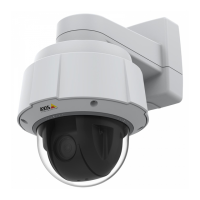
AXIS Q6035 PTZ Dome Network Camera
Recordings
Continuous recording
IfusinganSDcard,theAxisproductcanbeconfigured to continuously save video to the card. To prevent the disk from becoming
full, it is recommended to enable automatic disk cleanup under System Options > Storage.
To start a continuous recording, follow these steps:
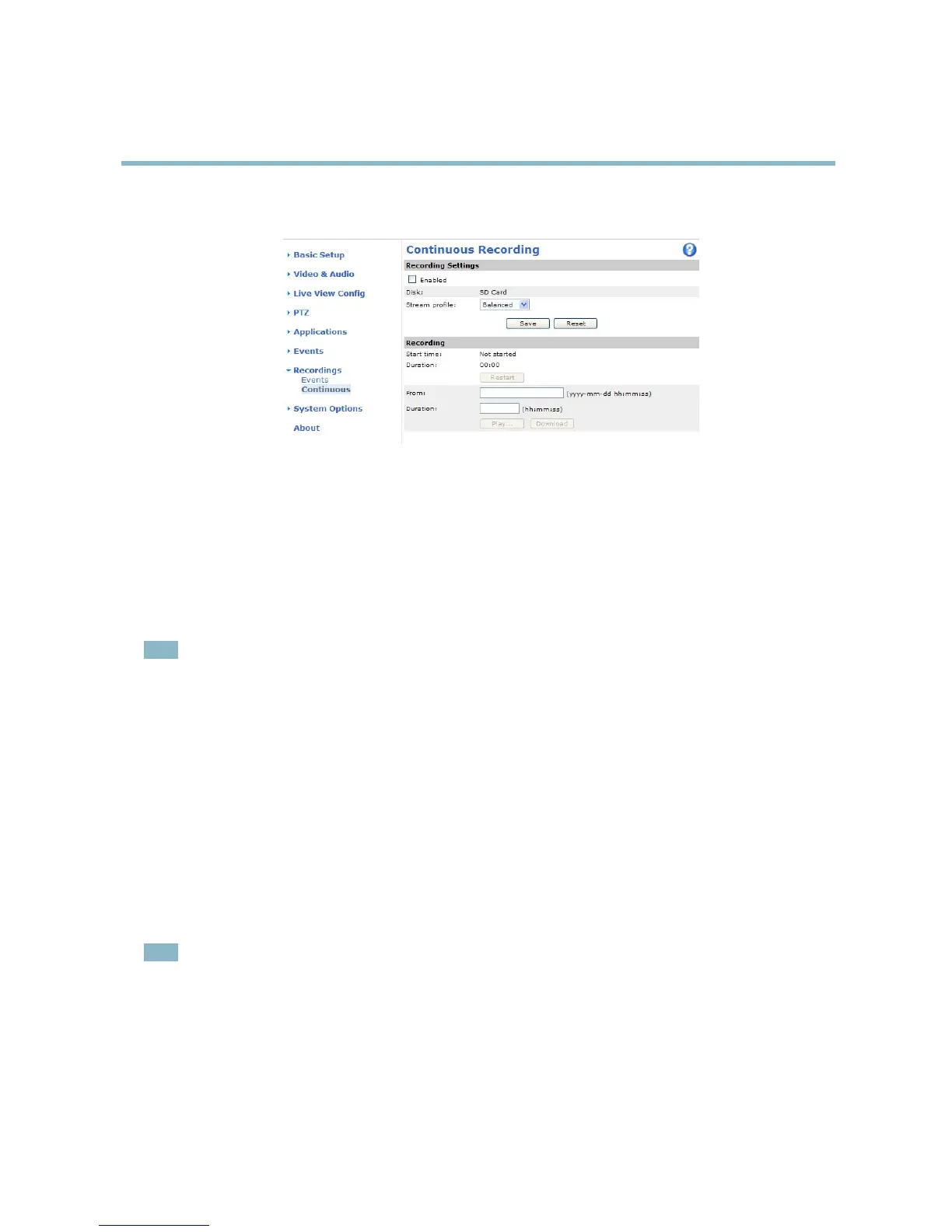
1. Go to Recordings > Continuous.
2. Select Enabled.
3. Select a Stream profile to use for continuous recordings.
4. Click Save to save and start the recording.
Note
An ongoing recording will be restarted and all previous continuous recordings will be removed if a new stream pro file is
selected.
To restart an ongoing recording, go to Recordings > Continuous and click Restart. This will remove all previous continuous recordings.
To play or download a continuous recording, follow these steps:
1. Go to Recordings > Continuous.
2. To play or download the recording from a point in time, enter the year, month, date and the time in hours and minutes in
the From field.
3. Enter the amount of the recording (hours and minutes) to play or d ownload in the Duration field.
4. Click Play to playback the recording, or click Download to download the recording.
Multiple recordings can be downloaded at the same time. Select the recordings and click Download. The downloaded file is a zip file
containing a
minimum of three fi les, of which the Matroska (mkv) files a re the actual recordings. The recordings are time-stamped
with the date a nd time they were downloaded (that is, not the date the recordings were made).
Note
To play recordings in Windows Media Player, AXIS Matroska File Splitter must be installed. AXIS Matroska File Spl itter
can be downloaded from www.axis.com/techsup/software
37



 To Next Page