EasyManua.ls Logo

Axis W10 Series - User Manual

Axis W10 Series
15 pages
Print Icon
To Next Page IconTo Next Page
Loading...
AXISW10xBodyWornCameras
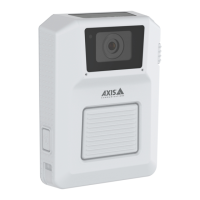
AXISW100BodyWornCamera
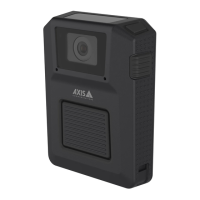
AXISW101BodyWornCamera
Usermanual

Questions and Answers

  • C
    chelsea54Sep 1, 2025
    Why Axis Security Camera is not discovered by the system?
    • K
      Kurt TaylorSep 1, 2025
      If your Axis Security Camera is not discovered by the system and doesn’t appear in AXIS Body Worn Manager, it may be because the docking station is connected to the system controller through a router. To fix this, enable IPv6 on the network.
  • B
    bellkathrynSep 12, 2025
    Why is no Axis W10 assigned when tapping the RFID tag?
    • J
      Joseph ForbesSep 13, 2025
      If no camera is assigned to the user when the user taps the RFID tag on the reader (using self-assign), wait until a camera is ready for use. A camera is ready for use when it has enough storage and battery, and it has the same firmware version as the rest of the system.
  • M
    Michael LopezAug 31, 2025
    Why are my Axis W10 Security Camera recordings offloading slowly?
    • M
      michaelmorrowAug 31, 2025
      If your Axis Security Camera recordings are slow to offload, it might be due to multiple simultaneous offloads affecting the transfer speed. To resolve this, check the camera status in AXIS Body Worn Manager and wait for the recordings to be transferred.
  • T
    tdunnSep 15, 2025
    Why is the LED flashing red on my Axis Action Cameras?
    • M
      michaeldominguezSep 15, 2025
      The camera is not added in the body worn system. Add the Axis Action Camera to the body worn system.
  • M
    Martin GreeneSep 14, 2025
    What to do if Axis Action Cameras docking status flashes amber and storage is red?
    • L
      Logan WolfeSep 14, 2025
      This indicates an error when uploading content to the system controller. Check the connection between the Axis Action Camera and the docking station. Also, check the connection between the docking station and the system controller. Ensure that the system controller is functioning correctly.
  • A
    Alice DavisSep 22, 2025
    Why are all LEDs off when Axis Action Cameras are docked?
    • K
      Kelly GilesSep 22, 2025
      If you are using fixed camera assignment, no user is assigned to the camera, so assign a user to the camera. If you are using self-assign camera assignment, this means that the camera is ready to be self-assigned.
  • B
    Benjamin FitzgeraldAug 27, 2025
    Why doesn't the LED display work on my Axis Digital Camera?
    • A
      Alisha FullerAug 27, 2025
      If the LED display on your Axis Digital Camera doesn't work, the camera might be in silent mode, which turns off the display. To exit silent mode, press the top button for 2 seconds.
  • P
    pbartonAug 27, 2025
    How to fix foggy image on Axis Digital Camera?
    • I
      iibarraAug 27, 2025
      If the image from your Axis Digital Camera looks foggy, the lens is likely dirty. Clean the lens to resolve this.
  • D
    Debra ScottAug 26, 2025
    Why is offloading recordings slow on my Axis Digital Camera?
    • J
      John TaylorAug 27, 2025
      If offloading recordings from your Axis Digital Camera is slow, it may be due to many simultaneous offloads affecting transfer speed. Check the camera status in AXIS Body Worn Manager and wait for recordings to be transferred.
  • M
    Michelle WolfAug 26, 2025
    What to do if my Axis Digital Camera doesn't record?
    • J
      Jennifer MasonAug 26, 2025
      Your Axis Digital Camera might not be recording because the camera storage is full (storage status is red). Try docking the camera to resolve this issue. Other possible causes are: pre-buffer video is not complete because pre-buffer time is shorter than configured in AXIS Body Worn Manager; recording started directly after the previous recording was ended; when using the maximum resolution 1080p in very complex scenes with a lot of movement, or in low light, the pre-buffer memory can get full.

Axis W10 Series Specifications

General IconGeneral
Frame RateUp to 30 fps
Lens TypeFixed
Night VisionYes
Weather ResistanceYes
ConnectivityWi-Fi
WirelessYes
Network ProtocolsHTTP, HTTPS, RTSP, RTP, TCP, UDP, DHCP, DNS

Related product manuals