
 Need help?
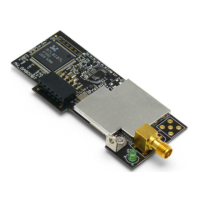
Do you have a question about the AzureWave AW-GA800BT and is the answer not in the manual?
Declares compliance with FCC limits for uncontrolled environments and prohibits co-location with other transmitters.
Lists prerequisites for installing the module, including motherboard, memory, OS, and optical drive.
Details Ad-Hoc mode for peer-to-peer networking without a complex infrastructure.
Explains Infrastructure mode with an access point for wireless links and internet connectivity.
Lists system requirements including motherboard slot, CPU, memory, OS, and optical drive.
Details the steps for installing the antenna on the motherboard for optimal wireless coverage.
Explains how to launch the Wi-Set Wizard for initial wireless configuration or reprogramming.
Guides users to select between Station mode (connecting to a network) or AP mode (setting up a network).
Explains the two types of station mode configurations: Infrastructure and Ad-Hoc.
Introduces the Normal User mode for simplified Soft AP setup with fundamental security.
Details how to configure the network name (SSID) and select the wireless channel for the access point.
Explains how to launch the RtWLAN utility via the Windows Program Menu or system tray icon.
Introduces the five main parts of the RtWLAN main window: menu, adapter list, properties, controls, and status.
Describes the functions of the main menu, including Refresh, Wi-Set Wizard, and Mode switching.
Explains that contents depend on current configuration, detailing sections for Station and AP modes.
Describes control items affecting the adapter or GUI, such as Show Tray Icon, Windows Zero Config, Radio Off, and Disable Adapter.
States compliance with FCC radiation exposure limits, requiring minimum 20cm distance from the body.
Complies with IC radiation exposure limits, requiring minimum 20cm distance between the radiator and body.
 General
| Model | AW-GA800BT |
|---|---|
| Manufacturer | AzureWave |
| Category | Control Unit |
| Bluetooth Standard | Bluetooth 4.0 |
| Bluetooth Version | 4.0 |
| Operating Voltage | 3.3V |
| WLAN Standard | 802.11 a/b/g/n |
| Operating Temperature | 0°C to 70°C |

 To Next Page
