6. EM GUI orientation
6.5 Screen layout presentation
General
The user interface is organized around a M e nu Naviga ti on ba r at the left of the screen and a Working area in the rest of the s creen.
The layout of the screens is s imilar throughout the GUI.
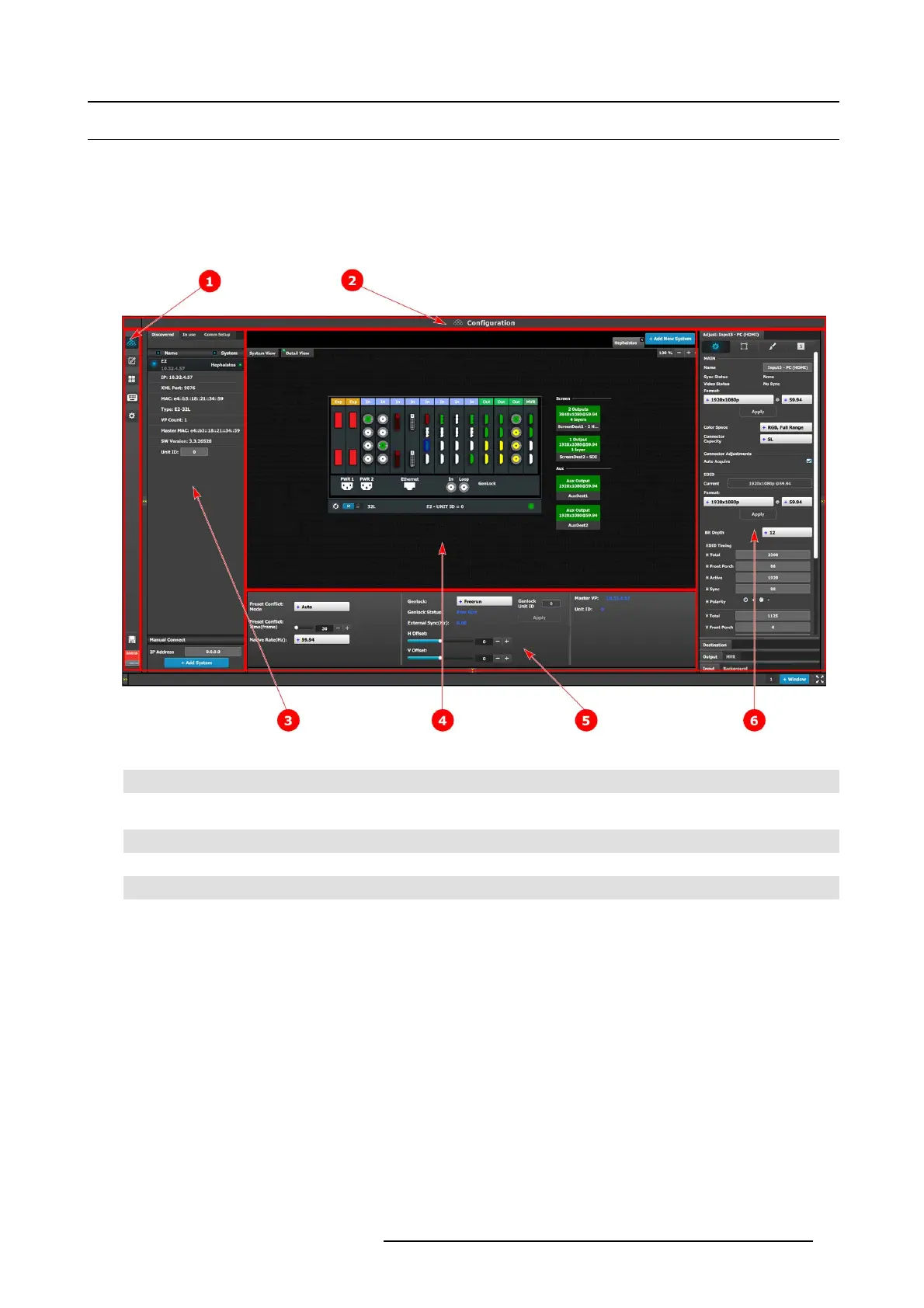
In order to explain t he layout, w e will exam ine the start-up s creen of the Configuration M en u and describe the different components.
The screens for the other me nus follow the same structure and flow.
Image 6-1
EM G UI: Co n figuration Menu
1 Menu navigation bar
2 Title bar
3
Selection area
4 Diagram area
5
Modifier area
6
Configuration area
Menu navigation bar
On the far left hand s ide of the s creen is the Menu Navigation b ar that a llows users to navigate between the different screens and
save or restore system configurations. This area of the s creen is always visible and remains unchanged. Th e available buttons on
the Menu Navigation bar are:
• System Configuration: allows ac cess to S ystem Co nfig uration M enu.
• Programming: allows access to Programm ing Menu.
• Multiviewer: allows ac cess to Multiviewer M enu.
• Controlle r: allows access to Event Controllers setting.
• E2 built-in web page.
• System S ave and Restore.
Title bar
On the top of the working area a title ba r indicates the name of the selected page (e.g. System configuration).
R5905948 EVENT MASTER DEVICES 17/07/2017
93



 To Next Page