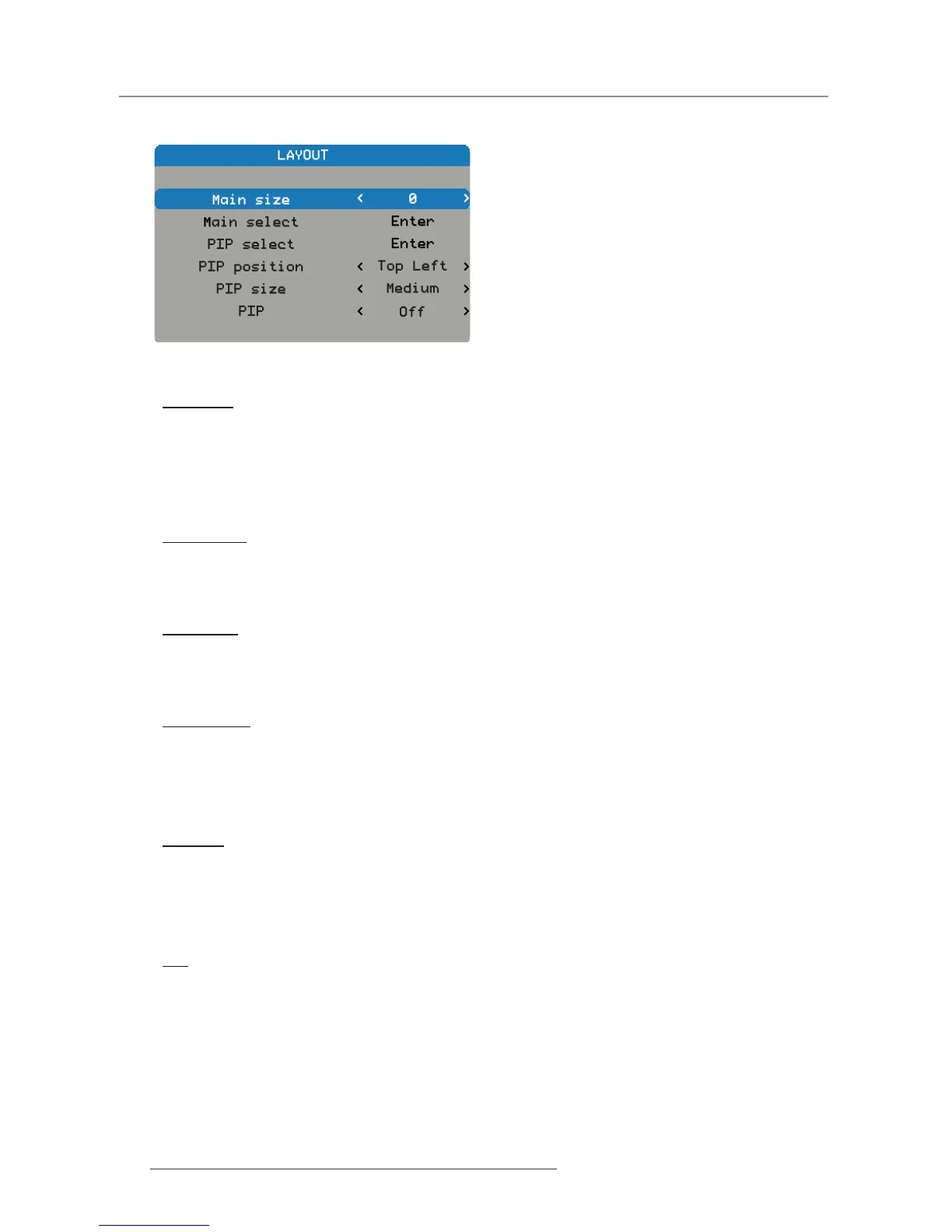
4.1.2.3 Layout Menu
Main Size
Set the size of the main window.
This function is zoom out/cropping image, the location of image will be kept in center.
Press the ◄ to decrease the main size. y
Press the ► to increase the main size. y
Note: Please be noticed that for the PGWU-61B model. When the main size setting is ≥ 3 at composite input, the ripple
picture symptom can be found.
Main Select
Select the source for the main window.
HDMI y DVI y VGA y
5BNC y Video y
PIP Select
Select the source for the PIP window. This function is grey when PIP is Off.
HDMI y DVI y VGA y
5BNC y Video y
PIP Position
Set the position of the PIP window.
Top right: Default value for this function. y
Top left y
Bottom left y
Bottom right y
PIP Size
Set the size of the PIP window.
The PIP size can be different for different input resolutions.
Small: PIP window is about 1/9 width of the entire display. y
Medium: PIP window is about 1/8 width of the entire display. y
Large: PIP window is about 1/7 width of the entire display. y
PIP
Activate the PIP window.
Note: The ripple picture symptom (a bit vibrated behavior) occurred at main picture under 480i, 576i & 1080i while PIP
mode activate, is a bandwidth limitation.
Off: Default value. The PIP function is disabled and only main window is visible. y
On: The PIP image is on top of the main image. y


 To Next Page
 Loading...