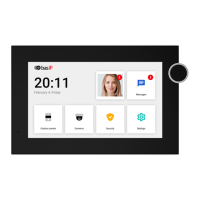
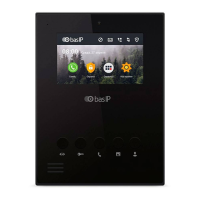
The BAS-IP AT-07L is a 7-inch IP indoor video entry phone designed for residential and commercial use, offering a comprehensive suite of features for communication, security, and smart home integration. It operates on the Android 6.0 operating system, providing a flexible and user-friendly interface. The device is available in three color variations: White, Gold, and Black, and supports both wall mount and flush mount installations using a special bracket.
Technical Specifications:
- Screen: 7-inch IPS display with a resolution of 1024x600.
- Operating System: Android 6.0.
- Connectivity: IP-based, with the ability to connect alarm sensors and a doorbell.
- Ports: MicroSD slot, MicroUSB port.
- Audio: Built-in loudspeaker and microphone.
- Controls: Service button.
Function Description:
Main Screen:
The home screen of the AT-07L is highly customizable, consisting of a main desktop and two additional desktops by default. Users can add an unlimited number of custom desktops and configure them to display up to 8 application icons each.
- First Screen: Displays the current date and time.
- Second Screen: Shows date, time, a weather widget, and main sections of the monitor menu including Calls, Messages, Outdoor panels view menu, and IP cameras view menu.
- Third Screen: Displays additional system menus and applications such as Quad splitter, Security alarms, and Smart home menu.
Adding New Desktops and Apps:
Users can change existing application icons on the main desktop by pressing and holding an icon, selecting a new application from the opened tab, and then holding the new icon to return to the default app. To add a new desktop, users enter edit mode by clamping any icon on an additional desktop for one second, then click the "add new desktop" button in the lower right corner. The number of icons displayed on the desktop can be selected (2x2, 3x2, or 4x2). Applications can be added from a new window that appears after clicking the "add application" icon. Desktops can be removed by entering edit mode and clicking the "Delete" icon.
Navigation Bar:
The navigation bar provides quick access to several features and can be opened by swiping down from the top of the screen or pressing any empty space.
- Concierge Quick Call: Allows quick calls to a specified concierge number, another monitor, or any SIP number. This feature can be enabled in monitor settings or via the web interface.
- Call Elevator: Requires an EVRC IP controller for functioning. Holding "Key 1" or "Key 2" during a call will display the elevator call button, allowing the elevator to be called to the panel's floor.
- Adjusting Sound Modes:
- Normal: All sounds are turned on.
- Mute: All sounds except alarms are turned off. The duration of mute mode can be adjusted.
- Do Not Disturb: All sounds except alarms are turned off, and incoming calls are not displayed on the screen. Access to "system settings" requires an admin password.
The call icon on the main desktop indicates the number of missed calls. When motion detection is enabled, missed calls are displayed in the right corner of the call icon, and notifications of recorded videos triggered by motion sensors appear in the left corner.
- Call History: Pressing the call icon displays call history, categorized by missed calls (☑), outgoing calls ( ), and incoming calls ( ).
- Call Entry Information: Each call entry includes date, time, subscriber number, and conversation duration. Tapping an entry opens additional options.
- Icons Meaning:
- : Call the selected number.
- : View photos/videos taken during the call.
- : Save photos/videos taken during the call to SD card.
- : Delete the entry.
- Dialing: The keypad for dialing numbers can be opened using the button in the lower right corner. Call history can be cleared by pressing this button for a few seconds.
Call Display:
During an incoming call, a dedicated screen is displayed with various options.
- Icons Meaning:
- : Answer a call.
- : Decline a call/end a conversation.
- : Open the keyboard.
- : Open the lock/s.
- : Turn on/off the microphone.
- : Record the video of the conversation.
- : Take a photo of the screen.
- Elevator Call (if EVRC-IP installed): During a conversation, the elevator can be called from the monitor. Holding "Key 1" or "Key 2" will display the elevator call button.
The device can store up to 10,000 contacts, including inner numbers of panels, concierges, other monitors, or SIP numbers. Contacts can be added via the monitor menu or the web interface.
- Adding Contacts via Monitor:
- Open the Call menu and go to the Contacts tab.
- Press the plus icon in the lower left corner.
- Enter the contact name.
- Specify the number type (inner or SIP) and device type (multi-apartment panel, individual panel, or regular device).
- Enter the number in the corresponding format.
- Press "Add contact."
- Number Formats:
- Multi-apartment panel: Building No.-Unit No.-Device No. (e.g., 0001-01-1).
- Individual panel: Building No.-Unit No.-Floor No.-Apartment No.-Device No. (e.g., 0001-01-02-04-1).
- Regular device (monitor): Building No.-Unit No.-Floor No.-Apartment No. (e.g., 0001-01-00-01).
- SIP number: sip:callee SIP number@address of the SIP server or device IP address (e.g., sip:3925@us.sip.bas-ip.com).
- Additional Options:
- Add to favorites: Displays the contact at the top of the list.
- Add to blacklist: Prevents call notifications from this contact (missed calls will still be listed).
- Autoanswer: Automatically accepts calls from this contact.
- Use as default (for multi-apartment/individual panels): Sets the selected panel as the default when opening the panel monitoring menu.
- Contact Card: Tapping a contact card displays detailed information. The star icon adds/removes to favorites. The three-dot button allows editing or deleting a contact.
- Making a Call: Press the call button on the right of the contact card. When calling an entrance panel, the device searches and connects. The panel automatically accepts the call for 30 seconds, then ends automatically.
- Contacts Search: Quickly find contacts by entering their name in the search bar.
Devices:
This menu displays additional monitors with the same logical address but different device numbers.
- Editing Device Name: Pressing the button in the upper left corner near a device opens a menu to edit its name.
- Refreshing Page: Dragging the page down refreshes the list.
- Restoring Default Names: The "Delete" button in the lower right corner restores default device names.
Motion Detections:
This tab appears if video recording on motion sensor trigger is enabled and configured. It displays recorded videos with date, time, duration, and camera name. Videos can be deleted individually or all at once.
Displays messages from concierge or management company. A notification sound and counter above the icon indicate new messages.
- Message Types:
- Info mail: Information not requiring feedback.
- Poll: Management can gather feedback with options or free-text replies.
- Viewing Messages: Double-tap to read. Options to show all, new, or read messages.
Allows monitoring cameras of entrance panels. If "Use as default camera" is enabled for a contact, its image is displayed first.
- Icons Meaning:
- : Open a lock/s.
- : Stop panel monitoring.
- : Start panel monitoring.
- : Turn on/off the microphone.
- : Search for other panels.
- Switching Panels: Pressing the panel name at the top allows switching between panels added to Contacts.
- Missed Calls: If an incoming call occurs during monitoring, it's displayed as a missed call.
View streams from IP cameras. Up to 32 cameras can be added via web interface or monitor settings.
- Icons Meaning:
- : Start stream display.
- : Pause stream display.
- Selecting Camera: Press the current camera name to select another from the list.
Enable/disable configured alarm scenes.
- Scenes: Three scenes available: Out, Home, Sleep.
- Sensors: Sensors can be enabled for each scene in monitor settings or web interface. Triggering an active sensor activates the alarm.
Displays icons that open links in the built-in browser. Links can be set in monitor settings or web interface.
Accessed by swiping down or tapping the top of the main screen. Provides access to general and advanced settings for network, security, automation, IP cameras, etc.
General Settings:
- Screen Brightness: Adjustment.
- Ringtone Volume: Adjustment.
- Speaker Volume (Talk Volume): Adjustment during calls.
- System Language: English, Russian, Ukrainian, Spanish, Polish, Hebrew, Dutch, Turkish.
- Do Not Disturb Mode: Turns off all sounds (except alarm), incoming calls not displayed. Missed calls are shown on the main screen. Can be configured for a specified period.
- Silence Mode: Turns off all sounds (except alarm), incoming calls displayed. Can be configured for a specified period.
Intercom Settings:
Access to communication, logical address, SIP, and DTMF settings.
- Auto Hung Up: Enable/disable hanging up 3 seconds after pressing "Open" during a call.
- Answerphone: Enable/disable automatic call acceptance. If no response in 30 seconds, the monitor records a message from the visitor. (Requires SD card, not available on non-main monitors).
- Autoanswer: Enable/disable automatic answering of all incoming calls.
- Lock Protection: Enable/disable lock protection with a user password.
- Automatic Conversation Recording: Enable/disable recording calls (Requires SD card, not available on non-main monitors).
Address:
For correct device functioning, logical address information must be entered for synchronization and network connection.
- Data Required: Building No., Unit No., Floor No., Apartment No., Device No., Sync code.
- Device Number Note: If only one number, enter "0". If more, numbering starts with "0" and ends with "8".
SIP:
SIP settings for monitor to work via SIP protocol.
- Configuration: Enable SIP registration and enter parameters.
- Parameters: SIP server proxy (IP address or domain name), SIP server address (IP address or domain name), Server STUN IP address, Port of STUN server (19302 for Google STUN server), User SIP number, Password for SIP number.
DTMF:
Change DTMF code (up to 4 characters) to open the lock.
- Configuration:
- Lock #1 name: Displayed during a call.
- Default value use: Enable/disable using internal protocol command to open the door.
- DTMF code for lock #1: (if default value disabled). Default: #.
- Second lock: Enable/disable (e.g., with SH-42 module).
- Lock #2 name: Displayed during a call.
- DTMF code for lock #2: Default: 0.
Network Settings:
Wi-Fi:
Enable and configure Wi-Fi connection.
- Usage: Enable Wi-Fi, wait for available networks, select and connect to desired network.
- Status: Connection status displayed next to network name.
Ethernet:
Enable/disable DHCP or manually enter network settings.
- Configuration: Enter panel IP address, subnet mask, main gateway, DNS server address.
- Information: Check current IP and MAC address.
NTP:
NTP server data for automatic time and date synchronization.
- Functioning: Turn on NTP server for Internet synchronization. Can be turned off.
- Custom NTP: Use custom NTP for local network synchronization. Turn on, enable custom NTP, enter server URL/IP, save.
Link:
Enable/disable and configure BAS-IP Link server for access control, management, and monitoring.
- Configuration: Enable Link server, select protocol (HTTP or MQTT), enter required data, save.
- MQTT: Recommended for its simplicity, effectiveness, data security, fast message delivery, and NAT traversal without additional network settings.
- HTTP: Requires additional network settings like port forwarding.
MQTT Protocol Configuration:
If MQTT is selected:
- Parameters: Management system broker address and port, password for interaction.
- Secured Connection: Enable/disable.
- Heartbeat: Sending of online/offline status is default.
HTTP Protocol Configuration:
If HTTP is selected:
- Parameters: IP address or domain name of the server where Link software is installed, device password.
- Heartbeat: Can be activated from the panel to the server.
Security Settings:
Configure security scenes, sensors, and user/administrator passwords.
Alarm Scenes Setting:
Set which sensors trigger in corresponding scenes.
- Scenes: Out, Home, Sleep.
- Configuration: Select which sensors are enabled/disabled for each scene.
- Activation Time: (0 to 300 seconds) Time after which monitor switches to security mode and activates the scene.
- Alarm Signal: Sent to main and synchronized monitors when a sensor is triggered. Additional notifications (message or SIP call) can be set.
- Disabling Alarm: Enter user password (default: 1234).
Alarm Zones Setting:
Connect up to 8 alarm sensors (up to 16 with SH-16 module). Configure each sensor's operation.
- Parameters: Sensor No., Sensor type, Sensor operation mode, Activation delay time, Sensor name (type).
- Sensor Type:
- Normal: Activated only when scene is enabled (typically for door/window sensors).
- Emergency: Always active, trigger notification sent to Management Software (no longer supported).
- 24 Hour: Always active, regardless of scene (for flood, gas, volume, smoke, heating sensors).
- Sensor Operation Mode:
- NO: Normally open, activated when contacts close.
- NC: Normally closed, activated when contacts open.
- 3C: Activated by any change in contact position.
- Bell: Functions as doorbell, plays incoming call ringtone when contacts close.
- Activation Delay Time: (0 to 60 seconds) Delay before sensor triggers (for normal sensor type).
- Sensor Name (Type): Smoke, gas, PIR, door, window, panic, flood, pull cord, bed mat.
- Alarm Delay Note: Delay time is not summed with alarm scene activation time.
- Disabling Alarm: Enter user password (default: 1234).
Motion Detection:
Records video from specified camera when motion sensor is triggered. Requires connected motion sensors (up to 4) and an SD card.
- Configuration via Monitor:
- Open Security menu, go to Motion detection.
- Enable feature.
- Set video recording duration (Recording time).
- Set time interval for sensor operation (00:00-00:00 for 24/7).
- Select cameras for recording (Motion sensor 1-4 fields). Number of cameras must match connected sensors.
- Save settings.
- Notifications: Displayed near call icon on main screen. Recorded video viewable in Call menu.
- Sensor Type Note: If normal sensor type, works only when alarm is turned on. If 24-hour sensor mode, works 24/7.
User Password:
Change user password.
- Process: Enter current password, create new, confirm new, save changes.
Admin Password:
Change administrator password for web interface and monitor settings.
- Process: Enter current password, create new, confirm new, save changes.
Add IP cameras for stream monitoring (1 to 32 cameras).
- Adding via Monitor:
- Open Settings menu, go to IP cameras tab.
- Press plus icon.
- Enter camera name.
- Enter RTSP URL (e.g., rtsp://admin:123456@192.168.1.87:8554/ch01).
- Press "Apply."
- Default IP Camera View: Select camera to display first when opening IP cameras viewing menu.
Smart Settings:
Configure home automation services for Rooms and Lights.
Rooms:
Configure rooms for display in home automation control menu.
- Warning: Adding rooms is only available on the main monitor (with device number 0).
Lights:
Set names for each room or button.
Advanced Settings:
Configure concierge call number, ringtone, standby mode, screensaver, theme, etc.
Concierge Call:
Set concierge number or any other device for quick call via SIP or P2P.
- Button: Call button in navigation bar.
- Format for P2P: sip:1@192.168.1.65 (callee number@callee IP address).
- Format for SIP: sip:5588@us.sip.bas-ip.com (callee SIP number@SIP server address).
- Requirement: SIP numbers must be registered with the same SIP server.
Call Ringtone:
Select ringtone for incoming calls from standard list, monitor file system, or SD card.
Theme:
Select theme displayed behind icons on monitor screen.
- Options: Default theme, Custom theme (image from standard list, monitor file system, or SD card).
- Custom Theme: Can select color for weather widget, clock, and date for better display.
Standby Mode:
Set timeout for monitor to enter standby mode. Configure various screensavers.
Announcement:
Enable/disable display of announcements/ads in standby mode.
- Configuration: Enable, enter link (RTSP stream or web page), set timeout, save.
Screensaver:
Set other screensavers (clock, photo frame, IP cameras) for standby mode.
- Configuration: Enable, select type, enter data, save.
- Screensaver Types:
- Clock: Set time after which it turns off.
- Photo Frame: Display selected photos. Enable/disable clock, select photo folder, set turn-off time.
- IP Camera Mode: Display one or several cameras RTSP stream.
- Single Camera: Select one IP camera, set turn-off time.
- Tour Mode: Selected IP camera streams displayed one by one. Select cameras, set interval for switching, set turn-off time.
- Quad Splitter Mode: Streams from 4 cameras displayed at once. Select 4 cameras, set turn-off time.
- RTSP Link Resolution Note: RTSP links for additional camera streams must be no more than 1280x720 for correct display.
Firmware Updates:
Update firmware automatically or manually.
- Automatic: Enable/disable notifications, enable/disable custom update server (specify URL/IP), check for updates, install.
- Manual (from SD card): Download firmware to SD card, press 3 dots on update page, select "Install from SD card," select file, click OK.
- Custom Server: Requires
version.json file with firmware version, name, build date, device type, description of changes, and link to firmware file.
Access by entering admin password (default: 123456). Displays installed applications and provides access to system settings. Includes guide for installing third-party applications.
Usage Features:
- Customizable Interface: The Android 6.0 OS allows for extensive customization of the home screen, including adding multiple desktops and arranging application icons.
- Intuitive Navigation: Swiping down or tapping empty space reveals the navigation bar for quick access to key features.
- Comprehensive Communication: Supports concierge calls, inter-monitor calls, and SIP calls, with detailed call history and management options.
- Enhanced Security: Integrated motion detection with video recording, customizable alarm scenes (Out, Home, Sleep), and support for various alarm sensors.
- Smart Home Integration: Features for configuring rooms and lights, laying the groundwork for smart home control.
- Flexible Installation: Supports both wall mount and flush mount options.
Maintenance Features:
- Firmware Updates: Supports both automatic and manual firmware updates to ensure optimal performance and access to new features.
- Custom Update Server: Allows for firmware updates from a custom server, useful in closed networks.
- Password Management: User and administrator passwords can be changed for enhanced security.
- Network Configuration: Detailed settings for Wi-Fi, Ethernet, and NTP for reliable network connectivity and time synchronization.
- SIP Configuration: Comprehensive SIP settings for seamless integration with SIP-based communication systems.
- SD Card Support: Required for features like answerphone, automatic call recording, and manual firmware updates.

 Need help?
 General

 To Next Page