Monitoring menu
In this menu, you can monitor the cameras of the entrance panels.
When you save an entrance panel to contacts and enable the Use as default camera option,
an image from this panel will be displayed first in this menu.
If you have several individual and multi-apartment panels and by default, you need to connect
to one of them, then the Use as default camera option must be enabled only for this panel.
Otherwise, the connection will be made to the last panel that was marked as default.
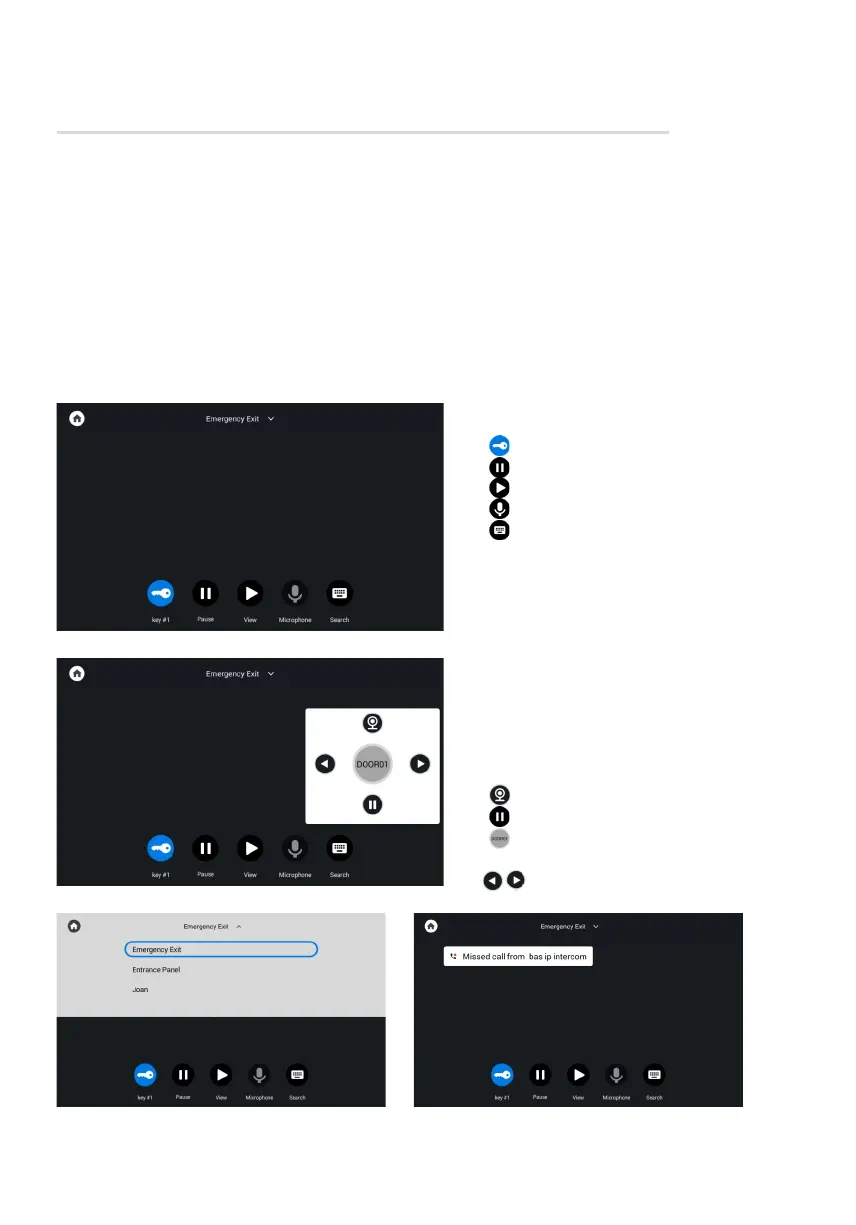
When opening the menu, the following screen will be displayed:
Icons meaning:
- to open a lock/s;•
- to stop a panel monitoring;•
- to start a panel monitoring;•
- to turn on/off the microphone;•
- to search for the other panels.•
Also, you can switch between panels.
Icons meaning:
- to start a panel monitoring;•
- to stop a panel monitoring;•
- to switch between the monitoring•
mode of individual and multi panels.
- to switch between panels.•
Search
By pressing the panel name at the top
of the screen, you can switch to viewing
the panels added to the Contacts section.
If there was an incoming call while your
monitoring the panels, it will be displayed
as a missed call on the screen during
monitoring viewing and in the call menu.



 To Next Page