EasyManua.ls Logo

BD FACSPresto - User Manual

BD FACSPresto
96 pages
Print Icon
To Next Page IconTo Next Page
Loading...
23-12808-02
11/2014
IVD
Becton, Dickinson and Company
BD Biosciences
2350 Qume Drive
San Jose, CA 95131 USA
Benex Limited
Pottery Road, Dun Laoghaire,
Co. Dublin, Ireland
Tel +353.1.202.5222
Fax +353.1.202.5388
BD Biosciences
European Customer Support
Tel +32.2.400.98.95
Fax +32.2.401.70.94
help.biosciences@europe.bd.com
Becton Dickinson Pty Ltd,
4 Research Park Drive,
Macquarie University Research Park,
North Ryde NSW 2113, Australia
Becton Dickinson Limited,
8 Pacific Rise, Mt. Wellington,
Auckland, New Zealand
bdbiosciences.com
ClinicalApplications@bd.com
REPEC
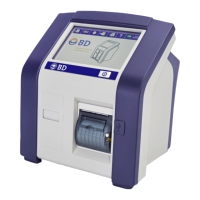
BD FACSPresto™
Near-Patient CD4 Counter
651000
Instructions For Use

Questions and Answers

  • T
    Thomas HuntSep 8, 2025
    What to do if there is not enough blood in the BD FACSPresto Medical Equipment cartridge?
    • J
      Jeffrey ReyesSep 8, 2025
      If there is not enough blood or process control in the cartridge: 1. Make sure the channel is full of blood or process control. If it is not full, prepare a new cartridge. 2. Re-insert the cartridge into the instrument. 3. If the error persists, prepare a new cartridge.
  • E
    Eric HeathSep 10, 2025
    Why is BD FACSPresto Medical Equipment shutting down due to temperature?
    • M
      Matthew PerezSep 10, 2025
      If the instrument temperature is outside its operational range and about to shut down: 1. Make sure the air vents are unobstructed. 2. Wait for the instrument to return to its operational range. 3. Press the power button to turn on the instrument.
  • C
    Cynthia PriceSep 12, 2025
    Why are results not showing on my BD Medical Equipment?
    • M
      Melissa MaciasSep 12, 2025
      If results are not showing and the error code is 6B16 or 6102: 1. Re-run instrument QC. 2. Insert the cartridge into the instrument again. If you get the same error screens, prepare a new cartridge. For other error codes, insert the cartridge into the instrument again. If you get the same error screens, prepare a new cartridge.
  • G
    garciagraceSep 13, 2025
    What to do if the USB flash drive is not functioning with BD FACSPresto Medical Equipment?
    • M
      Melissa RubioSep 14, 2025
      If the USB flash drive is not functioning, insert another BD USB flash drive into the USB port.
  • J
    Janice SanchezSep 15, 2025
    What to do if BD FACSPresto Medical Equipment has a critical failure?
    • K
      Kimberly JonesSep 15, 2025
      If there is a critical failure: 1. If there is a USB flash drive in the USB port, remove it. 2. If there is a cartridge stuck in the cartridge door, do not attempt to remove it. If possible, make sure the cap is closed. 3. Press the power button until the instrument turns off. 4. Press the power button to turn on the instrument. If there is a cartridge in the instrument, a screen with the Open Door button appears. Press Open door. Remove the cartridge.
  • D
    David BarnesSep 18, 2025
    What to do if Instrument QC does not show results on BD FACSPresto?
    • M
      Mrs. Brianna Simmons DDSSep 18, 2025
      If the Instrument QC does not show results: 1. Press the power button until the instrument turns off. 2. Press the power button to turn on the instrument.

Summary

Introduction to the BD FACSPresto System

Safety Symbols Guide

Explains the meaning of safety symbols and alerts used in the manual.

Instrument Setup Procedures

Instrument Setup, Startup, and Shutdown

Guides users through the procedures for setting up, starting, and shutting down the instrument.

Instrument Settings Configuration

Details how to configure initial instrument settings like date, time, and display.

Instrument Usage and Operations

Software Upgrade Process

Provides steps for upgrading the instrument's software using a USB flash drive.

Quality and Process Control

Sample Processing Procedures

Running Samples and Inserting Cartridge

Covers running samples and inserting the cartridge into the instrument.

Instrument Reference and Troubleshooting

Troubleshooting Common Errors

Offers solutions for common errors and problems encountered with the instrument.

BD FACSPresto Specifications

General IconGeneral
Laser ConfigurationBlue (488 nm)
SoftwareBD FACSPresto Software
TechnologyFlow cytometry
Sample TypeWhole blood
FluorochromesPE, FITC
DetectorsPhotodiodes
Power Requirements100–240 VAC, 50/60 Hz
Data StorageInternal storage, USB drive

Related product manuals