44
G+ MIMO Wireless Modem Router
SECTIONSTable of Contents 1 2 3 4 5 7 8 9 106
USING THE WEB-BASED ADVANCED USER INTERFACE
Using the Broadcast SSID Feature
Note: This advanced feature should be employed by advanced users
only� For security, you can choose not to broadcast your network’s
SSID� Doing so will keep your network name hidden from computers
that are scanning for the presence of wireless networks� To turn off
the broadcast of the SSID, remove the check mark from the box next
to “Broadcast SSID”, and then click “Apply Changes”� The change is
immediate� Each computer now needs to be set to connect to your
specific SSID; an SSID of “ANY” will no longer be accepted� Refer to
the documentation of your wireless network adapter for information on
making this change�
Protected Mode Switch
Protected mode ensures proper operation of G+ MIMO
802�11g-compliant devices on your wireless network when 802�11g or
802�11b devices are present, or when there is heavy 802�11g or 802�11b
traffic in the operating environment� Use protected mode if your network
consists of a mix of Belkin G+ MIMO Wireless Cards and 802�11g
or 802�11b cards on your network� If you are in an environment that
includes little to no 802�11g or 802�11b wireless network traffic, you will
achieve the best G+ MIMO wireless performance with protected mode
OFF� Conversely, in an environment with HEAVY 802�11g or 802�11b
traffic or interference, you will achieve the best G+ MIMO wireless
performance with protected mode ON� This will ensure G+ MIMO
wireless performance is not affected�
802.11e/WMM (Wi-Fi
®
Multimedia) QoS
WMM, based on 802�11e QoS (Quality of Service), prioritizes important
data on your network, such as multimedia content and voice-over-IP
(VoIP), so it will not be interfered with by other data being sent over the
network� This feature requires other wireless devices, such as Wi-Fi
phones or wireless laptops, to support WMM for best results�
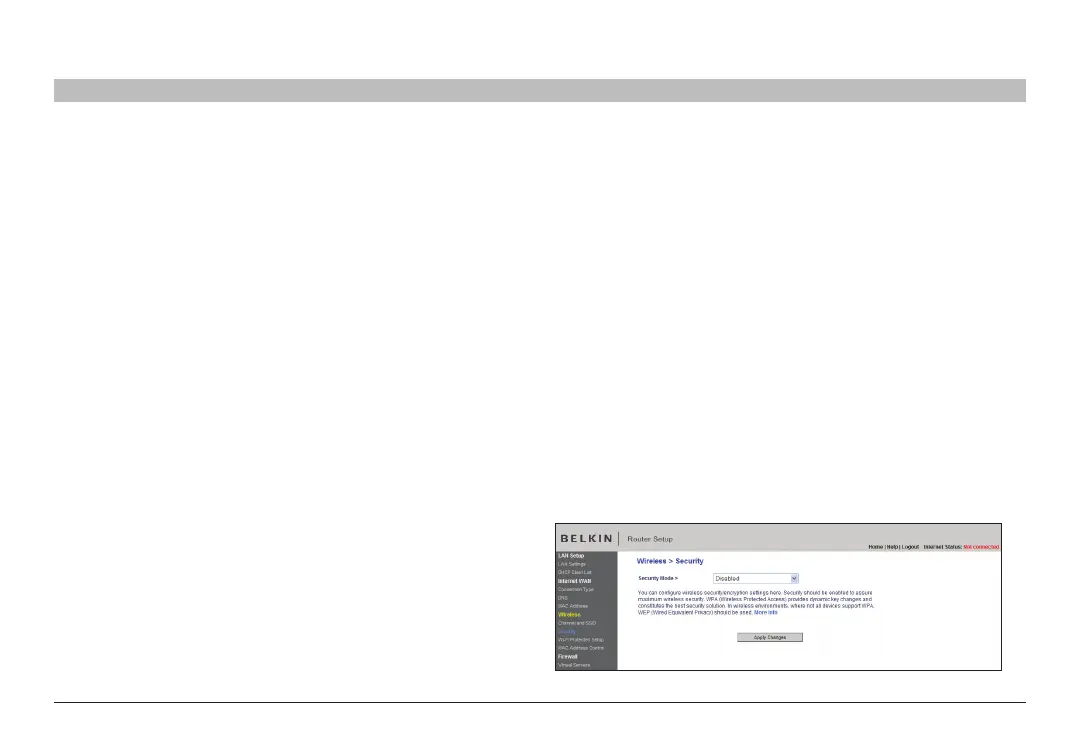
Changing the Wireless Security Settings
Your Router is equipped with the latest security standard called Wi-Fi
Protected Access™ 2 (WPA2™) and the legacy security standard called
Wired Equivalent Privacy (WEP)� Your Router also supports the Wi-Fi
Protected Setup™ (WPS) specification, which simplifies the setup of a
wireless network� WPS uses familiar methodologies, such as typing in
a Personal Identification Number (PIN) or pushing a button, to enable
users to automatically configure network names and strong WPA2 data
encryption and authentication� By default, your Router does not ship
with security enabled� You may automatically configure the security
settings using WPS� To change the security settings manually, you
will need to determine which standard you want to use� To access the
security settings, click “Security” on the “Wireless” tab�







 To Next Page