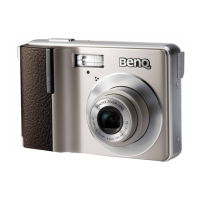
BenQ DC 5530 User’s Manual
E
EE
En
nn
ng
gg
gl
ll
li
ii
is
ss
sh
hh
h
Other Recording Functions 15
4.2
4.24.2
4.2 Exposure Compensation (EV Shift)
Exposure Compensation (EV Shift)Exposure Compensation (EV Shift)
Exposure Compensation (EV Shift)
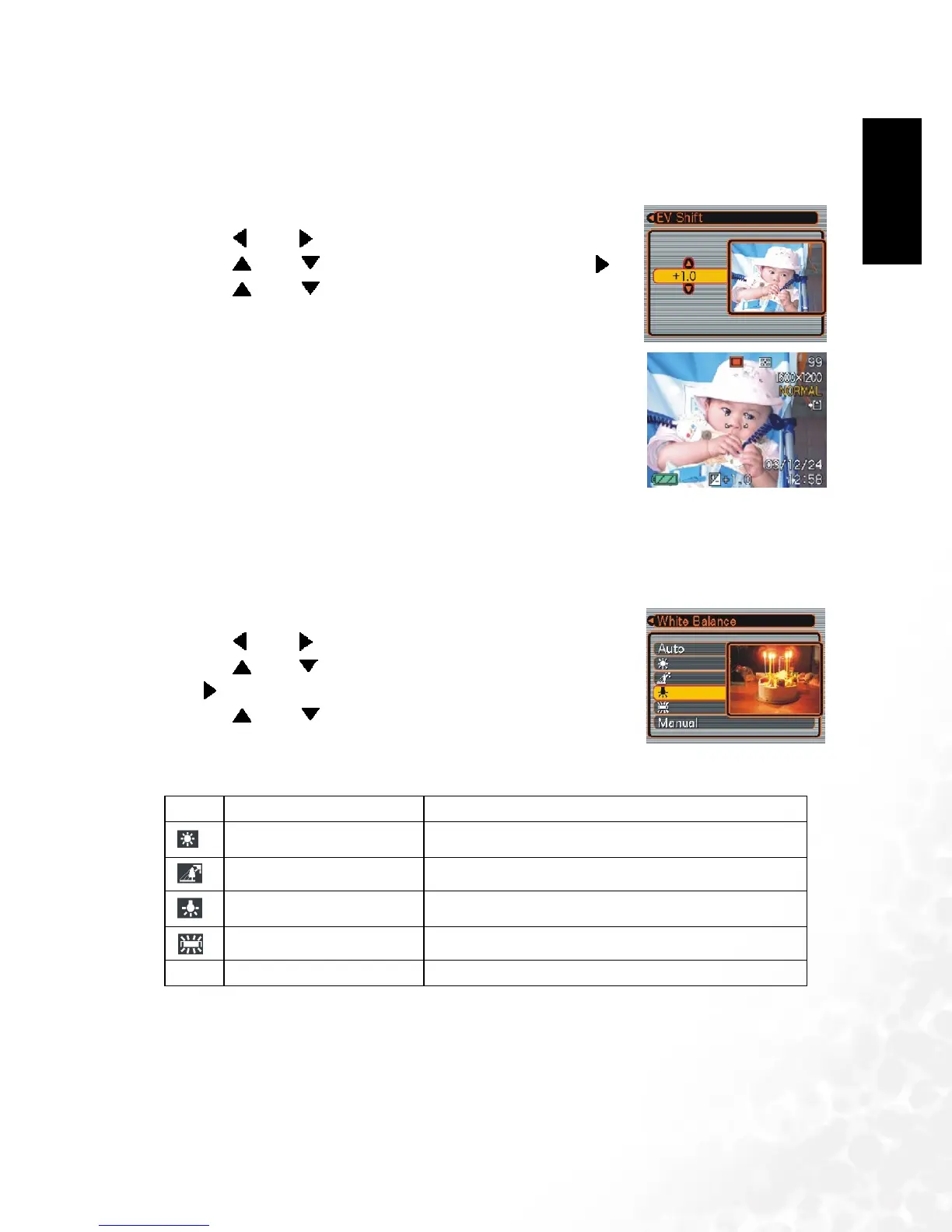
Adjust the exposure compensation setting to compensate for certain light conditions
including: backlighting, indirect indoor lighting, and dark backgrounds.
1. In the REC mode, press [MENU].
2. Use [ ] and [ ] to select the "REC" tab.
3. Use [ ] and [ ] to select "EV Shift", and then press [ ].
4. Use [ ] and [ ] to change the exposure compensation
value, and then press [SET].
• To cancel EV Shift, adjust the value until it becomes 0.0.
• Performing an EV shift operation causes the metering mode
to switch automatically to center weighted metering.
Returning the EV shift value to 0.0 causes the metering
mode to change back to multi-pattern metering.
The settings can be adjusted in 1/3 steps in the range of -2EV to
+2EV.
4.3
4.34.3
4.3 Adjusting White Balance
Adjusting White BalanceAdjusting White Balance
Adjusting White Balance
When the white balance mode is set to match the light source, the camera reproduces colors
more accurately.
1. In the REC mode, press [MENU].
2. Use [ ] and [ ] to select the "REC" tab.
3. Use [ ] and [ ] to select "White Balance", and then press
[].
4. Use [ ] and [ ] to change the white balance value, and
then press [SET].
Auto Auto Settings are automatically set by the camera
[]
Day light For recording outdoors on a bright day
[]
Shade For recording under overcast, shady or twilight skies
[]
Tungsten For recording under tungsten lighting
[]
Fluorescent For recording under fluorescent lighting
Manual Manual Difficult lighting that requires manual control Balance


 To Next Page