Connection
22
Connecting a computer
The projector provides a VGA input socket that allows you to connect it to both IBM
®
compatibles and Macintosh
®
computers. A Mac adapter is needed if you are connecting
legacy version Macintosh computers.
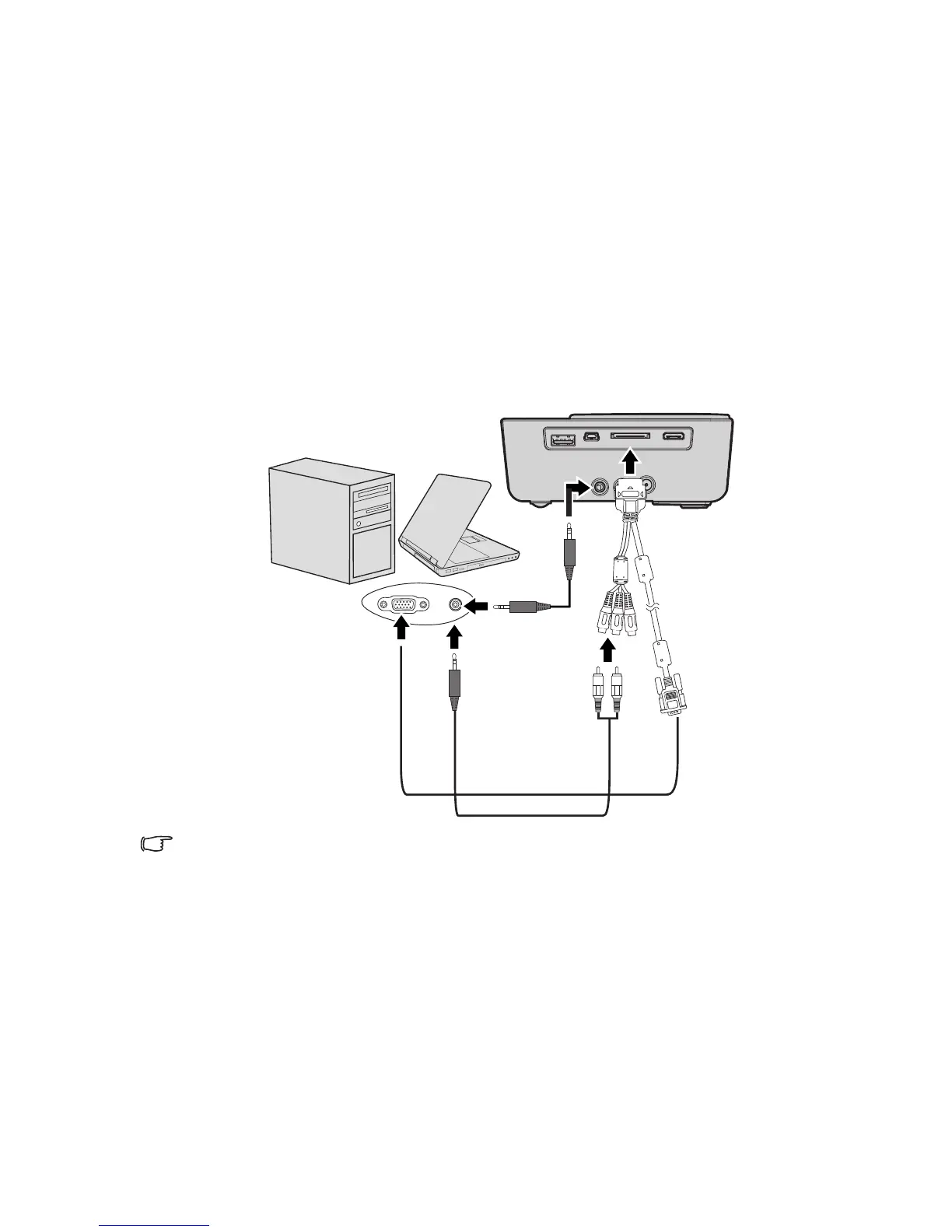
To connect the projector to a notebook or desktop computer:
• Using a VGA cable
1. Take the supplied multi-input cable and connect one end to the D-Sub output socket
of the computer.
2. Connect the other end of the multi-input cable to the PC/AV socket on the
projector.
3. If you wish to make use of the projector speaker, take a suitable audio cable and
connect one end of the cable to the audio output socket of the computer, and the
other end to the audio input sockets of the multi-input cable.
Many notebooks do not turn on their external video ports when connected to a projector.
Usually a key combo like FN + F3 or CRT/LCD key turns the external display on/off. Locate a
function key labeled CRT/LCD or a function key with a monitor symbol on the notebook. Press
FN and the labeled function key simultaneously. Refer to your notebook's documentation to find
your notebook's key combination.
Notebook or desktop computer
Multi-input cable
Audio cable
or



 To Next Page