Connection
25
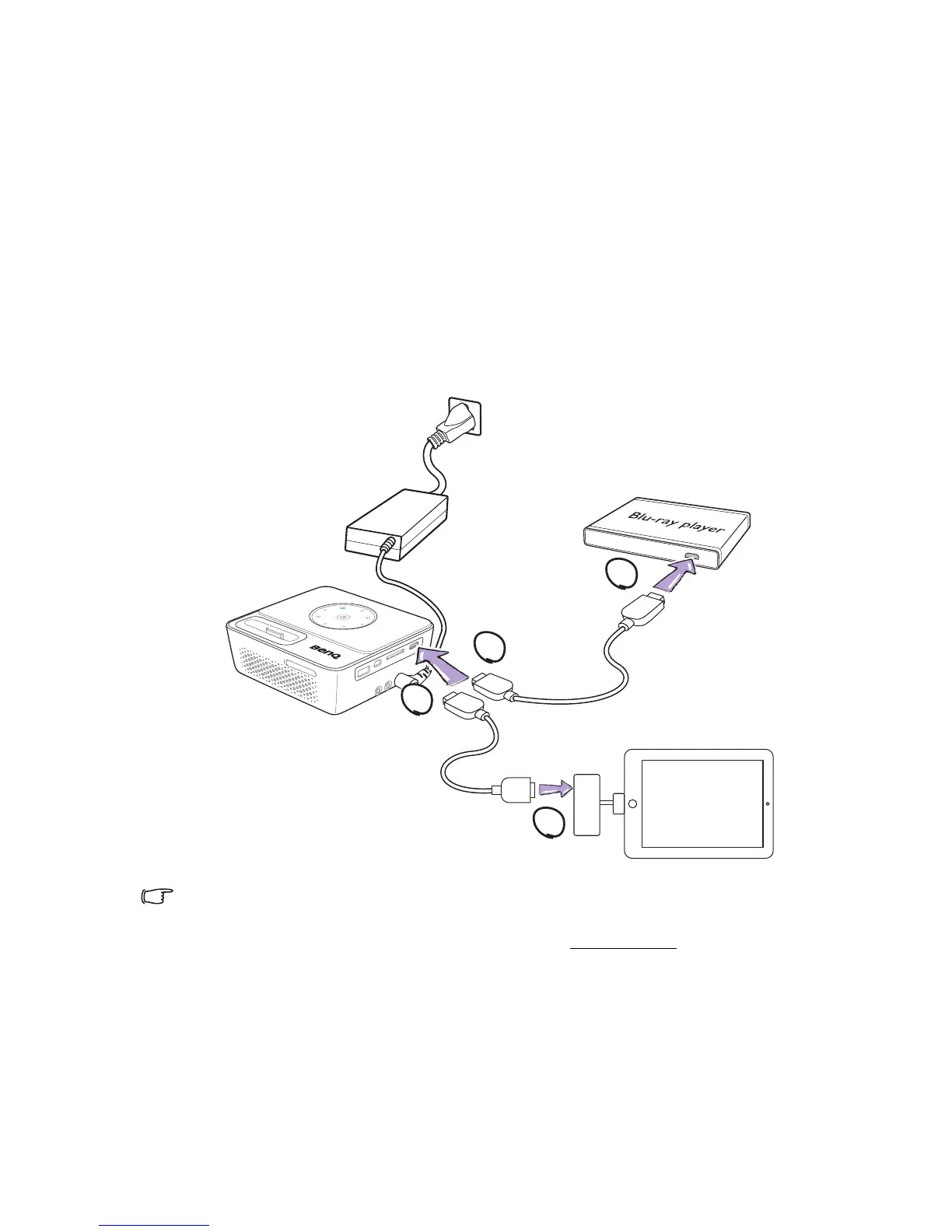
Connecting an HDMI source device
The projector provides a HDMI input jack that allows you to connect it to an HDMI
source device like a Blu-Ray player, a DTV tuner or a display.
HDMI (High-Definition Multimedia Interface) supports uncompressed video data
transmission between compatible devices like DTV tuners, Blu-Ray player and displays over
a single cable. It provides pure digital viewing and listening experience.
Examine your Video source device to determine if it has a set of unused HDMI output
jacks available:
• If so, you can continue with this procedure.
• If not, you will need to reassess which method you can use to connect to the device.
To connect the projector to an HDMI source device:
1. Take an HDMI cable and connect one end to the HDMI output jack of the HDMI
source device.
2. Connect the other end of the HDMI cable to the HDMI jack on the projector.
• The HDMI cable (shown in this example) for connection your video output device is not
supplied as standard.
• The Apple Digital AV Adapter can be purchased from www.apple.com
.
1
2
1
2



 To Next Page