Connection
26
Connecting a Component Video source device
Examine your Video source device to determine if it has a set of unused Component Video
output sockets available:
• If so, you can continue with this procedure.
• If not, you will need to reassess which method you can use to connect to the device.
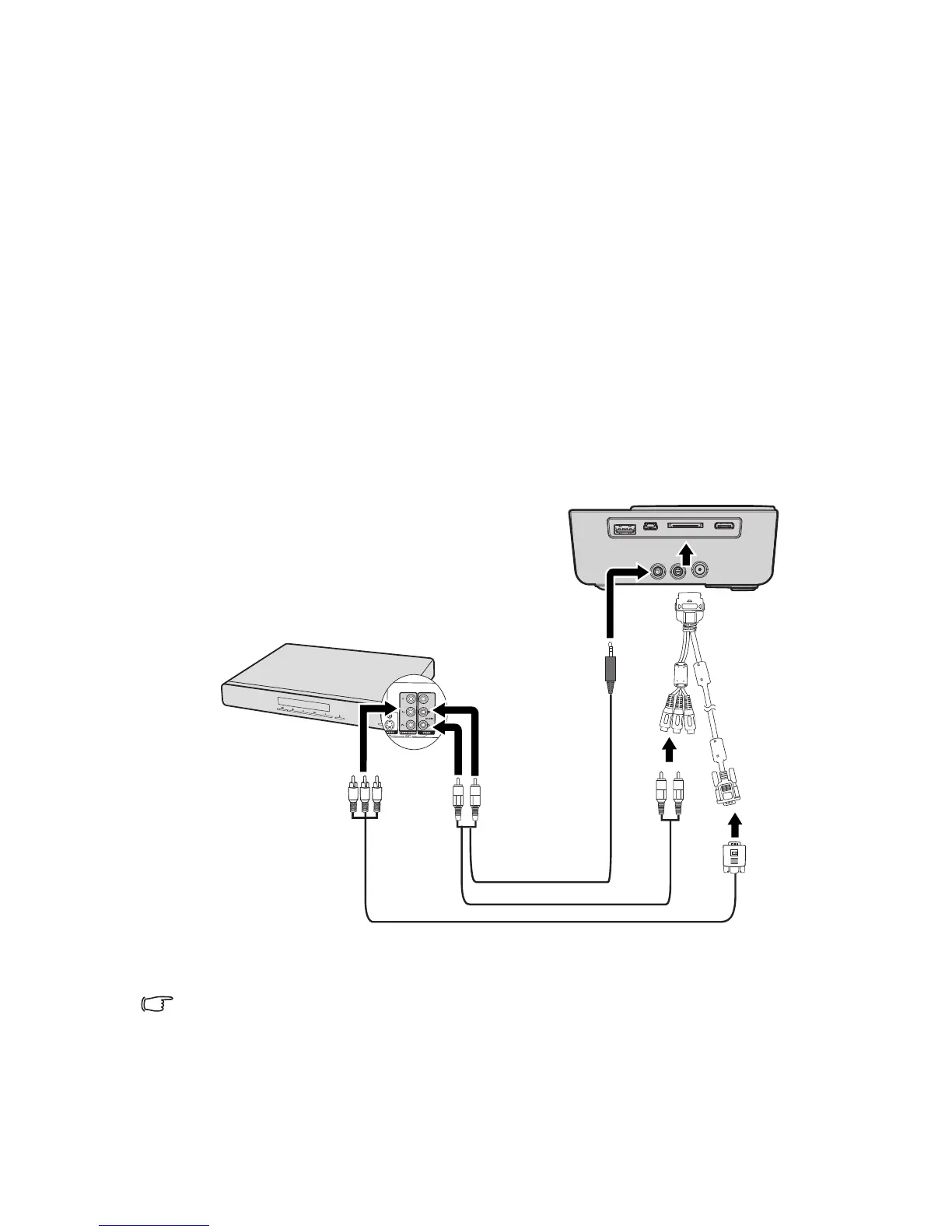
To connect the projector to a Component Video source device:
1. Take a Component Video to VGA (D-Sub) adaptor cable and connect the end with 3
RCA type connectors to the Component Video output sockets of the Video source
device. Match the color of the plugs to the color of the sockets; green to green, blue
to blue, and red to red.
2. Connect the other end of the Component Video to VGA (D-Sub) adaptor cable
(with a D-Sub type connector) to the D-Sub jack of the multi-input cable.
3. Connect the other end of the multi-input cable to the PC/AV socket on the
projector.
4. If you wish to make use of the projector speaker, take a suitable audio cable and
connect one end of the cable to the audio output sockets of the Video source
device, and the other end to the audio input sockets of the multi-input cable.
• When audio output jack is connected with the earphone or external speaker, the sound will
not come out from the projector speaker.
• No sound will come out from the speaker or audio output jack if video signals are not input.
Besides, the sound cannot be adjusted either.
Audio cable
AV device
Component Video to VGA
(D-Sub) adaptor cable
or



 To Next Page