Operation
51
Displaying files with internal memory, USB
Drive and SD card
The projector can display files saved in internal memory or external storage like an SD
card or a USB Drive when you have connected to projector.
To display files:
1. Turn on the power of the projector and the projector displays the home screen.
2. Connect the projector to one of the above external memory devices.
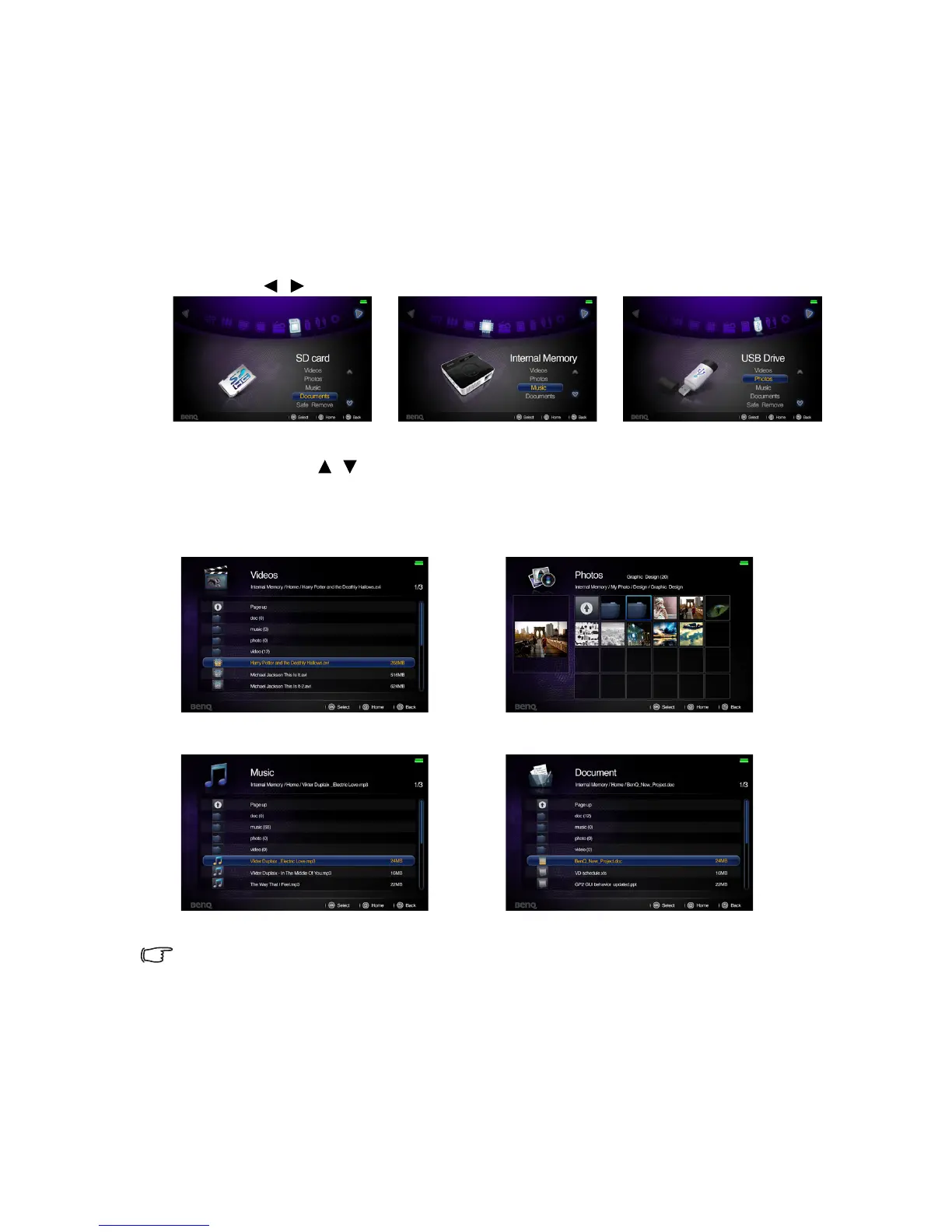
3. Press / to select SD card, USB Drive or internal memory.
4. Storages are classified into Videos, Photos, Music, Documents menu in home
screen. Press / to select desired item and then press OK to enter different file
browser.
File browser window
• You will only see relevant and supported files in each of file browser.
• If you want to disconnect external storages, please select Safe remove icon. See "Supported
file formats" on page 60 for details.
Videos Photos
Music Documents



 To Next Page