Basic operations24
Switching input signals
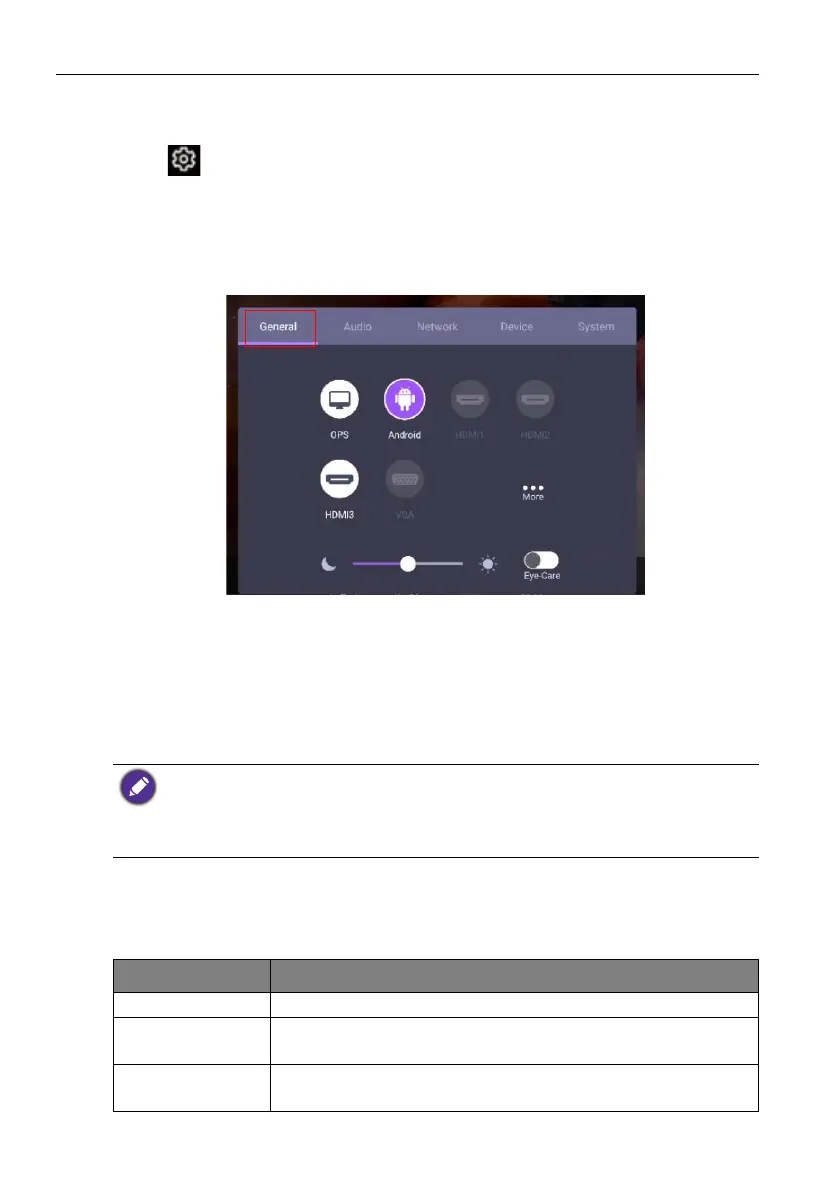
To select an input signal, do either one of the following:
• Press on the remote control.
• Press the Menu button on the front panel.
• Drag the OSD menu up from the bottom-center of the screen.
• Press More to access Picture settings under other input sources. Refer to Picture
settings on page 36 for more information.
• The users can enable the Eye-Care on the OSD menu.
Eye-Care solutions
Blue light with wavelengths under 455 nm could affect vision and age the eyes. Eye-Care
solution is designed for eyesight protection: the display provides proprietary eye-care
technology with zero-flicker performance and ultra-low blue light emission, preventing
eyestrain, eye fatigue and macular degeneration caused by extended sessions in front of a
display. In addition, advanced anti-glare screen treatment minimizes distracting reflections
and glare for optimal productivity and comfort.
To activate the smart eye care solution:
• Enable the Eye Care function under General.
• Go to Device > Display > Eye care option.
Suggestions for long-term use of the display:
• Rest your eyes for 10 minutes after 30 minutes of continuous use.
• For every 20 minutes of display viewing, look into the distance for 20 seconds.
• When your eyes get sore and strained, close your eyes for a minute and then roll your eyes in
all directions.
Menu Description
Standard Set as default value once Eye-Care function is enabled.
On-body detection Activate the PIR motion sensor to detect human body and trigger
the eye care protection mechanism.
Auto brightness Panel backlight will be adjusted automatically according to the
ambient light.


 To Next Page