EasyManua.ls Logo

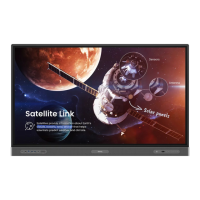
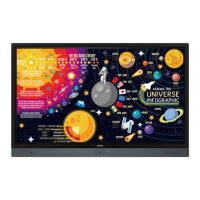
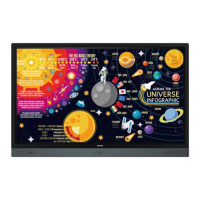
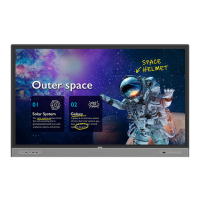
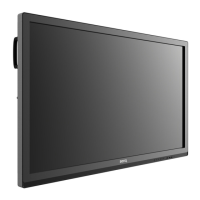
BenQ RP552 - User Manual

BenQ RP552
86 pages
Print Icon
To Next Page IconTo Next Page
Loading...
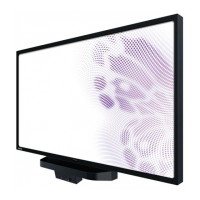
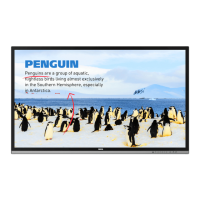
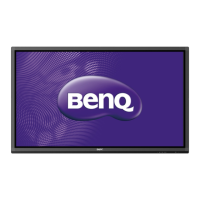
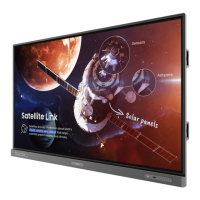
RP552 / RP552H / RP840G
Interactive Flat Panel
User Manual

Other manuals for BenQ RP552

Questions and Answers

  • J
    Jeffrey RojasAug 31, 2025
    How to fix horizontal or vertical stripes or image dithering on BenQ Interactive whiteboard?
    • M
      Mark CallahanAug 31, 2025
      To address horizontal or vertical stripes or image dithering on your BenQ Interactive whiteboard: * Check that the signal wire is securely connected. * Ensure there are no electronic devices or power tools placed near the whiteboard.
  • J
    Jerry FritzSep 8, 2025
    How do I remove vertical lines or streaks on my BenQ RP552 Interactive whiteboard background?
    • S
      Sarah BradySep 8, 2025
      If the background of your BenQ Interactive whiteboard has vertical lines or streaks, try selecting automatic correction in the menu. If that doesn't resolve the issue, adjust the clock and phase position in the menu settings.
  • J
    James QuinnAug 29, 2025
    What to do if BenQ RP552 Interactive whiteboard control panel buttons do not work?
    • B
      Benjamin WaltonAug 30, 2025
      If the control panel buttons on your BenQ Interactive whiteboard aren't working, check if the control panel buttons are locked. If they are, unlock them.
  • C
    Chad SmithSep 23, 2025
    Why does my BenQ RP552 display 'Display format that is not supported'?
    • W
      William JacksonSep 23, 2025
      If your BenQ Interactive whiteboard displays 'Display format that is not supported', select automatic correction in the menu. Alternatively, adjust the clock and phase position in the menu.
  • C
    Christopher KnightSep 10, 2025
    What to do if BenQ RP552 Interactive whiteboard shows 'Display format that is not supported'?
    • C
      chendersonSep 10, 2025
      If your BenQ Interactive whiteboard displays a 'Display format not supported' message, try selecting automatic correction in the menu. Alternatively, adjust the clock and phase position in the menu.
  • K
    Kelsey LarsonSep 14, 2025
    Why is there no sound with VGA output on my BenQ RP552?
    • D
      Dr. Jamie Dominguez MDSep 14, 2025
      If you are experiencing VGA output without sound on your BenQ Interactive whiteboard, check whether you have connected an external device with a headphone cable.
  • M
    Marcia JohnsonSep 22, 2025
    What causes horizontal or vertical stripes or image dithering on BenQ RP552?
    • F
      fmcneilSep 22, 2025
      Horizontal or vertical stripes or image dithering on your BenQ Interactive whiteboard can be caused by a poorly connected signal wire. Also, check for other electronic equipment or power tools placed around the machine, as they may cause interference.
  • J
    Jennifer GreenAug 27, 2025
    What to do if the touch function is invalid on my BenQ Interactive whiteboard?
    • M
      Mary EvansAug 27, 2025
      If the touch function on your BenQ Interactive whiteboard is not working, first check if the touch driver is installed and started. Also, make sure that the size of the touched article is comparable with a finger.
  • D
    Daniel BishopAug 26, 2025
    Why is the touch positioning not correct on my BenQ RP552 Interactive whiteboard?
    • M
      Monica SilvaAug 26, 2025
      If the touch positioning is not correct on your BenQ Interactive whiteboard, check that the driver is properly installed and calibrated. Also, ensure that the touch pen is facing the screen correctly.
  • P
    Pamela WeissAug 25, 2025
    Why is the touch function invalid on my BenQ RP552?
    • K
      Karen SmithAug 26, 2025
      If the touch function on your BenQ Interactive whiteboard isn't working, verify that the touch driver is installed and running. Also, ensure that the size of the object you're using to touch the screen is comparable to a finger.

Summary

Safety Warnings and Precautions

Important Safety Instructions

Essential guidelines for safe operation and handling of the display.

Setting Up the Display

Mounting the Display

Instructions for physically mounting the display unit.

Installing on a Wall

Step-by-step guide for wall mounting the display.

Display Features and Functions

Front Panel Controls (RP552)

Description of buttons and indicators on the RP552 front panel.

Front Panel Controls (RP552 H)

Description of buttons and indicators on the RP552H front panel.

Input;Output Terminals (RP552;RP552 H)

Details of connection ports for RP552/RP552H models.

Input;Output Terminals (RP840 G)

Details of connection ports for the RP840G model.

Remote Control Overview

Explanation of the remote control's buttons and functions.

Connecting the Display

Connecting Power

Steps to connect the display to a power source.

Basic Operations

Turning Display On or Off

Procedures for powering the display on and off.

Initial Setup

Steps for the first-time setup and configuration of the display.

Switching Input Signals

How to select different input sources for display.

Setting Up Internet Connection

Steps to connect the display to a network.

Using the Touch Screen

Instructions and gestures for using the touch screen interface.

Menu Operations

Android System Interface

EZWrite 3.0

Using the annotation and whiteboard application.

Product Information

Specifications (RP552;RP552 H)

Detailed technical specifications for RP552 and RP552H models.

Specifications (RP840 G)

Detailed technical specifications for the RP840G model.

Troubleshooting

No Picture Issues

Solutions for issues where the display shows no image.

No Sound Issues

Solutions for audio problems or lack of sound.

Computer Input Image Problems

Troubleshooting for distorted or incorrect computer image display.

Remote Control Malfunctions

Troubleshooting steps for remote control malfunctions.

Touch Functionality Problems

Troubleshooting touch input and positioning errors.

No Picture and Sound

Diagnosing and resolving issues with both picture and sound.

BenQ RP552 Specifications

General IconGeneral
Display Size55 inch
Touch TechnologyInfrared
Multi-Touch10 points
Brightness350 cd/m²
Contrast Ratio1200:1
Operating SystemAndroid
Response Time8 ms
Speakers2 x 10W
Resolution1920 x 1080
ConnectivityHDMI, VGA, USB

Related product manuals