EasyManua.ls Logo

BenQ RP552 - User Manual

BenQ RP552
86 pages
Print Icon
To Next Page IconTo Next Page
Loading...
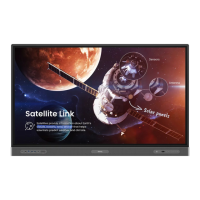
RP552 / RP552H / RP840G
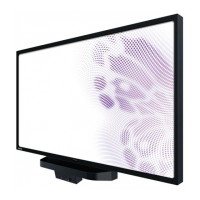
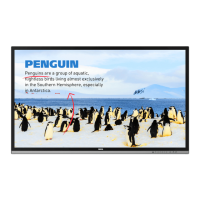
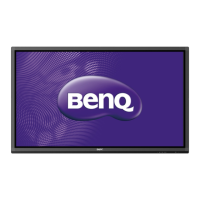
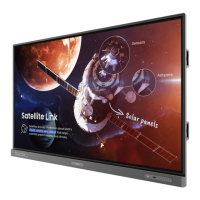
Interactive Flat Panel
User Manual

Other manuals for BenQ RP552

Questions and Answers

  • C
    Chad SmithSep 23, 2025
    Why does my BenQ RP552 display 'Display format that is not supported'?
    • W
      William JacksonSep 23, 2025
      If your BenQ Interactive whiteboard displays 'Display format that is not supported', select automatic correction in the menu. Alternatively, adjust the clock and phase position in the menu.
  • C
    Cody MartinSep 23, 2025
    What causes a BenQ RP552 remote control failure?
    • C
      Cheryl BentonSep 23, 2025
      A BenQ Interactive whiteboard remote control might fail if there are objects obstructing the path between the remote and the receiving window. Also, check the battery electrode in the remote control to ensure it is correctly placed, and replace the battery if necessary.
  • M
    Michael Rose DVMSep 23, 2025
    How to fix image lack of color or incorrect color on BenQ RP552?
    • S
      Sarah PrattSep 23, 2025
      To correct image color issues on your BenQ Interactive whiteboard, first check if the VGA cable is securely connected and of good quality. Then, adjust the chromaticity and brightness or contrast in the menu.
  • G
    Gabriel MendozaSep 23, 2025
    How to troubleshoot only one speaker having sound on BenQ Interactive whiteboard?
    • A
      Amanda WoodSep 23, 2025
      If only one speaker is producing sound on your BenQ Interactive whiteboard, adjust the sound balance in the menu. Check whether the computer's sound control panel is set up for only one sound channel. Also, verify that the audio line is connected correctly.
  • J
    Jeremy BowenAug 31, 2025
    How to fix image lacking color or incorrect color on BenQ Interactive whiteboard?
    • S
      sandra61Aug 31, 2025
      To resolve issues with color on your BenQ Interactive whiteboard: * Check the VGA cable connection for quality and secure connection. * Adjust the chromaticity, brightness, or contrast in the menu.
  • R
    rbauerAug 25, 2025
    How to correct touch positioning on BenQ RP552 Interactive whiteboard?
    • M
      Mary DanielsAug 25, 2025
      To correct the touch positioning on your BenQ Interactive whiteboard: * Check that the driver is properly installed and make the necessary corrections. * Ensure the touch pen is facing the screen.
  • P
    Pamela WeissAug 25, 2025
    Why is the touch function invalid on my BenQ RP552?
    • K
      Karen SmithAug 26, 2025
      If the touch function on your BenQ Interactive whiteboard isn't working, verify that the touch driver is installed and running. Also, ensure that the size of the object you're using to touch the screen is comparable to a finger.
  • D
    Daniel BishopAug 26, 2025
    Why is the touch positioning not correct on my BenQ RP552 Interactive whiteboard?
    • M
      Monica SilvaAug 26, 2025
      If the touch positioning is not correct on your BenQ Interactive whiteboard, check that the driver is properly installed and calibrated. Also, ensure that the touch pen is facing the screen correctly.
  • J
    Jennifer GreenAug 27, 2025
    What to do if the touch function is invalid on my BenQ Interactive whiteboard?
    • M
      Mary EvansAug 27, 2025
      If the touch function on your BenQ Interactive whiteboard is not working, first check if the touch driver is installed and started. Also, make sure that the size of the touched article is comparable with a finger.
  • J
    Justin MosesAug 27, 2025
    What to do if BenQ RP552 Interactive whiteboard remote control does not work?
    • K
      Kaylee MillsAug 27, 2025
      If the remote control for your BenQ Interactive whiteboard isn't working, consider these potential solutions: * Ensure the remote control function isn't locked. * Verify the batteries are correctly oriented and not dead. * Make sure you're within range and pointing the remote at the sensor window. * Check for obstructions or strong lighting affecting the sensor. * Turn off any nearby devices transmitting infrared signals.

Summary

Safety Warnings and Precautions

Important Safety Instructions

Essential guidelines for safe operation and handling of the display.

Setting Up the Display

Mounting the Display

Instructions for physically mounting the display unit.

Installing on a Wall

Step-by-step guide for wall mounting the display.

Display Features and Functions

Front Panel Controls (RP552)

Description of buttons and indicators on the RP552 front panel.

Front Panel Controls (RP552 H)

Description of buttons and indicators on the RP552H front panel.

Input;Output Terminals (RP552;RP552 H)

Details of connection ports for RP552/RP552H models.

Input;Output Terminals (RP840 G)

Details of connection ports for the RP840G model.

Remote Control Overview

Explanation of the remote control's buttons and functions.

Connecting the Display

Connecting Power

Steps to connect the display to a power source.

Basic Operations

Turning Display On or Off

Procedures for powering the display on and off.

Initial Setup

Steps for the first-time setup and configuration of the display.

Switching Input Signals

How to select different input sources for display.

Setting Up Internet Connection

Steps to connect the display to a network.

Using the Touch Screen

Instructions and gestures for using the touch screen interface.

Menu Operations

Android System Interface

EZWrite 3.0

Using the annotation and whiteboard application.

Product Information

Specifications (RP552;RP552 H)

Detailed technical specifications for RP552 and RP552H models.

Specifications (RP840 G)

Detailed technical specifications for the RP840G model.

Troubleshooting

No Picture Issues

Solutions for issues where the display shows no image.

No Sound Issues

Solutions for audio problems or lack of sound.

Computer Input Image Problems

Troubleshooting for distorted or incorrect computer image display.

Remote Control Malfunctions

Troubleshooting steps for remote control malfunctions.

Touch Functionality Problems

Troubleshooting touch input and positioning errors.

No Picture and Sound

Diagnosing and resolving issues with both picture and sound.

BenQ RP552 Specifications

General IconGeneral
Display Size55 inch
Touch TechnologyInfrared
Multi-Touch10 points
Brightness350 cd/m²
Contrast Ratio1200:1
Operating SystemAndroid
Response Time8 ms
Speakers2 x 10W
Resolution1920 x 1080
ConnectivityHDMI, VGA, USB

Related product manuals