EasyManua.ls Logo

BenQ RP552 - User Manual

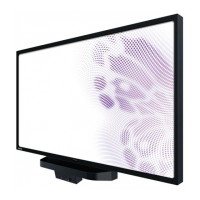
BenQ RP552
86 pages
Print Icon
To Next Page IconTo Next Page
Loading...
RP552 / RP552H / RP840G
Interactive Flat Panel
User Manual

Other manuals for BenQ RP552

Questions and Answers

  • B
    baileywilliamSep 3, 2025
    Why does my BenQ RP552 Interactive whiteboard have image but without sound?
    • S
      Steven FosterSep 3, 2025
      If your BenQ Interactive whiteboard has an image but no sound, try the following: * Check if the mute button is activated. * Adjust the volume using the VOL+/VOL- buttons. * Verify that the audio line is connected correctly.
  • V
    victorevansSep 3, 2025
    Why does only one speaker have sound on BenQ RP552?
    • C
      clarkwilliamSep 3, 2025
      If only one speaker is producing sound on your BenQ Interactive whiteboard: * Adjust the sound balance in the menu. * Check if the computer sound control panel is set to only one sound channel. * Verify that the audio line is connected correctly.
  • D
    Dale WelchSep 4, 2025
    How to fix a BenQ Interactive whiteboard with no picture?
    • E
      egrahamSep 4, 2025
      To troubleshoot a BenQ Interactive whiteboard that isn't displaying any picture, make sure the display and the signal source device are turned on. Check the power indicator and turn on the device if needed. Also, ensure all cable connections are secure. If the problem persists, verify that you've selected a supported output resolution on both your computer and any connected DVD or Blu-ray disc player, referencing the supported input signal resolution guide.
  • A
    Amanda SmithSep 5, 2025
    Why is there no sound on my BenQ Interactive whiteboard?
    • N
      Natasha RodriguezSep 5, 2025
      If your BenQ Interactive whiteboard has no sound, first ensure that the mute function is turned off on both the display and the input source device. Increase the audio volume if necessary. Also, check all cable connections to make sure they are firmly connected.
  • E
    Emily CaldwellSep 5, 2025
    What to do if the BenQ RP552 Interactive whiteboard remote control does not work?
    • B
      brian17Sep 5, 2025
      If the remote control for your BenQ Interactive whiteboard isn't working, first unlock the remote control function if it's locked. Then, check the batteries for correct orientation and ensure they aren't dead. Make sure you're within range and pointing the remote at the sensor, with no obstacles in the way. Also, strong fluorescent lighting or direct sunlight may interfere with the sensor. Finally, turn off the infrared function on nearby devices like computers or PDAs that might be causing interference.
  • X
    xdoughertySep 6, 2025
    Why does the computer input image look strange on my BenQ RP552 Interactive whiteboard?
    • R
      Rodney RowlandSep 6, 2025
      If your BenQ Interactive whiteboard is displaying a strange computer input image, check that you have selected a supported output resolution on your computer. If the issue persists, use the Auto Adjust function to automatically optimize the display. If the result is still not satisfactory, manually adjust the image using the Phase, Horizontal Pos., and Vertical Pos. functions.
  • V
    vtrevinoSep 6, 2025
    What causes remote control failure in BenQ RP552?
    • J
      jeffreymurraySep 7, 2025
      To troubleshoot remote control failure on your BenQ Interactive whiteboard, verify there are no obstructions between the remote and the receiving window. Ensure the battery is correctly inserted and replace the battery if needed.

Summary

Safety Warnings and Precautions

Important Safety Instructions

Essential guidelines for safe operation and handling of the display.

Setting Up the Display

Mounting the Display

Instructions for physically mounting the display unit.

Installing on a Wall

Step-by-step guide for wall mounting the display.

Display Features and Functions

Front Panel Controls (RP552)

Description of buttons and indicators on the RP552 front panel.

Front Panel Controls (RP552 H)

Description of buttons and indicators on the RP552H front panel.

Input;Output Terminals (RP552;RP552 H)

Details of connection ports for RP552/RP552H models.

Input;Output Terminals (RP840 G)

Details of connection ports for the RP840G model.

Remote Control Overview

Explanation of the remote control's buttons and functions.

Connecting the Display

Connecting Power

Steps to connect the display to a power source.

Basic Operations

Turning Display On or Off

Procedures for powering the display on and off.

Initial Setup

Steps for the first-time setup and configuration of the display.

Switching Input Signals

How to select different input sources for display.

Setting Up Internet Connection

Steps to connect the display to a network.

Using the Touch Screen

Instructions and gestures for using the touch screen interface.

Menu Operations

Android System Interface

EZWrite 3.0

Using the annotation and whiteboard application.

Product Information

Specifications (RP552;RP552 H)

Detailed technical specifications for RP552 and RP552H models.

Specifications (RP840 G)

Detailed technical specifications for the RP840G model.

Troubleshooting

No Picture Issues

Solutions for issues where the display shows no image.

No Sound Issues

Solutions for audio problems or lack of sound.

Computer Input Image Problems

Troubleshooting for distorted or incorrect computer image display.

Remote Control Malfunctions

Troubleshooting steps for remote control malfunctions.

Touch Functionality Problems

Troubleshooting touch input and positioning errors.

No Picture and Sound

Diagnosing and resolving issues with both picture and sound.

BenQ RP552 Specifications

General IconGeneral
Display Size55 inch
Touch TechnologyInfrared
Multi-Touch10 points
Brightness350 cd/m²
Contrast Ratio1200:1
Operating SystemAndroid
Response Time8 ms
Speakers2 x 10W
Resolution1920 x 1080
ConnectivityHDMI, VGA, USB

Related product manuals