EasyManua.ls Logo

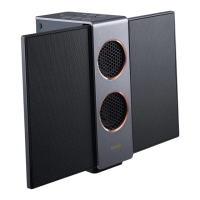
BenQ treVolo U - User Manual

BenQ treVolo U
48 pages
Print Icon
To Next Page IconTo Next Page
Loading...
Bluetooth speaker
User Manual

Other manuals for BenQ treVolo U

Questions and Answers

  • D
    Daniel SchroederSep 13, 2025
    Why does only one speaker receive audio when making a call after establishing the true wireless stereo via Bluetooth connection on BenQ treVolo U Speakers?
    • J
      jamesbellSep 13, 2025
      After establishing true wireless stereo via Bluetooth, only connect your Bluetooth device to the "right channel" unit. The "left channel" unit will not produce sound during calls.
  • T
    Tim HolderSep 15, 2025
    What to do if The Point Reading Pen does not work with BenQ treVolo U via audio cable connection?
    • M
      Melissa JohnsonSep 15, 2025
      If the Point Reading Pen does not work with treVolo U via audio cable, use a compatible 4 pin audio cable. If your Point Reading Pen uses a 3 pin audio jack, apply an adapter from 3 pin to 4 pin.
  • V
    vanessa04Sep 18, 2025
    Why The Point Reading Pen does not work with BenQ treVolo via Bluetooth connection?
    • A
      Angela KellerSep 18, 2025
      If the Point Reading Pen does not work with treVolo via Bluetooth connection, use a Point Reading Pen that supports Bluetooth 5.0. For lower versions, use a compatible 4 pin audio cable to connect.
  • L
    Laura RivasNov 21, 2025
    What to do if BenQ Speaker and the microphone do not function after connecting to treVolo U via Bluetooth?
    • M
      mollyharrisonNov 21, 2025
      If the speaker and microphone don't function after connecting to treVolo U via Bluetooth: 1. Speaker issues: * Ensure the audio cable is unplugged. * Check that the speaker volume isn't set to minimum. * Increase the volume on your Bluetooth device. * Confirm your Bluetooth device is connected to the speaker. * If connected to a PC for music/videos, switch the microphone to the PC's audio device and the speaker to Speaker (treVolo U stereo). * If connected to a PC for online courses/calls, switch both microphone and speaker to Headset Earphone (treVolo U Hands-Free AG Audio). 2. Microphone issues: * Ensure your Bluetooth device is connected to treVolo U and that "treVolo U" is selected as the audio input device in your Bluetooth device's audio m...
  • B
    Brandi EnglishNov 25, 2025
    What to do if BenQ Speaker is unable to produce sound and the microphone is unable to receive any audio input after connecting to PC via audio cable?
    • V
      Vanessa MillerNov 25, 2025
      If your BenQ speaker isn't producing sound and the microphone isn't receiving audio after connecting to a PC via audio cable: 1. **Laptop Connection:** * For MAC: Go to Sound > Input > External Microphone; Output > External Headphones. * For Windows PC: Go to Sound settings > Input > Headset; Output > speaker/headphone. * Ensure the laptop's audio jack supports 4PIN audio cables. * Ensure both ends of the 3.5 mm audio cable are fully plugged into the speaker and laptop. * Check that the speaker's volume is not set to the lowest level. * Ensure the laptop isn't muted and the volume is turned up. * If sound quality is poor, lower the volume. * Try different audio cables. * Do not use the microphone at very short distances (
  • G
    Gregory WilliamsNov 26, 2025
    Why is the microphone on my BenQ Speakers not working?
    • R
      Robert GrayNov 27, 2025
      If the microphone on your BenQ speaker isn't functioning properly: 1. **Bluetooth connection:** Go to the audio menu, find treVolo U, and select it as the audio device. 2. **Audio cable connection:** * Ensure you're using the provided audio cable, as treVolo U supports the CTIA standard. Non-CTIA cables may not function correctly. * For MAC: Go to Sound > Input > and switch to External Microphone. * For Windows PC: Turn on Sound settings > Input > and switch to Headset. * Desktop computers might not support CTIA 4PIN headphone cables. *treVolo U uses a high-sensitivity microphone; therefore, please do not use it in an extremely short distance (

Summary

Introduction to treVolo U Speaker

Speaker Functions Overview

Lists the primary capabilities and features of the treVolo U Bluetooth speaker.

treVolo U Mobile Application

Guide to downloading and using the dedicated mobile app for enhanced speaker functionality.

Package Contents

Included Items and Accessories

Details all components provided in the product packaging, including the speaker, cables, and documentation.

Operating the treVolo U Speaker

Buttons and Connection Guide

Identifies all physical buttons and ports, explaining their functions and connections.

Charging the Speaker

Step-by-step instructions for charging the treVolo U Bluetooth speaker.

Powering the Device On and Off

Procedures for turning the speaker on, off, and rebooting it.

Bluetooth Pairing and Device Connection

Comprehensive guide on how to pair and connect the speaker to Bluetooth-enabled devices.

Reconnecting and Resetting Bluetooth

Steps for re-establishing Bluetooth connections and clearing the pairing list.

Audio Cable Connection Method

Instructions on how to connect the speaker to devices using a 3.5mm audio cable.

Volume Adjustment and Microphone Muting

How to control audio volume levels and mute the speaker's microphone.

Understanding Sound Modes

Explanation of the different sound modes (Music, Video Learning, Live Learning) and their purposes.

Safe Volume Feature Usage

Details on how to activate and use the Safe Volume feature for hearing protection.

Navigating the treVolo U App

Guide to using the mobile app's interface and features for speaker management.

Creating Custom Sound Profiles

Steps to personalize sound settings by creating custom audio profiles in the app.

Sleep Mode Functionality

How to enable and use the Sleep Mode for a comfortable listening experience before bed.

Auto Power Off Configuration

Options for setting up the automatic power-off feature to conserve battery.

treVolo U Ringtone Settings

How to manage the speaker's ringtone for voice control prompts.

True Wireless Stereo Setup

Instructions for pairing two speakers to create a stereo sound system.

Voice Control Activation and Use

Guide on how to activate and use voice commands to control the speaker's functions.

Firmware Update Procedure

Step-by-step instructions for updating the speaker's firmware via a computer.

Maintenance and Care

Troubleshooting Common Problems

Solutions for frequently encountered issues with the speaker's power, audio, connectivity, and voice control.

BenQ treVolo U Specifications

General IconGeneral
TypePortable Bluetooth Speaker
Speaker TypeElectrostatic
Bluetooth Version4.0
BluetoothYes
NFCYes
Battery LifeUp to 12 hours
Audio OutputStereo
Frequency Response60Hz - 20kHz
Dimensions12.5 x 5.9 x 4.7 inches
Weight3.5 lbs
Charging Time3 hours
Input3.5mm AUX

Related product manuals