Operation 39
English
Setting the User 1/User 2 mode
There are two user-definable modes if the current available picture modes are not suitable
for your need. You can use one of the picture modes (except the User 1/User 2) as a starting
point and customize the settings.
1. Press MENU/EXI
T to open the On-Screen Display (OSD) menu.
2. Go to the PICTURE > Pictu
re Mode menu.
3. Press / to select User 1 to Us
er 2.
4. Press to highlight Reference Mode.
This function is only available when User 1 or User 2 mode is selected in the Picture Mode
sub-menu.
5. Press / to select a picture mode that is closest to your need.
6. Press to select a sub-menu item to be changed and adjust the value with / .
See
"Fine-tuning the image quality in user modes" below for details.
7. W
hen all settings have been done, highlight Save Settings and p
ress MODE/ENTER
to store the settings.
8. The confirmation message 'Sett
ing Saved' displays.
Setting the User 3 mode
User 3 mode allows you to define custom settings for 3D viewing if the default settings are
not satisfactory. Use the existing 3D mode settings as a starting point to define your own
settings.
1. Press MENU/EXI
T to open the On-Screen Display (OSD) menu.
2. Go to the PICTURE > Pictu
re Mode menu.
3. Press / to select User 3.
This function is only available when User 3 mode is selected in the Picture Mode sub-menu.
4. Press / to select a picture mode that is closest to your need.
5. Press to select a sub-menu item to be changed and adjust the value with / .
See
"Fine-tuning the image quality in user modes" below for details.
6. W
hen all settings have been done, highlight Save Settings and p
ress MODE/ENTER
to store the settings.
7. The confirmation message 'Sett
ing Saved' displays.
Fine-tuning the image quality in user modes
According to the detected signal type, there are some user-definable functions available
when User 1, User 2 or User 3 mode is selected. You can make adjustments to these
functions based on your needs.
Adjusting Brightness
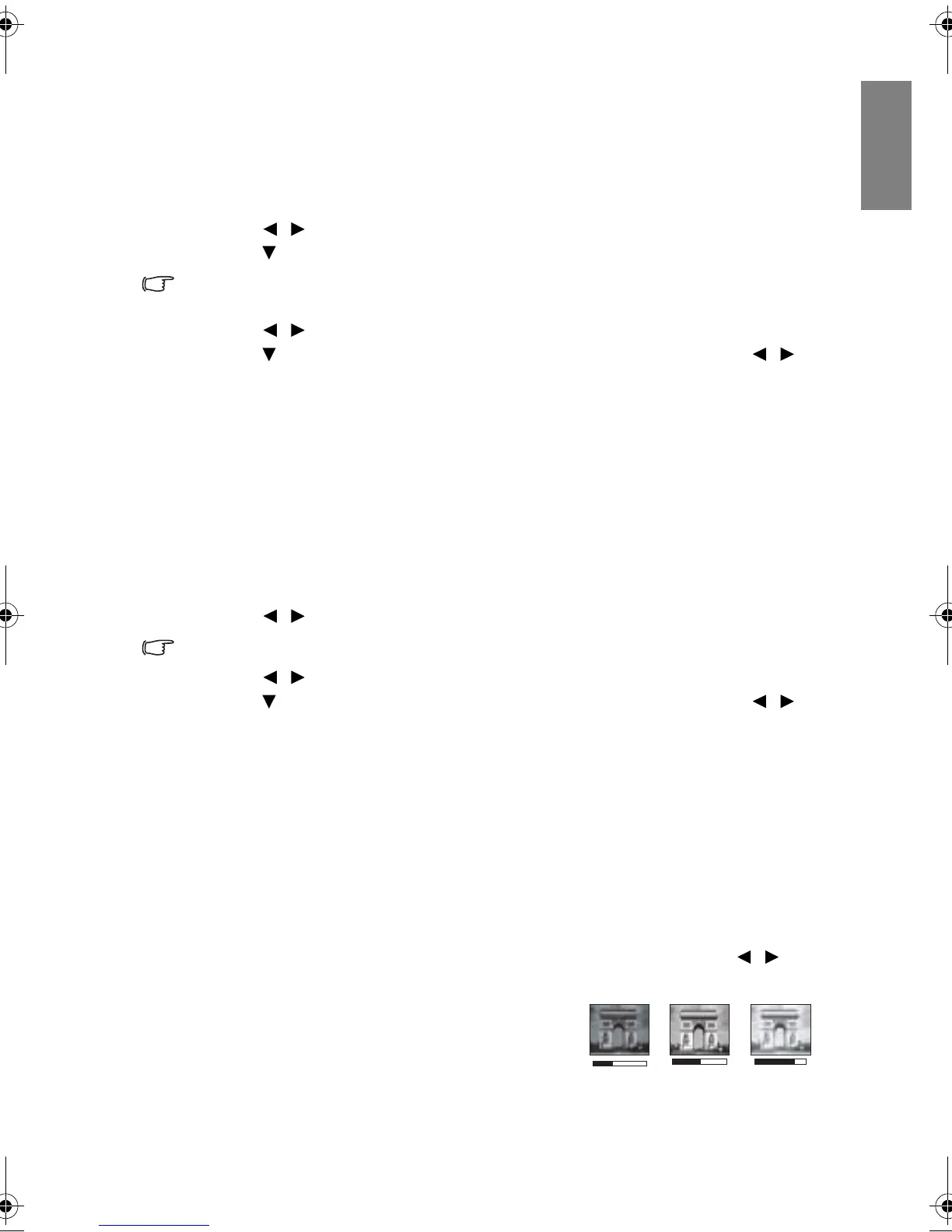
Highlight Brightness in the PICTURE menu and adjust the values by pressing / on
the projector or remote control.
The higher the value, the brighter the image. And lower
the set
ting, darker the image. Adjust this control so the
black areas of the image appear just as black and that
detail in the dark areas is visible.
BenQ W703D.book Page 39 Friday, November 25, 2011 9:49 AM



 To Next Page